<feed xmlns="http://www.w3.org/2005/Atom">
  <title>PixelCompute Blog</title>
  <link href="https://blog.pixelcompute.com/feed.xml" rel="self"/>
  <link href="https://blog.pixelcompute.com"/>
  <id>https://blog.pixelcompute.com</id>
  <entry>
    <title>
      <![CDATA[Multi-browser testing using Playwright]]>
    </title>
    <authors>
      <name>S Varun</name>
    </authors>
    <link href="https://blog.pixelcompute.com/p/multi-browser-testing-using-playwright"/>
    <updated>2025-01-17T14:38:56Z</updated>
    <id>https://blog.pixelcompute.com/p/multi-browser-testing-using-playwright</id>
    <content type="html">
      <![CDATA[
<div class="header-wrapper">
<h1 id="introduction">Introduction</h1>
<a class="header-wrapper__link" href="#introduction">
  <span class="header-link-icon-wrapper">
    <svg fill="currentColor" width="16" height="16" class="publish-link-anchor-icon" viewbox="0 0 16 16">
      <path d="M7.775 3.275a.75.75 0 001.06 1.06l1.25-1.25a2 2 0 112.83 2.83l-2.5 2.5a2 2 0 01-2.83 0 .75.75 0 00-1.06 1.06 3.5 3.5 0 004.95 0l2.5-2.5a3.5 3.5 0 00-4.95-4.95l-1.25 1.25zm-4.69 9.64a2 2 0 010-2.83l2.5-2.5a2 2 0 012.83 0 .75.75 0 001.06-1.06 3.5 3.5 0 00-4.95 0l-2.5 2.5a3.5 3.5 0 004.95 4.95l1.25-1.25a.75.75 0 00-1.06-1.06l-1.25 1.25a2 2 0 01-2.83 0z"></path>
    </svg>
  </span>
</a>
</div>
<p>Cross-browser or multi-browser testing involves testing the application across various browsers.</p>
<p>Some of the most popular browsers include Chrome, Firefox and Safari. With Playwright, cross-browser testing is supported out of the box. In this blog post, we will explore how to configure and run tests for different browsers in Playwright.</p>
<div class="header-wrapper">
<h1 id="why-is-cross-browser-testing-needed">Why is cross-browser testing needed?</h1>
<a class="header-wrapper__link" href="#why-is-cross-browser-testing-needed">
  <span class="header-link-icon-wrapper">
    <svg fill="currentColor" width="16" height="16" class="publish-link-anchor-icon" viewbox="0 0 16 16">
      <path d="M7.775 3.275a.75.75 0 001.06 1.06l1.25-1.25a2 2 0 112.83 2.83l-2.5 2.5a2 2 0 01-2.83 0 .75.75 0 00-1.06 1.06 3.5 3.5 0 004.95 0l2.5-2.5a3.5 3.5 0 00-4.95-4.95l-1.25 1.25zm-4.69 9.64a2 2 0 010-2.83l2.5-2.5a2 2 0 012.83 0 .75.75 0 001.06-1.06 3.5 3.5 0 00-4.95 0l-2.5 2.5a3.5 3.5 0 004.95 4.95l1.25-1.25a.75.75 0 00-1.06-1.06l-1.25 1.25a2 2 0 01-2.83 0z"></path>
    </svg>
  </span>
</a>
</div>
<p>Users will access the web application in different browsers. So it is necessary to test the web application across multiple browsers to ensure that all features work as intended across them.</p>
<p>If we neglect to ensure that the web application functions properly across all browsers, users may migrate to competitive web applications, potentially resulting in a loss of users. Employing cross-browser testing enables us to guarantee that our web application functions seamlessly across all browsers.</p>
<div class="header-wrapper">
<h1 id="how-to-do-cross-browser-testing-using-playwright">How to do cross browser testing using Playwright?</h1>
<a class="header-wrapper__link" href="#how-to-do-cross-browser-testing-using-playwright">
  <span class="header-link-icon-wrapper">
    <svg fill="currentColor" width="16" height="16" class="publish-link-anchor-icon" viewbox="0 0 16 16">
      <path d="M7.775 3.275a.75.75 0 001.06 1.06l1.25-1.25a2 2 0 112.83 2.83l-2.5 2.5a2 2 0 01-2.83 0 .75.75 0 00-1.06 1.06 3.5 3.5 0 004.95 0l2.5-2.5a3.5 3.5 0 00-4.95-4.95l-1.25 1.25zm-4.69 9.64a2 2 0 010-2.83l2.5-2.5a2 2 0 012.83 0 .75.75 0 001.06-1.06 3.5 3.5 0 00-4.95 0l-2.5 2.5a3.5 3.5 0 004.95 4.95l1.25-1.25a.75.75 0 00-1.06-1.06l-1.25 1.25a2 2 0 01-2.83 0z"></path>
    </svg>
  </span>
</a>
</div>
<p>There are mainly two approaches to cross-browser testing:</p>
<ul>
<li><p>Project level.</p></li>
<li><p>Test level.</p></li>
</ul>
<div class="header-wrapper">
<h3 id="project-level-cross-browser-testing">Project level cross browser testing</h3>
<a class="header-wrapper__link" href="#project-level-cross-browser-testing">
  <span class="header-link-icon-wrapper">
    <svg fill="currentColor" width="16" height="16" class="publish-link-anchor-icon" viewbox="0 0 16 16">
      <path d="M7.775 3.275a.75.75 0 001.06 1.06l1.25-1.25a2 2 0 112.83 2.83l-2.5 2.5a2 2 0 01-2.83 0 .75.75 0 00-1.06 1.06 3.5 3.5 0 004.95 0l2.5-2.5a3.5 3.5 0 00-4.95-4.95l-1.25 1.25zm-4.69 9.64a2 2 0 010-2.83l2.5-2.5a2 2 0 012.83 0 .75.75 0 001.06-1.06 3.5 3.5 0 00-4.95 0l-2.5 2.5a3.5 3.5 0 004.95 4.95l1.25-1.25a.75.75 0 00-1.06-1.06l-1.25 1.25a2 2 0 01-2.83 0z"></path>
    </svg>
  </span>
</a>
</div>
<p>Let’s take a look into project level cross-browser testing. Browsers such as Chrome, Edge, and Safari are built upon internal browser projects. For instance, Google Chrome relies on the Chromium project. We add the project-level configuration under the projects block in the Playwright configuration file (<code>playwright.config.ts</code>).</p>
<p>To do this, make the following changes in the project section of the config file.</p>
<pre data-highlighted-lines=""><code class="language-typescript">import { defineConfig, devices } from '@playwright/test';

export default defineConfig({
  ... other configurations
  projects: [
    /* Test against desktop browsers */
    {
      name: 'chromium',
      use: { ...devices['Desktop Chrome'] },
    },
    {
      name: 'firefox',
      use: { ...devices['Desktop Firefox'] },
    },
    {
      name: 'webkit',
      use: { ...devices['Desktop Safari'] },
    },
    /* Test against mobile viewports. */
    {
      name: 'Mobile Chrome',
      use: { ...devices['Pixel 5'] },
    },
    {
      name: 'Mobile Safari',
      use: { ...devices['iPhone 12'] },
    },
    /* Test against branded browsers. */
    {
      name: 'Google Chrome',
      use: { ...devices['Desktop Chrome'], channel: 'chrome' }, // or 'chrome-beta'
    },
    {
      name: 'Microsoft Edge',
      use: { ...devices['Desktop Edge'], channel: 'msedge' }, // or 'msedge-dev'
    },
  ],
});</code></pre>
<p>The <code>defineConfig</code> is the method that Playwright uses to define the configuration upon which the Playwright tests are running.</p>
<p>The <code>devices</code> object from Playwright consists of the most commonly used browsers available in the market, this includes both the desktop browsers as well as the mobile view browsers because Playwright supports mobile viewport testing out of the box.</p>
<p>Apart from that playwright supports branded browsers like <code>Microsoft Edge</code>, <code>Google Chrome</code> etc.</p>
<p>Since we have not given any test match pattern, Playwright will run all the tests with the configuration mentioned in the project blocks by default.</p>
<p>To run the tests we can execute the following command.</p>
<pre data-highlighted-lines=""><code class="language-bash">npx playwright test</code></pre>
<p>This will trigger all the tests in all specified browsers inside the config file. Since we added mobile viewports and branded browsers. The tests will run on these devices as well. This means that if we have one test, it will run seven times in different device configurations specified in the projects blocks of the <code>playwright.config.ts</code> file.</p>
<p>Apart from this, we can run tests only in specified browsers by passing the <code>--project</code> flag as below.</p>
<pre data-highlighted-lines=""><code class="language-bash">npx playwright test --project=chromium</code></pre>
<p>Here <code>chromium</code> is the name of the project given in the above example.</p>
<p>By using the above command, we can run tests only in the <code>chromium</code> browser.</p>
<div class="header-wrapper">
<h3 id="test-level-cross-browser-testing">Test level cross browser testing</h3>
<a class="header-wrapper__link" href="#test-level-cross-browser-testing">
  <span class="header-link-icon-wrapper">
    <svg fill="currentColor" width="16" height="16" class="publish-link-anchor-icon" viewbox="0 0 16 16">
      <path d="M7.775 3.275a.75.75 0 001.06 1.06l1.25-1.25a2 2 0 112.83 2.83l-2.5 2.5a2 2 0 01-2.83 0 .75.75 0 00-1.06 1.06 3.5 3.5 0 004.95 0l2.5-2.5a3.5 3.5 0 00-4.95-4.95l-1.25 1.25zm-4.69 9.64a2 2 0 010-2.83l2.5-2.5a2 2 0 012.83 0 .75.75 0 001.06-1.06 3.5 3.5 0 00-4.95 0l-2.5 2.5a3.5 3.5 0 004.95 4.95l1.25-1.25a.75.75 0 00-1.06-1.06l-1.25 1.25a2 2 0 01-2.83 0z"></path>
    </svg>
  </span>
</a>
</div>
<p>Let’s see how we can do cross-browser testing in test level. In-order to demonstrate, let’s add one test case.</p>
<pre data-highlighted-lines=""><code class="language-typescript">import { test, expect } from '@playwright/test';

test('has title', async ({ page }) =&gt; {
  await page.goto('https://playwright.dev/');
  await expect(page).toHaveTitle(/Playwright/);
});</code></pre>
<p>This test will run in the projects specified in the config file. Let's override it to run it in a specified browser within the test block.</p>
<pre data-highlighted-lines=""><code class="language-typescript">import { chromium, test, expect } from '@playwright/test';

test('has title', async () =&gt; {
  const browser = await chromium.launch();
  const context = await browser.newContext();
  const page = await context.newPage();
  await page.goto('https://playwright.dev/');
  await expect(page).toHaveTitle(/Playwright/);
});</code></pre>
<p>For the above test case irrespective of the projects configuration, it will run the test in the <code>chromium</code> browser.</p>
<div class="header-wrapper">
<h1 id="conclusion">Conclusion</h1>
<a class="header-wrapper__link" href="#conclusion">
  <span class="header-link-icon-wrapper">
    <svg fill="currentColor" width="16" height="16" class="publish-link-anchor-icon" viewbox="0 0 16 16">
      <path d="M7.775 3.275a.75.75 0 001.06 1.06l1.25-1.25a2 2 0 112.83 2.83l-2.5 2.5a2 2 0 01-2.83 0 .75.75 0 00-1.06 1.06 3.5 3.5 0 004.95 0l2.5-2.5a3.5 3.5 0 00-4.95-4.95l-1.25 1.25zm-4.69 9.64a2 2 0 010-2.83l2.5-2.5a2 2 0 012.83 0 .75.75 0 001.06-1.06 3.5 3.5 0 00-4.95 0l-2.5 2.5a3.5 3.5 0 004.95 4.95l1.25-1.25a.75.75 0 00-1.06-1.06l-1.25 1.25a2 2 0 01-2.83 0z"></path>
    </svg>
  </span>
</a>
</div>
<p>Playwright supports cross-browser testing out of the box by modifying projects within the config file. This process aids in identifying compatibility issues arising from browser-specific rendering of HTML, CSS, and JavaScript, thereby helping developers detect potential issues earlier in the development cycle.</p>
]]>

    </content>
  </entry>
  <entry>
    <title>
      <![CDATA[Playwright Tips and Tricks]]>
    </title>
    <authors>
      <name>S Varun</name>
    </authors>
    <link href="https://blog.pixelcompute.com/p/playwright-tips-and-tricks"/>
    <updated>2025-01-17T13:44:10Z</updated>
    <id>https://blog.pixelcompute.com/p/playwright-tips-and-tricks</id>
    <content type="html">
      <![CDATA[
<div class="header-wrapper">
<h4 id="tipsntricks-20">TipsNTricks #20</h4>
<a class="header-wrapper__link" href="#tipsntricks-20">
  <span class="header-link-icon-wrapper">
    <svg fill="currentColor" width="16" height="16" class="publish-link-anchor-icon" viewbox="0 0 16 16">
      <path d="M7.775 3.275a.75.75 0 001.06 1.06l1.25-1.25a2 2 0 112.83 2.83l-2.5 2.5a2 2 0 01-2.83 0 .75.75 0 00-1.06 1.06 3.5 3.5 0 004.95 0l2.5-2.5a3.5 3.5 0 00-4.95-4.95l-1.25 1.25zm-4.69 9.64a2 2 0 010-2.83l2.5-2.5a2 2 0 012.83 0 .75.75 0 001.06-1.06 3.5 3.5 0 00-4.95 0l-2.5 2.5a3.5 3.5 0 004.95 4.95l1.25-1.25a.75.75 0 00-1.06-1.06l-1.25 1.25a2 2 0 01-2.83 0z"></path>
    </svg>
  </span>
</a>
</div>
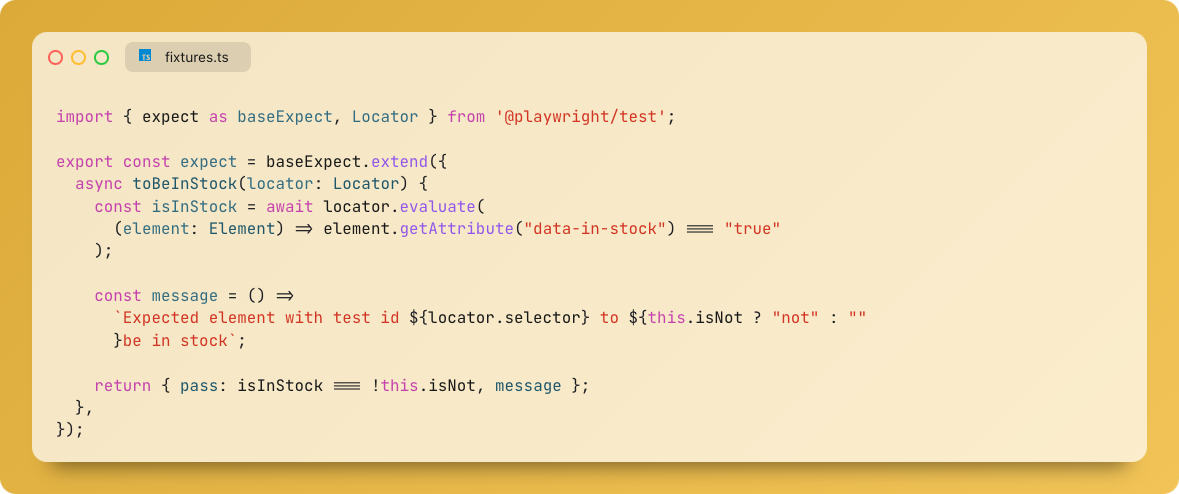
<p><br>Create reusable assertions and custom checks with "expect.extend". It's like building your shortcuts for testing.</p>
<p></p>
<div class="neeto-editor__image-wrapper neeto-editor__image--left"><figure><a href="https://assets-cdn.neetopublish.com/rails/active_storage/blobs/proxy/eyJfcmFpbHMiOnsiZGF0YSI6Ijk3ZTE0NjBjLTk1NzQtNGExZS1iOWFmLWQ4YjdiZjA1OWU3YyIsInB1ciI6ImJsb2JfaWQifX0=--68d473d86979c2cce745c76cf5931768403a60e3/image.png" target="_blank" rel="noopener noreferrer" class="neeto-editor__image" style="height:301.6971350613916px;width:718px;display:inline-block;pointer-events:none;"><img id="i5h6f" src="https://assets-cdn.neetopublish.com/rails/active_storage/blobs/proxy/eyJfcmFpbHMiOnsiZGF0YSI6Ijk3ZTE0NjBjLTk1NzQtNGExZS1iOWFmLWQ4YjdiZjA1OWU3YyIsInB1ciI6ImJsb2JfaWQifX0=--68d473d86979c2cce745c76cf5931768403a60e3/image.png" alt="" figheight="301.6971350613916" figwidth="718" align="left" draggable="false" contenteditable="false"></a><figcaption style="width:718px;"></figcaption></figure></div>
<p><br>Here is how you would use it in a test</p>
<p></p>
<div class="neeto-editor__image-wrapper neeto-editor__image--left"><figure><a href="https://assets-cdn.neetopublish.com/rails/active_storage/blobs/proxy/eyJfcmFpbHMiOnsiZGF0YSI6IjgwMjgzYTlkLTYzNTQtNDMyOC1iMzlhLTU2OWE5ODgyZjgwNyIsInB1ciI6ImJsb2JfaWQifX0=--5572bfac0e89c3cfba8ee2955f08aaa4092da554/image.png" target="_blank" rel="noopener noreferrer" class="neeto-editor__image" style="height:192.96862210095497px;width:718px;display:inline-block;pointer-events:none;"><img id="r2js7d" src="https://assets-cdn.neetopublish.com/rails/active_storage/blobs/proxy/eyJfcmFpbHMiOnsiZGF0YSI6IjgwMjgzYTlkLTYzNTQtNDMyOC1iMzlhLTU2OWE5ODgyZjgwNyIsInB1ciI6ImJsb2JfaWQifX0=--5572bfac0e89c3cfba8ee2955f08aaa4092da554/image.png" alt="" figheight="192.96862210095497" figwidth="718" align="left" draggable="false" contenteditable="false"></a><figcaption style="width:718px;"></figcaption></figure></div>
<div class="header-wrapper">
<h4 id="tipsntricks-19">
<br>TipsNTricks #19</h4>
<a class="header-wrapper__link" href="#tipsntricks-19">
  <span class="header-link-icon-wrapper">
    <svg fill="currentColor" width="16" height="16" class="publish-link-anchor-icon" viewbox="0 0 16 16">
      <path d="M7.775 3.275a.75.75 0 001.06 1.06l1.25-1.25a2 2 0 112.83 2.83l-2.5 2.5a2 2 0 01-2.83 0 .75.75 0 00-1.06 1.06 3.5 3.5 0 004.95 0l2.5-2.5a3.5 3.5 0 00-4.95-4.95l-1.25 1.25zm-4.69 9.64a2 2 0 010-2.83l2.5-2.5a2 2 0 012.83 0 .75.75 0 001.06-1.06 3.5 3.5 0 00-4.95 0l-2.5 2.5a3.5 3.5 0 004.95 4.95l1.25-1.25a.75.75 0 00-1.06-1.06l-1.25 1.25a2 2 0 01-2.83 0z"></path>
    </svg>
  </span>
</a>
</div>
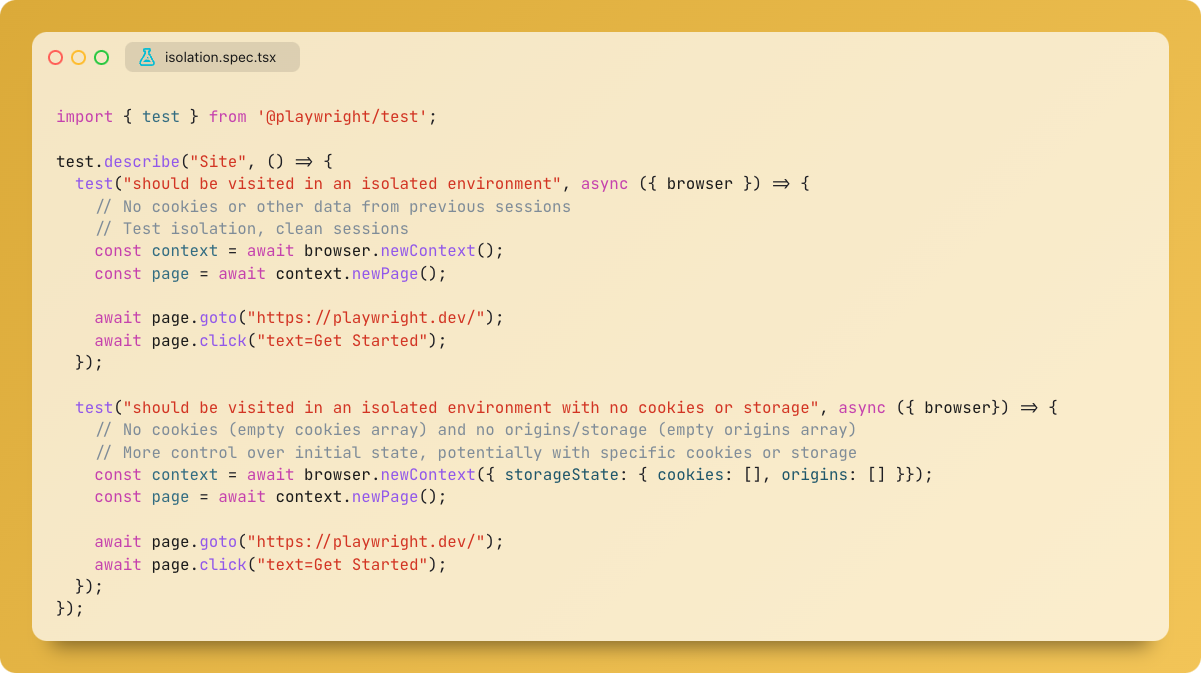
<p><br>Isolating tests with browser contexts? Here's how you can do it <br><code>browser.newContext() </code><br>                vs<br><code>browser.newContext({ storageState: { cookies: [], origins: [] }});</code></p>
<p></p>
<div class="neeto-editor__image-wrapper neeto-editor__image--left"><figure><a href="https://assets-cdn.neetopublish.com/rails/active_storage/blobs/proxy/eyJfcmFpbHMiOnsiZGF0YSI6ImY0N2M0ZTcxLWE2OWMtNDhjYy1iOTcyLTZlYjY2YTNiMmJhOCIsInB1ciI6ImJsb2JfaWQifX0=--a8038cf562d5ce63d7ae4677fcbb35154e076825/image.png" target="_blank" rel="noopener noreferrer" class="neeto-editor__image" style="height:403.568894952251px;width:718px;display:inline-block;pointer-events:none;"><img id="j0y85o" src="https://assets-cdn.neetopublish.com/rails/active_storage/blobs/proxy/eyJfcmFpbHMiOnsiZGF0YSI6ImY0N2M0ZTcxLWE2OWMtNDhjYy1iOTcyLTZlYjY2YTNiMmJhOCIsInB1ciI6ImJsb2JfaWQifX0=--a8038cf562d5ce63d7ae4677fcbb35154e076825/image.png" alt="" figheight="403.568894952251" figwidth="718" align="left" draggable="false" contenteditable="false"></a><figcaption style="width:718px;"></figcaption></figure></div>
<div class="header-wrapper">
<h4 id="tipsntricks-18">
<br>TipsNTricks #18</h4>
<a class="header-wrapper__link" href="#tipsntricks-18">
  <span class="header-link-icon-wrapper">
    <svg fill="currentColor" width="16" height="16" class="publish-link-anchor-icon" viewbox="0 0 16 16">
      <path d="M7.775 3.275a.75.75 0 001.06 1.06l1.25-1.25a2 2 0 112.83 2.83l-2.5 2.5a2 2 0 01-2.83 0 .75.75 0 00-1.06 1.06 3.5 3.5 0 004.95 0l2.5-2.5a3.5 3.5 0 00-4.95-4.95l-1.25 1.25zm-4.69 9.64a2 2 0 010-2.83l2.5-2.5a2 2 0 012.83 0 .75.75 0 001.06-1.06 3.5 3.5 0 00-4.95 0l-2.5 2.5a3.5 3.5 0 004.95 4.95l1.25-1.25a.75.75 0 00-1.06-1.06l-1.25 1.25a2 2 0 01-2.83 0z"></path>
    </svg>
  </span>
</a>
</div>
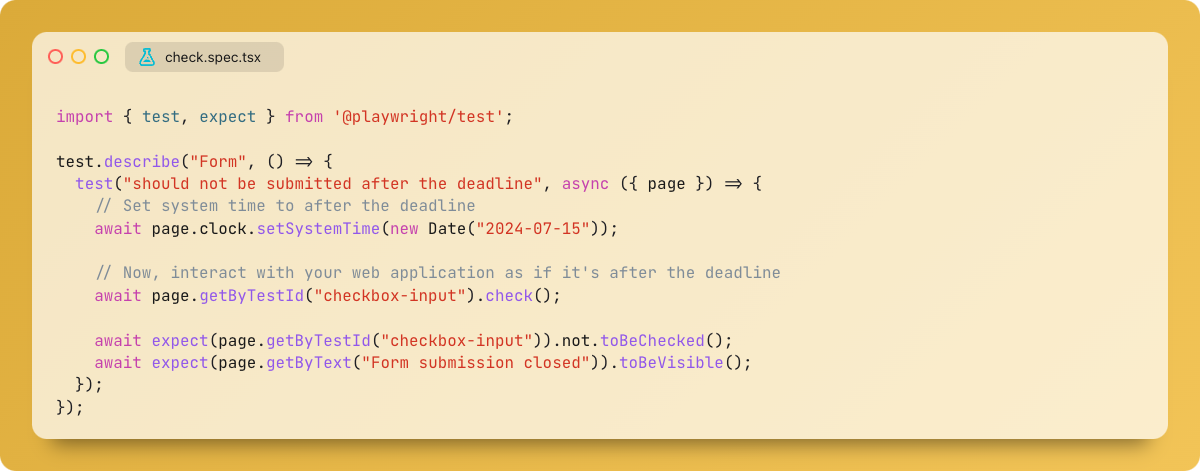
<p><br>Playwright v1.45 got a time machine!<br>The new "clock.setSystemTime" lets you control the system time within your tests.</p>
<p></p>
<div class="neeto-editor__image-wrapper neeto-editor__image--left"><figure><a href="https://assets-cdn.neetopublish.com/rails/active_storage/blobs/proxy/eyJfcmFpbHMiOnsiZGF0YSI6IjY2YmRkZjk3LTdjMjctNGFiNS1hNjA0LWE0NDQ0MDRiZjA1MyIsInB1ciI6ImJsb2JfaWQifX0=--1eeb3e0c3e62baea00b9afb354dd1def2f8b5c72/image.png" target="_blank" rel="noopener noreferrer" class="neeto-editor__image" style="height:283.08594815825376px;width:718px;display:inline-block;pointer-events:none;"><img id="t94hkb" src="https://assets-cdn.neetopublish.com/rails/active_storage/blobs/proxy/eyJfcmFpbHMiOnsiZGF0YSI6IjY2YmRkZjk3LTdjMjctNGFiNS1hNjA0LWE0NDQ0MDRiZjA1MyIsInB1ciI6ImJsb2JfaWQifX0=--1eeb3e0c3e62baea00b9afb354dd1def2f8b5c72/image.png" alt="" figheight="283.08594815825376" figwidth="718" align="left" draggable="false" contenteditable="false"></a><figcaption style="width:718px;"></figcaption></figure></div>
<div class="header-wrapper">
<h4 id="tipsntricks-17">TipsNTricks #17</h4>
<a class="header-wrapper__link" href="#tipsntricks-17">
  <span class="header-link-icon-wrapper">
    <svg fill="currentColor" width="16" height="16" class="publish-link-anchor-icon" viewbox="0 0 16 16">
      <path d="M7.775 3.275a.75.75 0 001.06 1.06l1.25-1.25a2 2 0 112.83 2.83l-2.5 2.5a2 2 0 01-2.83 0 .75.75 0 00-1.06 1.06 3.5 3.5 0 004.95 0l2.5-2.5a3.5 3.5 0 00-4.95-4.95l-1.25 1.25zm-4.69 9.64a2 2 0 010-2.83l2.5-2.5a2 2 0 012.83 0 .75.75 0 001.06-1.06 3.5 3.5 0 00-4.95 0l-2.5 2.5a3.5 3.5 0 004.95 4.95l1.25-1.25a.75.75 0 00-1.06-1.06l-1.25 1.25a2 2 0 01-2.83 0z"></path>
    </svg>
  </span>
</a>
</div>
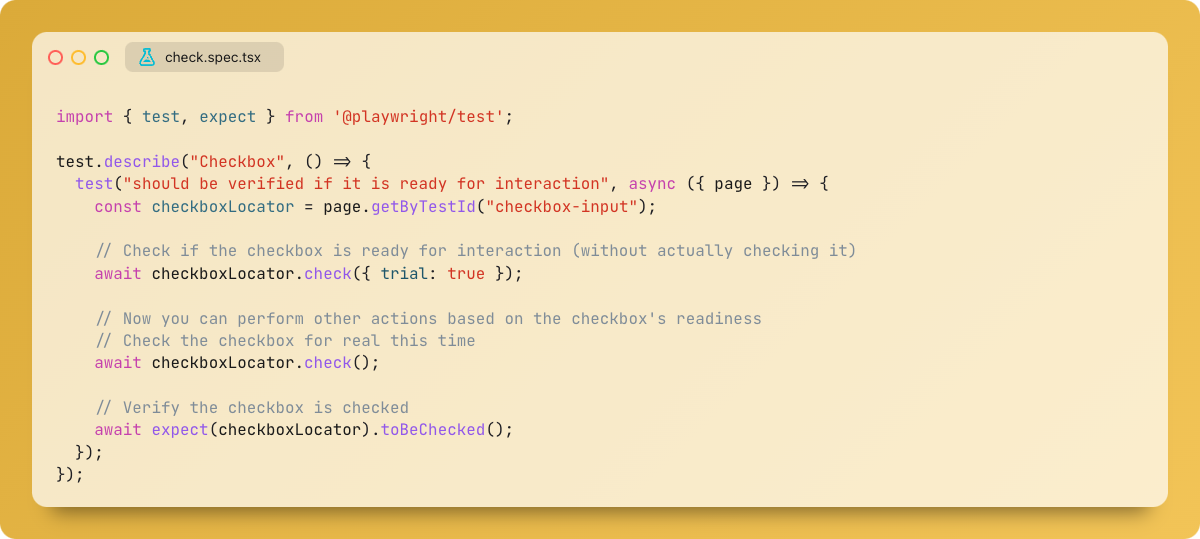
<p><br>Use trial option with "locator.check" to verify a checkbox/radio is ready for interaction. Great for checking element state before continuing your test!</p>
<p></p>
<div class="neeto-editor__image-wrapper neeto-editor__image--left"><figure><a href="https://assets-cdn.neetopublish.com/rails/active_storage/blobs/proxy/eyJfcmFpbHMiOnsiZGF0YSI6IjY0MGRiOGE0LTA0NDUtNDdhNy04ZGIwLTRmNzQ1ZGZhOTc1YyIsInB1ciI6ImJsb2JfaWQifX0=--1af821802c042492c51c7283e9d9adfee4892ddb/image.png" target="_blank" rel="noopener noreferrer" class="neeto-editor__image" style="height:323.2469304229195px;width:718px;display:inline-block;pointer-events:none;"><img id="pme96d" src="https://assets-cdn.neetopublish.com/rails/active_storage/blobs/proxy/eyJfcmFpbHMiOnsiZGF0YSI6IjY0MGRiOGE0LTA0NDUtNDdhNy04ZGIwLTRmNzQ1ZGZhOTc1YyIsInB1ciI6ImJsb2JfaWQifX0=--1af821802c042492c51c7283e9d9adfee4892ddb/image.png" alt="" figheight="323.2469304229195" figwidth="718" align="left" draggable="false" contenteditable="false"></a><figcaption style="width:718px;"></figcaption></figure></div>
<div class="header-wrapper">
<h4 id="tipsntricks-16">TipsNTricks #16</h4>
<a class="header-wrapper__link" href="#tipsntricks-16">
  <span class="header-link-icon-wrapper">
    <svg fill="currentColor" width="16" height="16" class="publish-link-anchor-icon" viewbox="0 0 16 16">
      <path d="M7.775 3.275a.75.75 0 001.06 1.06l1.25-1.25a2 2 0 112.83 2.83l-2.5 2.5a2 2 0 01-2.83 0 .75.75 0 00-1.06 1.06 3.5 3.5 0 004.95 0l2.5-2.5a3.5 3.5 0 00-4.95-4.95l-1.25 1.25zm-4.69 9.64a2 2 0 010-2.83l2.5-2.5a2 2 0 012.83 0 .75.75 0 001.06-1.06 3.5 3.5 0 00-4.95 0l-2.5 2.5a3.5 3.5 0 004.95 4.95l1.25-1.25a.75.75 0 00-1.06-1.06l-1.25 1.25a2 2 0 01-2.83 0z"></path>
    </svg>
  </span>
</a>
</div>
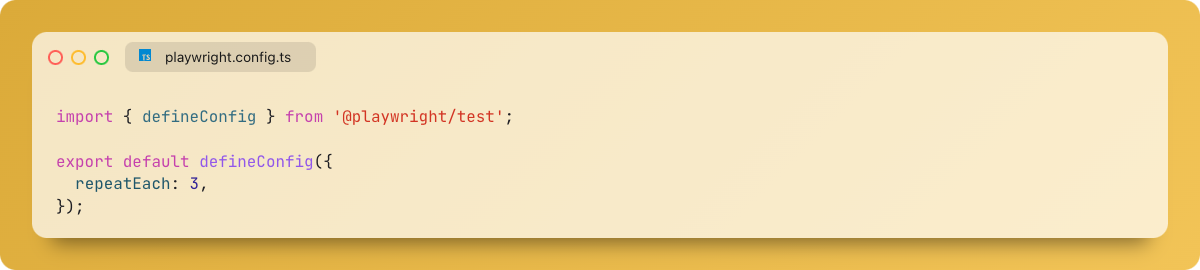
<p>Having trouble with tests failing randomly in Playwright? Run each test multiple times with "repeatEach" to catch those random failures and make your tests more reliable.</p>
<p></p>
<div class="neeto-editor__image-wrapper neeto-editor__image--left"><figure><a href="https://assets-cdn.neetopublish.com/rails/active_storage/blobs/proxy/eyJfcmFpbHMiOnsiZGF0YSI6IjU0NDBlYjQ5LTkwNWItNDRiYi1hZjViLTVkMWM2OGE4OTc5ZiIsInB1ciI6ImJsb2JfaWQifX0=--e7d9db4d0b68c131607061f33364244e12562bea/image.png" target="_blank" rel="noopener noreferrer" class="neeto-editor__image" style="height:162.60300136425647px;width:718px;display:inline-block;pointer-events:none;"><img id="ks1u2k" src="https://assets-cdn.neetopublish.com/rails/active_storage/blobs/proxy/eyJfcmFpbHMiOnsiZGF0YSI6IjU0NDBlYjQ5LTkwNWItNDRiYi1hZjViLTVkMWM2OGE4OTc5ZiIsInB1ciI6ImJsb2JfaWQifX0=--e7d9db4d0b68c131607061f33364244e12562bea/image.png" alt="" figheight="162.60300136425647" figwidth="718" align="left" draggable="false" contenteditable="false"></a><figcaption style="width:718px;"></figcaption></figure></div>
<div class="header-wrapper">
<h4 id="tipsntricks-15">TipsNTricks #15</h4>
<a class="header-wrapper__link" href="#tipsntricks-15">
  <span class="header-link-icon-wrapper">
    <svg fill="currentColor" width="16" height="16" class="publish-link-anchor-icon" viewbox="0 0 16 16">
      <path d="M7.775 3.275a.75.75 0 001.06 1.06l1.25-1.25a2 2 0 112.83 2.83l-2.5 2.5a2 2 0 01-2.83 0 .75.75 0 00-1.06 1.06 3.5 3.5 0 004.95 0l2.5-2.5a3.5 3.5 0 00-4.95-4.95l-1.25 1.25zm-4.69 9.64a2 2 0 010-2.83l2.5-2.5a2 2 0 012.83 0 .75.75 0 001.06-1.06 3.5 3.5 0 00-4.95 0l-2.5 2.5a3.5 3.5 0 004.95 4.95l1.25-1.25a.75.75 0 00-1.06-1.06l-1.25 1.25a2 2 0 01-2.83 0z"></path>
    </svg>
  </span>
</a>
</div>
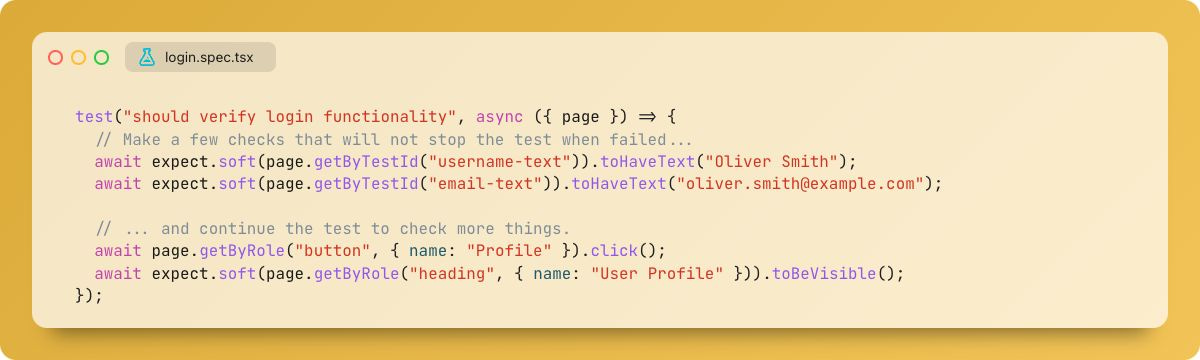
<p>Don't let failing checks stop your tests! <br>Playwright's soft assertions let your test run &amp; catch multiple issues at once.</p>
<p></p>
<div class="neeto-editor__image-wrapper neeto-editor__image--left"><figure><a href="https://assets-cdn.neetopublish.com/rails/active_storage/blobs/proxy/eyJfcmFpbHMiOnsiZGF0YSI6Ijk5MTY3YWY3LTQ5NDQtNGFhOC05YmIyLWZhYzlmNGQ2MTFjMCIsInB1ciI6ImJsb2JfaWQifX0=--697fcbedc796f95dac25b25b88a239eaed65bcb2/image.png" target="_blank" rel="noopener noreferrer" class="neeto-editor__image" style="height:216.4774897680764px;width:718px;display:inline-block;pointer-events:none;"><img id="u2gh5" src="https://assets-cdn.neetopublish.com/rails/active_storage/blobs/proxy/eyJfcmFpbHMiOnsiZGF0YSI6Ijk5MTY3YWY3LTQ5NDQtNGFhOC05YmIyLWZhYzlmNGQ2MTFjMCIsInB1ciI6ImJsb2JfaWQifX0=--697fcbedc796f95dac25b25b88a239eaed65bcb2/image.png" alt="" figheight="216.4774897680764" figwidth="718" align="left" draggable="false" contenteditable="false"></a><figcaption style="width:718px;"></figcaption></figure></div>
<div class="header-wrapper">
<h4 id="tipsntricks-14">TipsNTricks #14</h4>
<a class="header-wrapper__link" href="#tipsntricks-14">
  <span class="header-link-icon-wrapper">
    <svg fill="currentColor" width="16" height="16" class="publish-link-anchor-icon" viewbox="0 0 16 16">
      <path d="M7.775 3.275a.75.75 0 001.06 1.06l1.25-1.25a2 2 0 112.83 2.83l-2.5 2.5a2 2 0 01-2.83 0 .75.75 0 00-1.06 1.06 3.5 3.5 0 004.95 0l2.5-2.5a3.5 3.5 0 00-4.95-4.95l-1.25 1.25zm-4.69 9.64a2 2 0 010-2.83l2.5-2.5a2 2 0 012.83 0 .75.75 0 001.06-1.06 3.5 3.5 0 00-4.95 0l-2.5 2.5a3.5 3.5 0 004.95 4.95l1.25-1.25a.75.75 0 00-1.06-1.06l-1.25 1.25a2 2 0 01-2.83 0z"></path>
    </svg>
  </span>
</a>
</div>
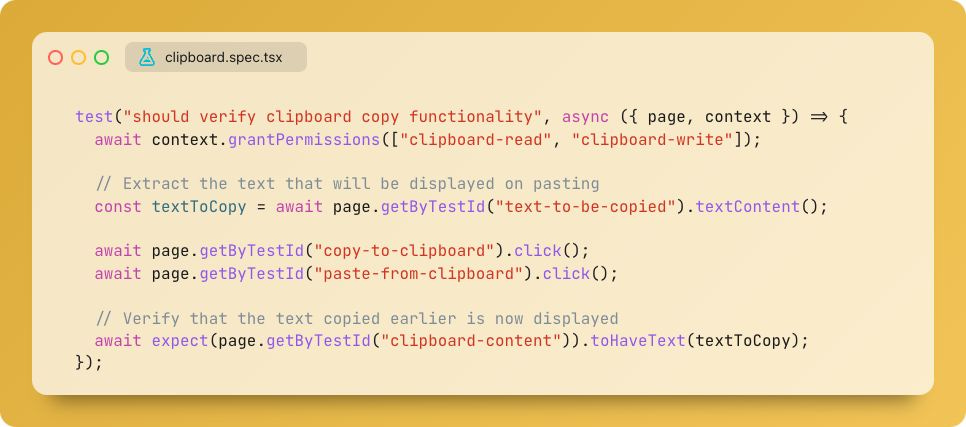
<p><code>grantPermissions</code> lets you simulate user-granted permissions for your contexts!<br>Give your tests access to clipboard, camera, microphone &amp; more!</p>
<p></p>
<div class="neeto-editor__image-wrapper neeto-editor__image--left"><figure><a href="https://assets-cdn.neetopublish.com/rails/active_storage/blobs/proxy/eyJfcmFpbHMiOnsiZGF0YSI6IjM2Zjg2ODgwLTZhM2MtNDE1NS1iZTdlLTZkZTQ3NDI3NDNjZiIsInB1ciI6ImJsb2JfaWQifX0=--b712e6b427e33c4ddcb8075ff5df5e3b1468dda9/image.png" target="_blank" rel="noopener noreferrer" class="neeto-editor__image" style="height:318.3492496589359px;width:718px;display:inline-block;pointer-events:none;"><img id="l9fp5l" src="https://assets-cdn.neetopublish.com/rails/active_storage/blobs/proxy/eyJfcmFpbHMiOnsiZGF0YSI6IjM2Zjg2ODgwLTZhM2MtNDE1NS1iZTdlLTZkZTQ3NDI3NDNjZiIsInB1ciI6ImJsb2JfaWQifX0=--b712e6b427e33c4ddcb8075ff5df5e3b1468dda9/image.png" alt="" figheight="318.3492496589359" figwidth="718" align="left" draggable="false" contenteditable="false"></a><figcaption style="width:718px;"></figcaption></figure></div>
<div class="header-wrapper">
<h4 id="tipsntricks-13">TipsNTricks #13</h4>
<a class="header-wrapper__link" href="#tipsntricks-13">
  <span class="header-link-icon-wrapper">
    <svg fill="currentColor" width="16" height="16" class="publish-link-anchor-icon" viewbox="0 0 16 16">
      <path d="M7.775 3.275a.75.75 0 001.06 1.06l1.25-1.25a2 2 0 112.83 2.83l-2.5 2.5a2 2 0 01-2.83 0 .75.75 0 00-1.06 1.06 3.5 3.5 0 004.95 0l2.5-2.5a3.5 3.5 0 00-4.95-4.95l-1.25 1.25zm-4.69 9.64a2 2 0 010-2.83l2.5-2.5a2 2 0 012.83 0 .75.75 0 001.06-1.06 3.5 3.5 0 00-4.95 0l-2.5 2.5a3.5 3.5 0 004.95 4.95l1.25-1.25a.75.75 0 00-1.06-1.06l-1.25 1.25a2 2 0 01-2.83 0z"></path>
    </svg>
  </span>
</a>
</div>
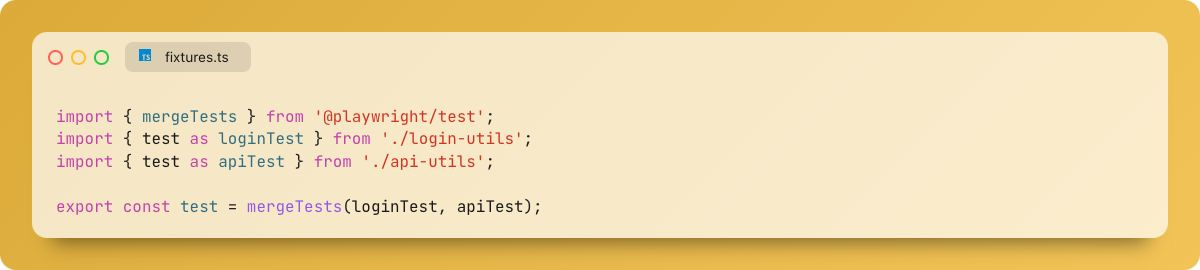
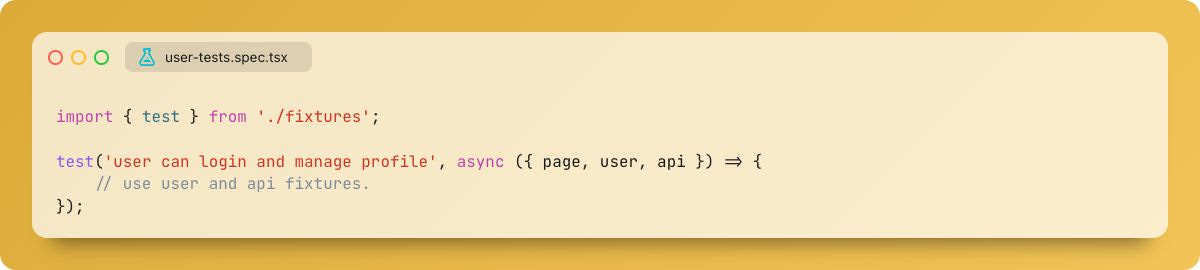
<p>Tired of juggling test fixtures across files? <br>Merge them with mergeTests!<br>Combine fixtures from multiple files for cleaner &amp; more organized tests.</p>
<p></p>
<div class="neeto-editor__image-wrapper neeto-editor__image--left"><figure><a href="https://assets-cdn.neetopublish.com/rails/active_storage/blobs/proxy/eyJfcmFpbHMiOnsiZGF0YSI6IjA4NDc5MWE1LTYzZTEtNDljYi1iODdhLWUzM2RmYTJhMTZlNyIsInB1ciI6ImJsb2JfaWQifX0=--a6ba8efdc3bbf16a3c5c19bc868661f801baab3d/image.png" target="_blank" rel="noopener noreferrer" class="neeto-editor__image" style="height:162.60300136425647px;width:718px;display:inline-block;pointer-events:none;"><img id="g3ktkm9" src="https://assets-cdn.neetopublish.com/rails/active_storage/blobs/proxy/eyJfcmFpbHMiOnsiZGF0YSI6IjA4NDc5MWE1LTYzZTEtNDljYi1iODdhLWUzM2RmYTJhMTZlNyIsInB1ciI6ImJsb2JfaWQifX0=--a6ba8efdc3bbf16a3c5c19bc868661f801baab3d/image.png" alt="" figheight="162.60300136425647" figwidth="718" align="left" draggable="false" contenteditable="false"></a><figcaption style="width:718px;"></figcaption></figure></div>
<p></p>
<div class="neeto-editor__image-wrapper neeto-editor__image--left"><figure><a href="https://assets-cdn.neetopublish.com/rails/active_storage/blobs/proxy/eyJfcmFpbHMiOnsiZGF0YSI6IjYxYTNkNGY5LWUyNmUtNGIwMy1hNWE3LTc2OTgwYTAzY2EyYyIsInB1ciI6ImJsb2JfaWQifX0=--9aeb555b7c944f8295d4f18e76849f0285d2c54c/image.png" target="_blank" rel="noopener noreferrer" class="neeto-editor__image" style="height:162.60300136425647px;width:718px;display:inline-block;pointer-events:none;"><img id="9dx4zl" src="https://assets-cdn.neetopublish.com/rails/active_storage/blobs/proxy/eyJfcmFpbHMiOnsiZGF0YSI6IjYxYTNkNGY5LWUyNmUtNGIwMy1hNWE3LTc2OTgwYTAzY2EyYyIsInB1ciI6ImJsb2JfaWQifX0=--9aeb555b7c944f8295d4f18e76849f0285d2c54c/image.png" alt="" figheight="162.60300136425647" figwidth="718" align="left" draggable="false" contenteditable="false"></a><figcaption style="width:718px;"></figcaption></figure></div>
<div class="header-wrapper">
<h4 id="tipsntricks-12">TipsNTricks #12</h4>
<a class="header-wrapper__link" href="#tipsntricks-12">
  <span class="header-link-icon-wrapper">
    <svg fill="currentColor" width="16" height="16" class="publish-link-anchor-icon" viewbox="0 0 16 16">
      <path d="M7.775 3.275a.75.75 0 001.06 1.06l1.25-1.25a2 2 0 112.83 2.83l-2.5 2.5a2 2 0 01-2.83 0 .75.75 0 00-1.06 1.06 3.5 3.5 0 004.95 0l2.5-2.5a3.5 3.5 0 00-4.95-4.95l-1.25 1.25zm-4.69 9.64a2 2 0 010-2.83l2.5-2.5a2 2 0 012.83 0 .75.75 0 001.06-1.06 3.5 3.5 0 00-4.95 0l-2.5 2.5a3.5 3.5 0 004.95 4.95l1.25-1.25a.75.75 0 00-1.06-1.06l-1.25 1.25a2 2 0 01-2.83 0z"></path>
    </svg>
  </span>
</a>
</div>
<p><code>Locator.all()</code> lets you iterate over all matching elements. Great for checking multiple checkboxes! </p>
<p></p>
<div class="neeto-editor__image-wrapper neeto-editor__image--left"><figure><a href="https://assets-cdn.neetopublish.com/rails/active_storage/blobs/proxy/eyJfcmFpbHMiOnsiZGF0YSI6ImZjYjczMTIzLTE3MzktNGMyZS1iYTkxLTQ5Yzc5ZWVmYmQxOCIsInB1ciI6ImJsb2JfaWQifX0=--3be9e39e8c413101a7433b226c3436a95940250e/image.png" target="_blank" rel="noopener noreferrer" class="neeto-editor__image" style="height:216.4774897680764px;width:718px;display:inline-block;pointer-events:none;"><img id="8gwomu" src="https://assets-cdn.neetopublish.com/rails/active_storage/blobs/proxy/eyJfcmFpbHMiOnsiZGF0YSI6ImZjYjczMTIzLTE3MzktNGMyZS1iYTkxLTQ5Yzc5ZWVmYmQxOCIsInB1ciI6ImJsb2JfaWQifX0=--3be9e39e8c413101a7433b226c3436a95940250e/image.png" alt="" figheight="216.4774897680764" figwidth="718" align="left" draggable="false" contenteditable="false"></a><figcaption style="width:718px;"></figcaption></figure></div>
<div class="header-wrapper">
<h4 id="tipsntricks-11">TipsNTricks #11</h4>
<a class="header-wrapper__link" href="#tipsntricks-11">
  <span class="header-link-icon-wrapper">
    <svg fill="currentColor" width="16" height="16" class="publish-link-anchor-icon" viewbox="0 0 16 16">
      <path d="M7.775 3.275a.75.75 0 001.06 1.06l1.25-1.25a2 2 0 112.83 2.83l-2.5 2.5a2 2 0 01-2.83 0 .75.75 0 00-1.06 1.06 3.5 3.5 0 004.95 0l2.5-2.5a3.5 3.5 0 00-4.95-4.95l-1.25 1.25zm-4.69 9.64a2 2 0 010-2.83l2.5-2.5a2 2 0 012.83 0 .75.75 0 001.06-1.06 3.5 3.5 0 00-4.95 0l-2.5 2.5a3.5 3.5 0 004.95 4.95l1.25-1.25a.75.75 0 00-1.06-1.06l-1.25 1.25a2 2 0 01-2.83 0z"></path>
    </svg>
  </span>
</a>
</div>
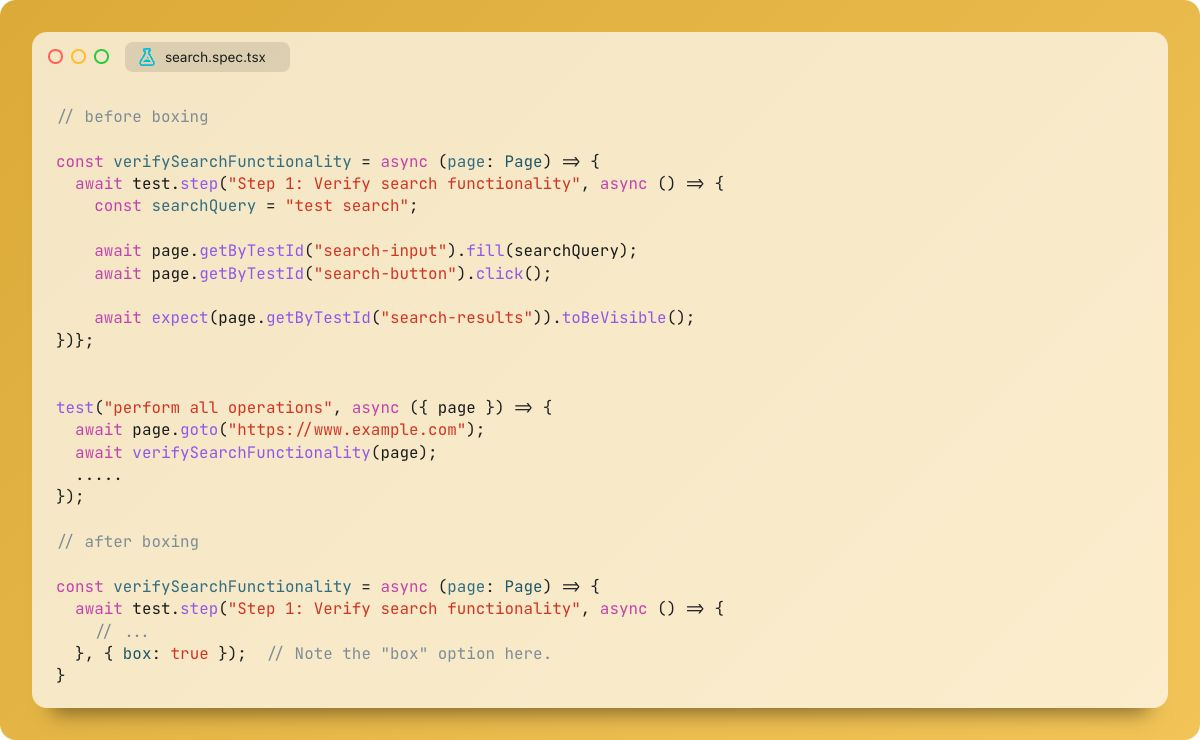
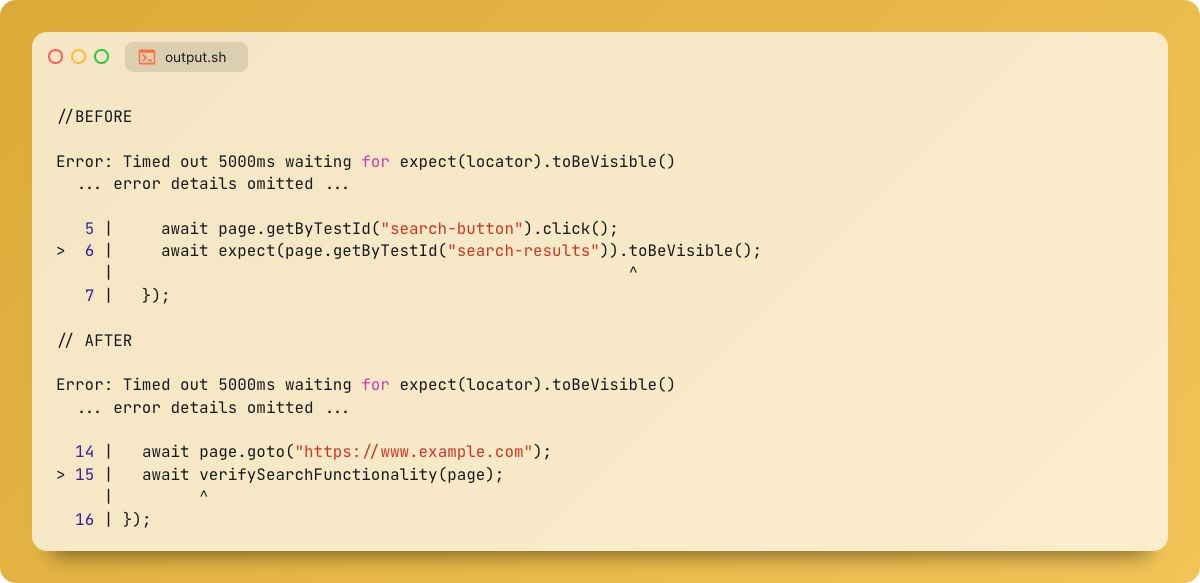
<p>For smoother debugging, add a box option to your test <code>step</code>! 👀<br>It shifts errors to the step call, highlighting the entire step instead of the internal action.</p>
<p></p>
<div class="neeto-editor__image-wrapper neeto-editor__image--left"><figure><a href="https://assets-cdn.neetopublish.com/rails/active_storage/blobs/proxy/eyJfcmFpbHMiOnsiZGF0YSI6IjJhNTk3ZGMxLTZhMTktNGU0Yy05NDU3LTRiODViNTk4NTJiNCIsInB1ciI6ImJsb2JfaWQifX0=--8c98d51b5c4f4c5df333c07e65f9afbad0f89f1e/image.png" target="_blank" rel="noopener noreferrer" class="neeto-editor__image" style="height:443.72987721691675px;width:718px;display:inline-block;pointer-events:none;"><img id="p27vq" src="https://assets-cdn.neetopublish.com/rails/active_storage/blobs/proxy/eyJfcmFpbHMiOnsiZGF0YSI6IjJhNTk3ZGMxLTZhMTktNGU0Yy05NDU3LTRiODViNTk4NTJiNCIsInB1ciI6ImJsb2JfaWQifX0=--8c98d51b5c4f4c5df333c07e65f9afbad0f89f1e/image.png" alt="" figheight="443.72987721691675" figwidth="718" align="left" draggable="false" contenteditable="false"></a><figcaption style="width:718px;"></figcaption></figure></div>
<p></p>
<div class="neeto-editor__image-wrapper neeto-editor__image--left"><figure><a href="https://assets-cdn.neetopublish.com/rails/active_storage/blobs/proxy/eyJfcmFpbHMiOnsiZGF0YSI6Ijk0ZjEwZmNiLThkY2YtNGVhZS05YjQzLTBmODEzZjA3ZmU4YiIsInB1ciI6ImJsb2JfaWQifX0=--3cb704a554923d60113357f2908be2a4661de198/image.png" target="_blank" rel="noopener noreferrer" class="neeto-editor__image" style="height:349.6944065484311px;width:718px;display:inline-block;pointer-events:none;"><img id="gwo5z" src="https://assets-cdn.neetopublish.com/rails/active_storage/blobs/proxy/eyJfcmFpbHMiOnsiZGF0YSI6Ijk0ZjEwZmNiLThkY2YtNGVhZS05YjQzLTBmODEzZjA3ZmU4YiIsInB1ciI6ImJsb2JfaWQifX0=--3cb704a554923d60113357f2908be2a4661de198/image.png" alt="" figheight="349.6944065484311" figwidth="718" align="left" draggable="false" contenteditable="false"></a><figcaption style="width:718px;"></figcaption></figure></div>
<div class="header-wrapper">
<h4 id="tipsntricks-10">TipsNTricks #10</h4>
<a class="header-wrapper__link" href="#tipsntricks-10">
  <span class="header-link-icon-wrapper">
    <svg fill="currentColor" width="16" height="16" class="publish-link-anchor-icon" viewbox="0 0 16 16">
      <path d="M7.775 3.275a.75.75 0 001.06 1.06l1.25-1.25a2 2 0 112.83 2.83l-2.5 2.5a2 2 0 01-2.83 0 .75.75 0 00-1.06 1.06 3.5 3.5 0 004.95 0l2.5-2.5a3.5 3.5 0 00-4.95-4.95l-1.25 1.25zm-4.69 9.64a2 2 0 010-2.83l2.5-2.5a2 2 0 012.83 0 .75.75 0 001.06-1.06 3.5 3.5 0 00-4.95 0l-2.5 2.5a3.5 3.5 0 004.95 4.95l1.25-1.25a.75.75 0 00-1.06-1.06l-1.25 1.25a2 2 0 01-2.83 0z"></path>
    </svg>
  </span>
</a>
</div>
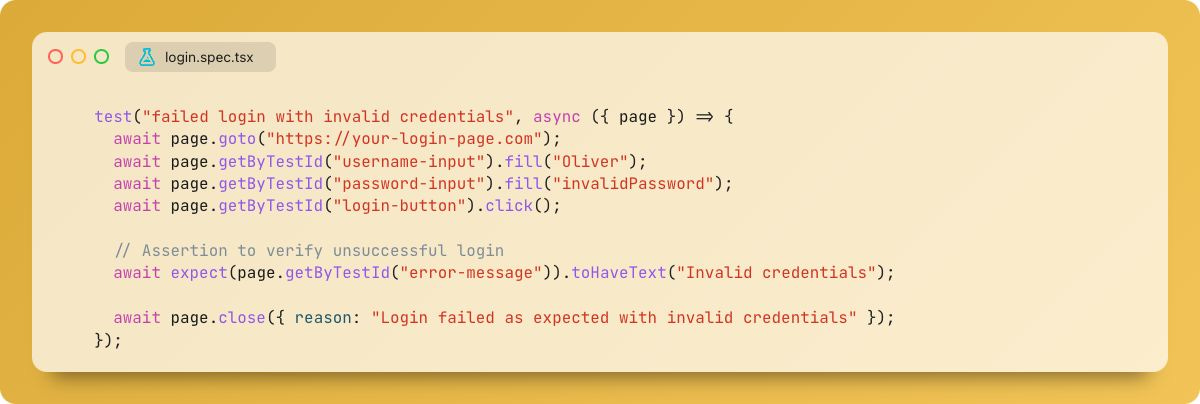
<p>Closing page instances? Use the <code>reason</code> option to explain why. Works for browsers &amp; contexts too! (v1.40+)</p>
<p></p>
<div class="neeto-editor__image-wrapper neeto-editor__image--left"><figure><a href="https://assets-cdn.neetopublish.com/rails/active_storage/blobs/proxy/eyJfcmFpbHMiOnsiZGF0YSI6IjljZjhmOTg2LTI2ZDUtNGUyOC05MWU3LTRkNjNlMDcyOGUzYSIsInB1ciI6ImJsb2JfaWQifX0=--9dae3087d553159480cc06b2b763acbb47534efc/image.png" target="_blank" rel="noopener noreferrer" class="neeto-editor__image" style="height:242.924965893588px;width:718px;display:inline-block;pointer-events:none;"><img id="pz4jbc" src="https://assets-cdn.neetopublish.com/rails/active_storage/blobs/proxy/eyJfcmFpbHMiOnsiZGF0YSI6IjljZjhmOTg2LTI2ZDUtNGUyOC05MWU3LTRkNjNlMDcyOGUzYSIsInB1ciI6ImJsb2JfaWQifX0=--9dae3087d553159480cc06b2b763acbb47534efc/image.png" alt="" figheight="242.924965893588" figwidth="718" align="left" draggable="false" contenteditable="false"></a><figcaption style="width:718px;"></figcaption></figure></div>
<div class="header-wrapper">
<h4 id="tipsntricks-9">TipsNTricks #9</h4>
<a class="header-wrapper__link" href="#tipsntricks-9">
  <span class="header-link-icon-wrapper">
    <svg fill="currentColor" width="16" height="16" class="publish-link-anchor-icon" viewbox="0 0 16 16">
      <path d="M7.775 3.275a.75.75 0 001.06 1.06l1.25-1.25a2 2 0 112.83 2.83l-2.5 2.5a2 2 0 01-2.83 0 .75.75 0 00-1.06 1.06 3.5 3.5 0 004.95 0l2.5-2.5a3.5 3.5 0 00-4.95-4.95l-1.25 1.25zm-4.69 9.64a2 2 0 010-2.83l2.5-2.5a2 2 0 012.83 0 .75.75 0 001.06-1.06 3.5 3.5 0 00-4.95 0l-2.5 2.5a3.5 3.5 0 004.95 4.95l1.25-1.25a.75.75 0 00-1.06-1.06l-1.25 1.25a2 2 0 01-2.83 0z"></path>
    </svg>
  </span>
</a>
</div>
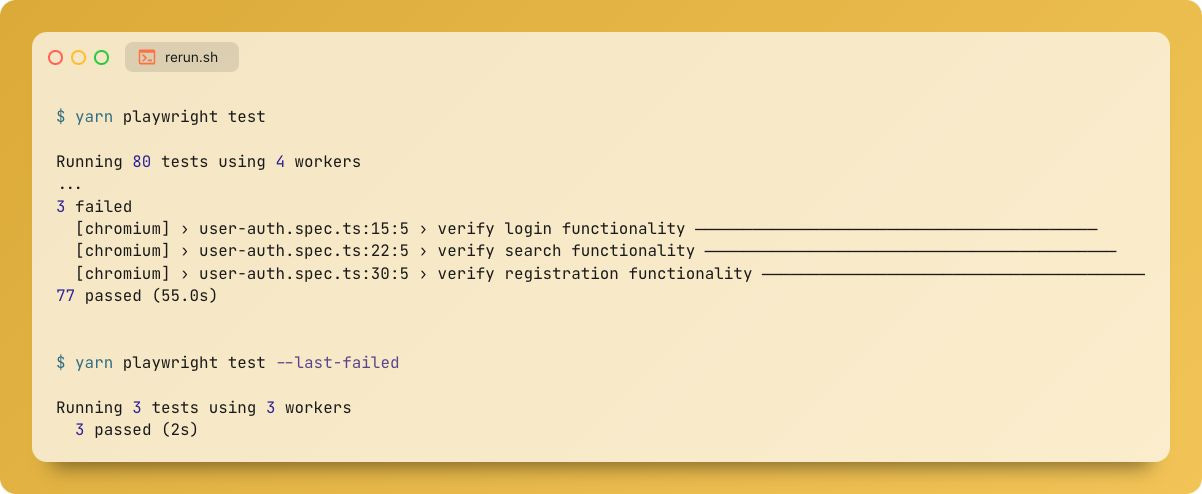
<p>Instead of rerunning all tests after making fixes, use the <code>--last-failed</code> option to rerun only the ones that failed in the previous run! (available from v1.44) </p>
<p></p>
<div class="neeto-editor__image-wrapper neeto-editor__image--left"><figure><a href="https://assets-cdn.neetopublish.com/rails/active_storage/blobs/proxy/eyJfcmFpbHMiOnsiZGF0YSI6IjQzYTkyNTBkLWQwZWItNGNjNC04ZGE2LWRhMmQyNzhlYmZkZiIsInB1ciI6ImJsb2JfaWQifX0=--b17563a7e80cc11a80f684cf0b41c4535db121c3/image.png" target="_blank" rel="noopener noreferrer" class="neeto-editor__image" style="height:295.8199181446112px;width:718px;display:inline-block;pointer-events:none;"><img id="2y8dk2" src="https://assets-cdn.neetopublish.com/rails/active_storage/blobs/proxy/eyJfcmFpbHMiOnsiZGF0YSI6IjQzYTkyNTBkLWQwZWItNGNjNC04ZGE2LWRhMmQyNzhlYmZkZiIsInB1ciI6ImJsb2JfaWQifX0=--b17563a7e80cc11a80f684cf0b41c4535db121c3/image.png" alt="" figheight="295.8199181446112" figwidth="718" align="left" draggable="false" contenteditable="false"></a><figcaption style="width:718px;"></figcaption></figure></div>
<div class="header-wrapper">
<h4 id="tipsntricks-8">TipsNTricks #8</h4>
<a class="header-wrapper__link" href="#tipsntricks-8">
  <span class="header-link-icon-wrapper">
    <svg fill="currentColor" width="16" height="16" class="publish-link-anchor-icon" viewbox="0 0 16 16">
      <path d="M7.775 3.275a.75.75 0 001.06 1.06l1.25-1.25a2 2 0 112.83 2.83l-2.5 2.5a2 2 0 01-2.83 0 .75.75 0 00-1.06 1.06 3.5 3.5 0 004.95 0l2.5-2.5a3.5 3.5 0 00-4.95-4.95l-1.25 1.25zm-4.69 9.64a2 2 0 010-2.83l2.5-2.5a2 2 0 012.83 0 .75.75 0 001.06-1.06 3.5 3.5 0 00-4.95 0l-2.5 2.5a3.5 3.5 0 004.95 4.95l1.25-1.25a.75.75 0 00-1.06-1.06l-1.25 1.25a2 2 0 01-2.83 0z"></path>
    </svg>
  </span>
</a>
</div>
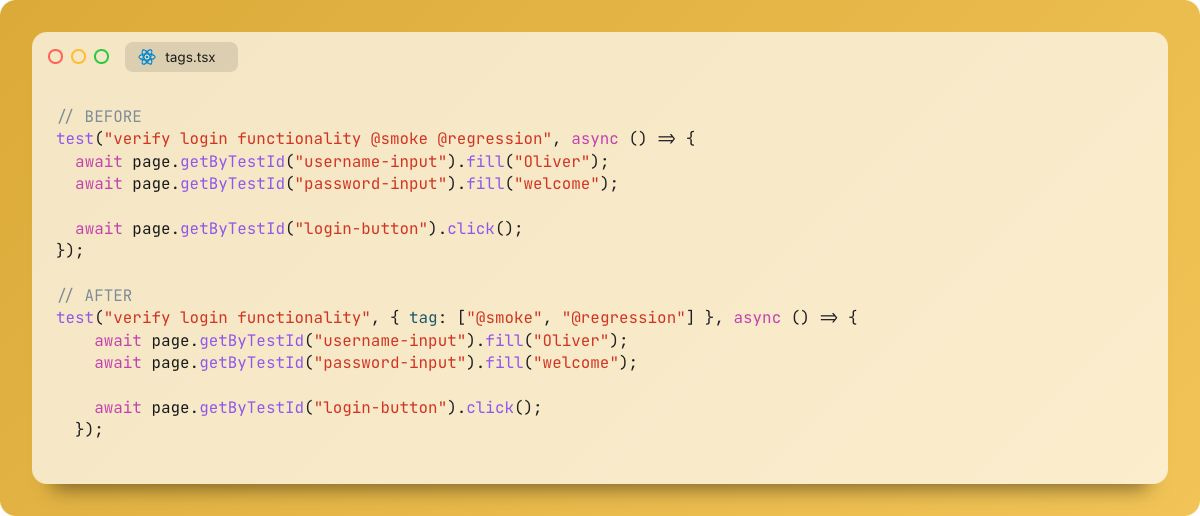
<p>Filter tests easily in Playwright using tags!<br>Ditch the "@" in titles. Pass tags directly as an object property!<br>( available from v1.42 )</p>
<p></p>
<div class="neeto-editor__image-wrapper neeto-editor__image--left"><figure><a href="https://assets-cdn.neetopublish.com/rails/active_storage/blobs/proxy/eyJfcmFpbHMiOnsiZGF0YSI6Ijk0NmM2YTM2LWYwNzYtNDE3Yy05NTUwLTgzYTY2MzYzOWJjNSIsInB1ciI6ImJsb2JfaWQifX0=--53e1b720531bb6df859462e14f16dbe1c8ecf1bd/image.png" target="_blank" rel="noopener noreferrer" class="neeto-editor__image" style="height:309.5334242837653px;width:718px;display:inline-block;pointer-events:none;"><img id="x25l9s" src="https://assets-cdn.neetopublish.com/rails/active_storage/blobs/proxy/eyJfcmFpbHMiOnsiZGF0YSI6Ijk0NmM2YTM2LWYwNzYtNDE3Yy05NTUwLTgzYTY2MzYzOWJjNSIsInB1ciI6ImJsb2JfaWQifX0=--53e1b720531bb6df859462e14f16dbe1c8ecf1bd/image.png" alt="" figheight="309.5334242837653" figwidth="718" align="left" draggable="false" contenteditable="false"></a><figcaption style="width:718px;"></figcaption></figure></div>
<div class="header-wrapper">
<h4 id="tipsntricks-7">TipsNTricks #7</h4>
<a class="header-wrapper__link" href="#tipsntricks-7">
  <span class="header-link-icon-wrapper">
    <svg fill="currentColor" width="16" height="16" class="publish-link-anchor-icon" viewbox="0 0 16 16">
      <path d="M7.775 3.275a.75.75 0 001.06 1.06l1.25-1.25a2 2 0 112.83 2.83l-2.5 2.5a2 2 0 01-2.83 0 .75.75 0 00-1.06 1.06 3.5 3.5 0 004.95 0l2.5-2.5a3.5 3.5 0 00-4.95-4.95l-1.25 1.25zm-4.69 9.64a2 2 0 010-2.83l2.5-2.5a2 2 0 012.83 0 .75.75 0 001.06-1.06 3.5 3.5 0 00-4.95 0l-2.5 2.5a3.5 3.5 0 004.95 4.95l1.25-1.25a.75.75 0 00-1.06-1.06l-1.25 1.25a2 2 0 01-2.83 0z"></path>
    </svg>
  </span>
</a>
</div>
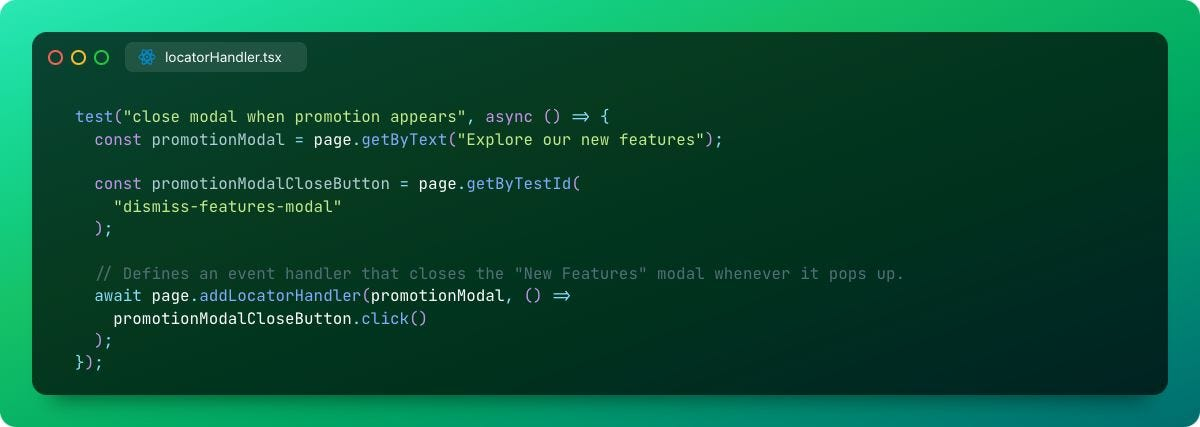
<p>Stop pop-ups from causing flaky tests! 📢<br>Added in v1.42, addLocatorHandler lets you handle unexpected elements.</p>
<p></p>
<div class="neeto-editor__image-wrapper neeto-editor__image--left"><figure><a href="https://assets-cdn.neetopublish.com/rails/active_storage/blobs/proxy/eyJfcmFpbHMiOnsiZGF0YSI6ImU0YWRmMzgxLTEyYjktNGRkZC04ZTQyLTNhMDFkNWVjMmZiYiIsInB1ciI6ImJsb2JfaWQifX0=--dec902c7c2d6e4b7bcabd8dc0315f4e4e34a585c/image.png" target="_blank" rel="noopener noreferrer" class="neeto-editor__image" style="height:256.63847203274213px;width:718px;display:inline-block;pointer-events:none;"><img id="kidwrh" src="https://assets-cdn.neetopublish.com/rails/active_storage/blobs/proxy/eyJfcmFpbHMiOnsiZGF0YSI6ImU0YWRmMzgxLTEyYjktNGRkZC04ZTQyLTNhMDFkNWVjMmZiYiIsInB1ciI6ImJsb2JfaWQifX0=--dec902c7c2d6e4b7bcabd8dc0315f4e4e34a585c/image.png" alt="" figheight="256.63847203274213" figwidth="718" align="left" draggable="false" contenteditable="false"></a><figcaption style="width:718px;"></figcaption></figure></div>
<div class="header-wrapper">
<h4 id="tipsntricks-6">TipsNTricks #6</h4>
<a class="header-wrapper__link" href="#tipsntricks-6">
  <span class="header-link-icon-wrapper">
    <svg fill="currentColor" width="16" height="16" class="publish-link-anchor-icon" viewbox="0 0 16 16">
      <path d="M7.775 3.275a.75.75 0 001.06 1.06l1.25-1.25a2 2 0 112.83 2.83l-2.5 2.5a2 2 0 01-2.83 0 .75.75 0 00-1.06 1.06 3.5 3.5 0 004.95 0l2.5-2.5a3.5 3.5 0 00-4.95-4.95l-1.25 1.25zm-4.69 9.64a2 2 0 010-2.83l2.5-2.5a2 2 0 012.83 0 .75.75 0 001.06-1.06 3.5 3.5 0 00-4.95 0l-2.5 2.5a3.5 3.5 0 004.95 4.95l1.25-1.25a.75.75 0 00-1.06-1.06l-1.25 1.25a2 2 0 01-2.83 0z"></path>
    </svg>
  </span>
</a>
</div>
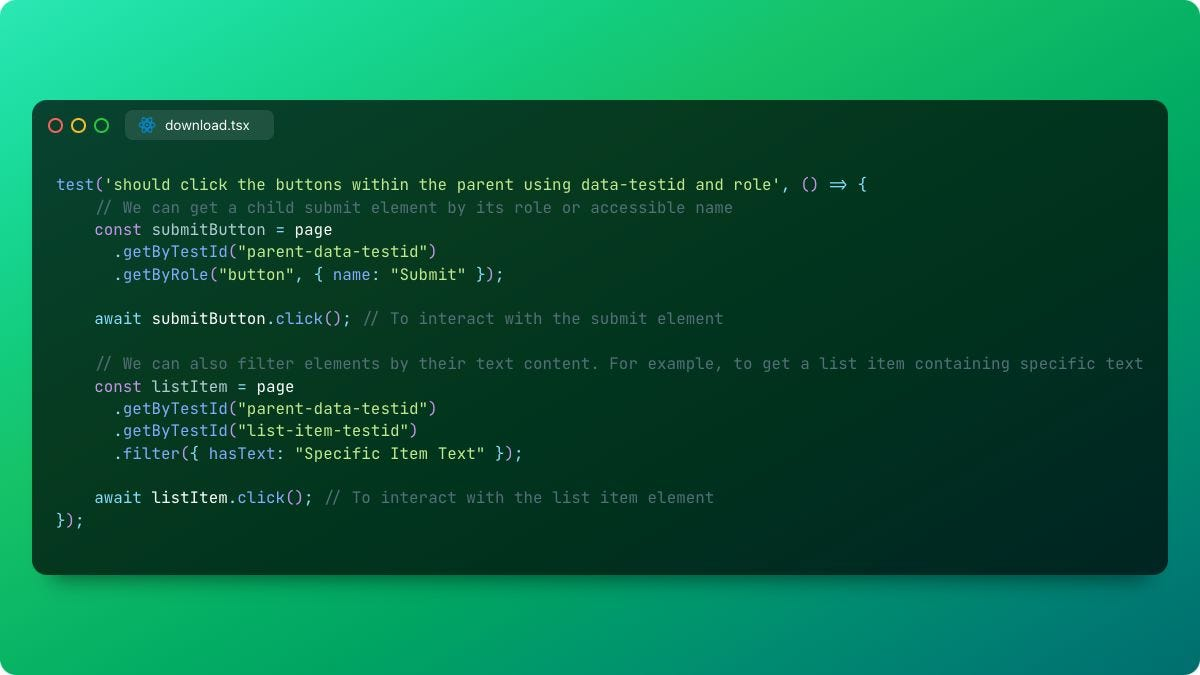
<p>Not all elements have a specific <code>data-testid</code> present with them. In such cases, we can chain multiple <code>data-testids</code> or filter roles by name/data-testid instead of using class/id.</p>
<p></p>
<div class="neeto-editor__image-wrapper neeto-editor__image--left"><figure><a href="https://assets-cdn.neetopublish.com/rails/active_storage/blobs/proxy/eyJfcmFpbHMiOnsiZGF0YSI6Ijk0MDcwNzg1LWUxNDYtNDQ5ZC04OTVlLTYzOThiNTJjMzY2YiIsInB1ciI6ImJsb2JfaWQifX0=--38fc7ee6aded5196c96c63dec48edab9ba17e8ba/image.png" target="_blank" rel="noopener noreferrer" class="neeto-editor__image" style="height:404.54843110504777px;width:718px;display:inline-block;pointer-events:none;"><img id="af0n" src="https://assets-cdn.neetopublish.com/rails/active_storage/blobs/proxy/eyJfcmFpbHMiOnsiZGF0YSI6Ijk0MDcwNzg1LWUxNDYtNDQ5ZC04OTVlLTYzOThiNTJjMzY2YiIsInB1ciI6ImJsb2JfaWQifX0=--38fc7ee6aded5196c96c63dec48edab9ba17e8ba/image.png" alt="" figheight="404.54843110504777" figwidth="718" align="left" draggable="false" contenteditable="false"></a><figcaption style="width:718px;"></figcaption></figure></div>
<div class="header-wrapper">
<h4 id="tipsntricks-5">TipsNTricks #5</h4>
<a class="header-wrapper__link" href="#tipsntricks-5">
  <span class="header-link-icon-wrapper">
    <svg fill="currentColor" width="16" height="16" class="publish-link-anchor-icon" viewbox="0 0 16 16">
      <path d="M7.775 3.275a.75.75 0 001.06 1.06l1.25-1.25a2 2 0 112.83 2.83l-2.5 2.5a2 2 0 01-2.83 0 .75.75 0 00-1.06 1.06 3.5 3.5 0 004.95 0l2.5-2.5a3.5 3.5 0 00-4.95-4.95l-1.25 1.25zm-4.69 9.64a2 2 0 010-2.83l2.5-2.5a2 2 0 012.83 0 .75.75 0 001.06-1.06 3.5 3.5 0 00-4.95 0l-2.5 2.5a3.5 3.5 0 004.95 4.95l1.25-1.25a.75.75 0 00-1.06-1.06l-1.25 1.25a2 2 0 01-2.83 0z"></path>
    </svg>
  </span>
</a>
</div>
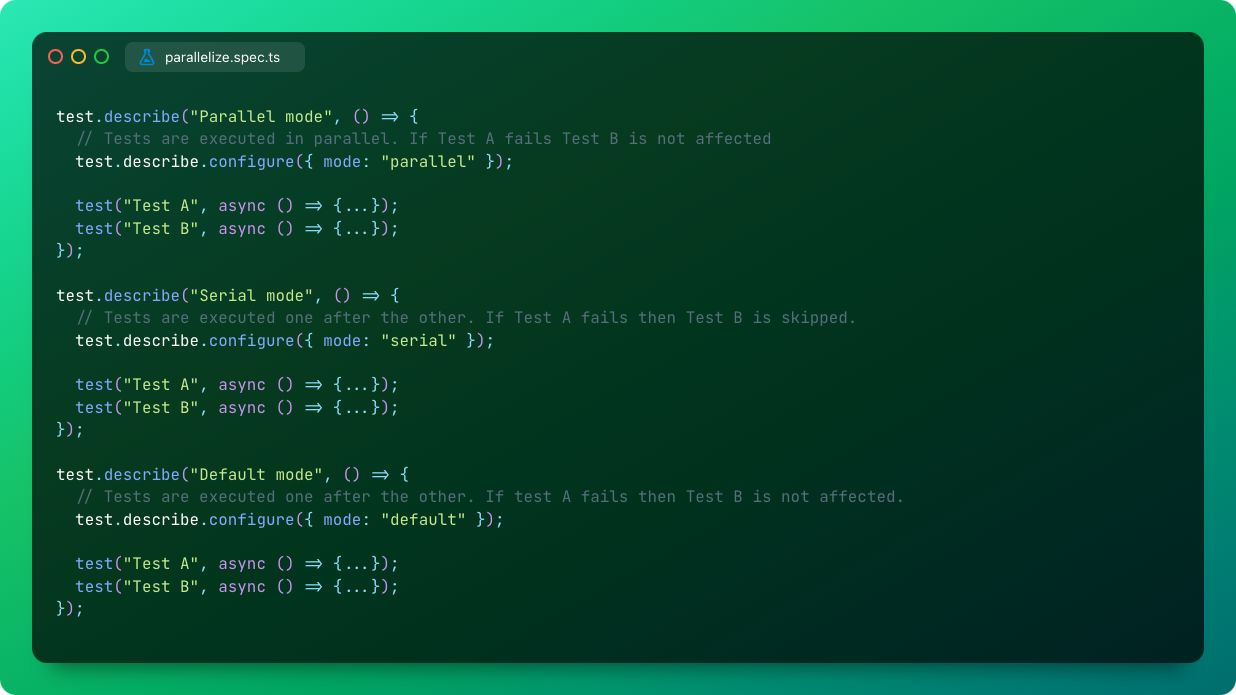
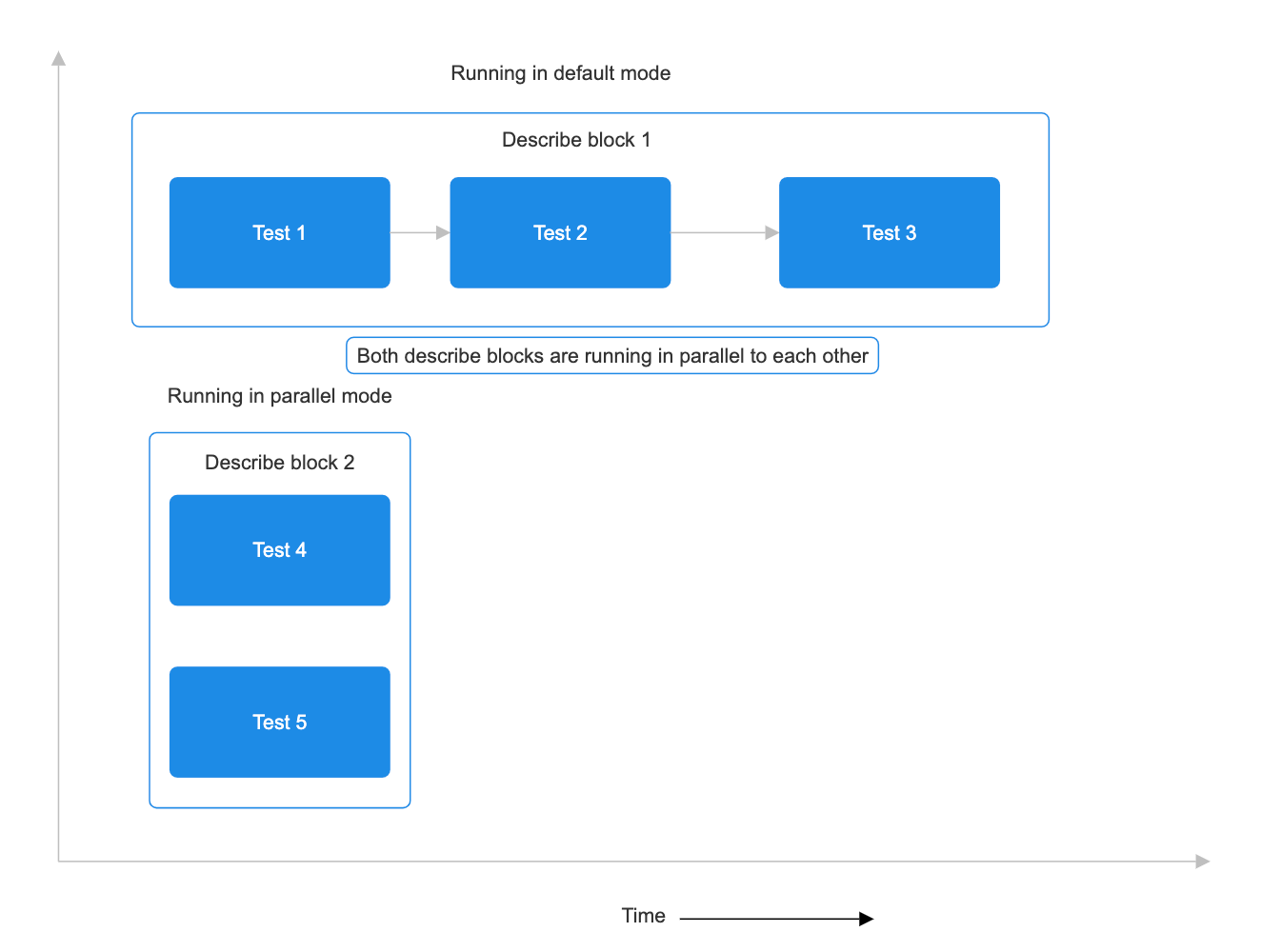
<p>Confused about the parallelization modes in Playwright? Here you go:<br><br><strong>Parallel</strong>: All tests run in parallel.<br><strong>Serial</strong>: Tests execute in sequence. If one fails, the rest are skipped.<br><strong>Default</strong>: Tests execute in sequence. If one fails, the rest are unaffected.</p>
<p></p>
<div class="neeto-editor__image-wrapper neeto-editor__image--left"><figure><a href="https://assets-cdn.neetopublish.com/rails/active_storage/blobs/proxy/eyJfcmFpbHMiOnsiZGF0YSI6ImRjMjU4ZWM1LTM3NzEtNDgwNi1iMmIzLTI2MDkzYjYyNTA4YSIsInB1ciI6ImJsb2JfaWQifX0=--e3bfd6af3847bf9222bbdc7b99c45599a5149513/image.png" target="_blank" rel="noopener noreferrer" class="neeto-editor__image" style="height:404.54843110504777px;width:718px;display:inline-block;pointer-events:none;"><img id="nnh6ys" src="https://assets-cdn.neetopublish.com/rails/active_storage/blobs/proxy/eyJfcmFpbHMiOnsiZGF0YSI6ImRjMjU4ZWM1LTM3NzEtNDgwNi1iMmIzLTI2MDkzYjYyNTA4YSIsInB1ciI6ImJsb2JfaWQifX0=--e3bfd6af3847bf9222bbdc7b99c45599a5149513/image.png" alt="" figheight="404.54843110504777" figwidth="718" align="left" draggable="false" contenteditable="false"></a><figcaption style="width:718px;"></figcaption></figure></div>
<div class="header-wrapper">
<h4 id="tipsntricks-4">TipsNTricks #4</h4>
<a class="header-wrapper__link" href="#tipsntricks-4">
  <span class="header-link-icon-wrapper">
    <svg fill="currentColor" width="16" height="16" class="publish-link-anchor-icon" viewbox="0 0 16 16">
      <path d="M7.775 3.275a.75.75 0 001.06 1.06l1.25-1.25a2 2 0 112.83 2.83l-2.5 2.5a2 2 0 01-2.83 0 .75.75 0 00-1.06 1.06 3.5 3.5 0 004.95 0l2.5-2.5a3.5 3.5 0 00-4.95-4.95l-1.25 1.25zm-4.69 9.64a2 2 0 010-2.83l2.5-2.5a2 2 0 012.83 0 .75.75 0 001.06-1.06 3.5 3.5 0 00-4.95 0l-2.5 2.5a3.5 3.5 0 004.95 4.95l1.25-1.25a.75.75 0 00-1.06-1.06l-1.25 1.25a2 2 0 01-2.83 0z"></path>
    </svg>
  </span>
</a>
</div>
<p>Want to supercharge your test speeds?<br>Utilize <code>.map()</code> and <code>Promise.all</code> to run repetitive actions in parallel for peak efficiency.<br><br>Running the repetitive actions using loops will result in the next iteration being blocked until the previous action has been completed. This slows down the test execution.<br><br>Using <code>.map()</code> to create an array of Promises and using <code>Promise.all</code> to resolve all of them will result in parallel execution and speed up the test execution.</p>
<p></p>
<div class="neeto-editor__image-wrapper neeto-editor__image--left"><figure><a href="https://assets-cdn.neetopublish.com/rails/active_storage/blobs/proxy/eyJfcmFpbHMiOnsiZGF0YSI6IjBiNzY2YmNhLTFlZWQtNDQxMi1hNTE2LWUyOWFkNTU5MDU5NSIsInB1ciI6ImJsb2JfaWQifX0=--cd84b4687a8ea73edfa8ca719eb3595eca328fe8/image.png" target="_blank" rel="noopener noreferrer" class="neeto-editor__image" style="height:404.54843110504777px;width:718px;display:inline-block;pointer-events:none;"><img id="1dzrtm" src="https://assets-cdn.neetopublish.com/rails/active_storage/blobs/proxy/eyJfcmFpbHMiOnsiZGF0YSI6IjBiNzY2YmNhLTFlZWQtNDQxMi1hNTE2LWUyOWFkNTU5MDU5NSIsInB1ciI6ImJsb2JfaWQifX0=--cd84b4687a8ea73edfa8ca719eb3595eca328fe8/image.png" alt="" figheight="404.54843110504777" figwidth="718" align="left" draggable="false" contenteditable="false"></a><figcaption style="width:718px;"></figcaption></figure></div>
<div class="header-wrapper">
<h4 id="tipsntricks-3">TipsNTricks #3</h4>
<a class="header-wrapper__link" href="#tipsntricks-3">
  <span class="header-link-icon-wrapper">
    <svg fill="currentColor" width="16" height="16" class="publish-link-anchor-icon" viewbox="0 0 16 16">
      <path d="M7.775 3.275a.75.75 0 001.06 1.06l1.25-1.25a2 2 0 112.83 2.83l-2.5 2.5a2 2 0 01-2.83 0 .75.75 0 00-1.06 1.06 3.5 3.5 0 004.95 0l2.5-2.5a3.5 3.5 0 00-4.95-4.95l-1.25 1.25zm-4.69 9.64a2 2 0 010-2.83l2.5-2.5a2 2 0 012.83 0 .75.75 0 001.06-1.06 3.5 3.5 0 00-4.95 0l-2.5 2.5a3.5 3.5 0 004.95 4.95l1.25-1.25a.75.75 0 00-1.06-1.06l-1.25 1.25a2 2 0 01-2.83 0z"></path>
    </svg>
  </span>
</a>
</div>
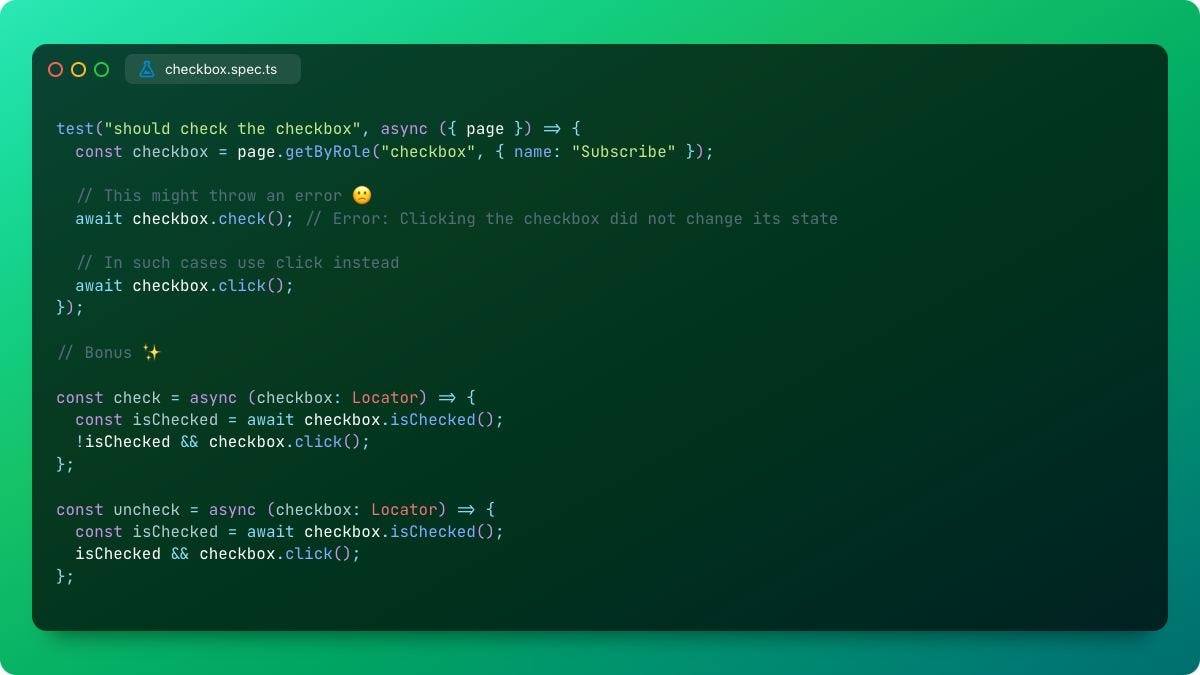
<p>Not all checkboxes play by the rules!<br>When using <code>Locator.check()</code> on some checkboxes, it throws the following error: "Clicking the checkbox did not change its state".<br>For those stubborn ones, use <code>Locator.click()</code> instead of <code>Locator.check()</code> to toggle their state directly.</p>
<div class="header-wrapper">
<h5 id="bonus">Bonus</h5>
<a class="header-wrapper__link" href="#bonus">
  <span class="header-link-icon-wrapper">
    <svg fill="currentColor" width="16" height="16" class="publish-link-anchor-icon" viewbox="0 0 16 16">
      <path d="M7.775 3.275a.75.75 0 001.06 1.06l1.25-1.25a2 2 0 112.83 2.83l-2.5 2.5a2 2 0 01-2.83 0 .75.75 0 00-1.06 1.06 3.5 3.5 0 004.95 0l2.5-2.5a3.5 3.5 0 00-4.95-4.95l-1.25 1.25zm-4.69 9.64a2 2 0 010-2.83l2.5-2.5a2 2 0 012.83 0 .75.75 0 001.06-1.06 3.5 3.5 0 00-4.95 0l-2.5 2.5a3.5 3.5 0 004.95 4.95l1.25-1.25a.75.75 0 00-1.06-1.06l-1.25 1.25a2 2 0 01-2.83 0z"></path>
    </svg>
  </span>
</a>
</div>
<p>We can define custom methods to check and uncheck checkboxes based on whether they are already checked. Check out the implementation below.</p>
<div class="neeto-editor__image-wrapper neeto-editor__image--left"><figure><a href="https://assets-cdn.neetopublish.com/rails/active_storage/blobs/proxy/eyJfcmFpbHMiOnsiZGF0YSI6ImRkOWE5ZTNlLTg5OTAtNDQzMy1iZmRhLTg4MTVjNzdiMjJiOCIsInB1ciI6ImJsb2JfaWQifX0=--633ca8500faf664f9056613621674e68b38c56cf/bb5d4f49-365b-4a14-a724-d5f851fa9aef_1200x675.jpg" target="_blank" rel="noopener noreferrer" class="neeto-editor__image" style="height:404.54843110504777px;width:718px;display:inline-block;pointer-events:none;"><img src="https://assets-cdn.neetopublish.com/rails/active_storage/blobs/proxy/eyJfcmFpbHMiOnsiZGF0YSI6ImRkOWE5ZTNlLTg5OTAtNDQzMy1iZmRhLTg4MTVjNzdiMjJiOCIsInB1ciI6ImJsb2JfaWQifX0=--633ca8500faf664f9056613621674e68b38c56cf/bb5d4f49-365b-4a14-a724-d5f851fa9aef_1200x675.jpg" alt="bb5d4f49-365b-4a14-a724-d5f851fa9aef_1200x675.jpg" figheight="404.54843110504777" figwidth="718" align="left" draggable="false" contenteditable="false"></a><figcaption style="width:718px;"></figcaption></figure></div>
<p></p>
<div class="header-wrapper">
<h4 id="tipsntricks-2">TipsNTricks #2</h4>
<a class="header-wrapper__link" href="#tipsntricks-2">
  <span class="header-link-icon-wrapper">
    <svg fill="currentColor" width="16" height="16" class="publish-link-anchor-icon" viewbox="0 0 16 16">
      <path d="M7.775 3.275a.75.75 0 001.06 1.06l1.25-1.25a2 2 0 112.83 2.83l-2.5 2.5a2 2 0 01-2.83 0 .75.75 0 00-1.06 1.06 3.5 3.5 0 004.95 0l2.5-2.5a3.5 3.5 0 00-4.95-4.95l-1.25 1.25zm-4.69 9.64a2 2 0 010-2.83l2.5-2.5a2 2 0 012.83 0 .75.75 0 001.06-1.06 3.5 3.5 0 00-4.95 0l-2.5 2.5a3.5 3.5 0 004.95 4.95l1.25-1.25a.75.75 0 00-1.06-1.06l-1.25 1.25a2 2 0 01-2.83 0z"></path>
    </svg>
  </span>
</a>
</div>
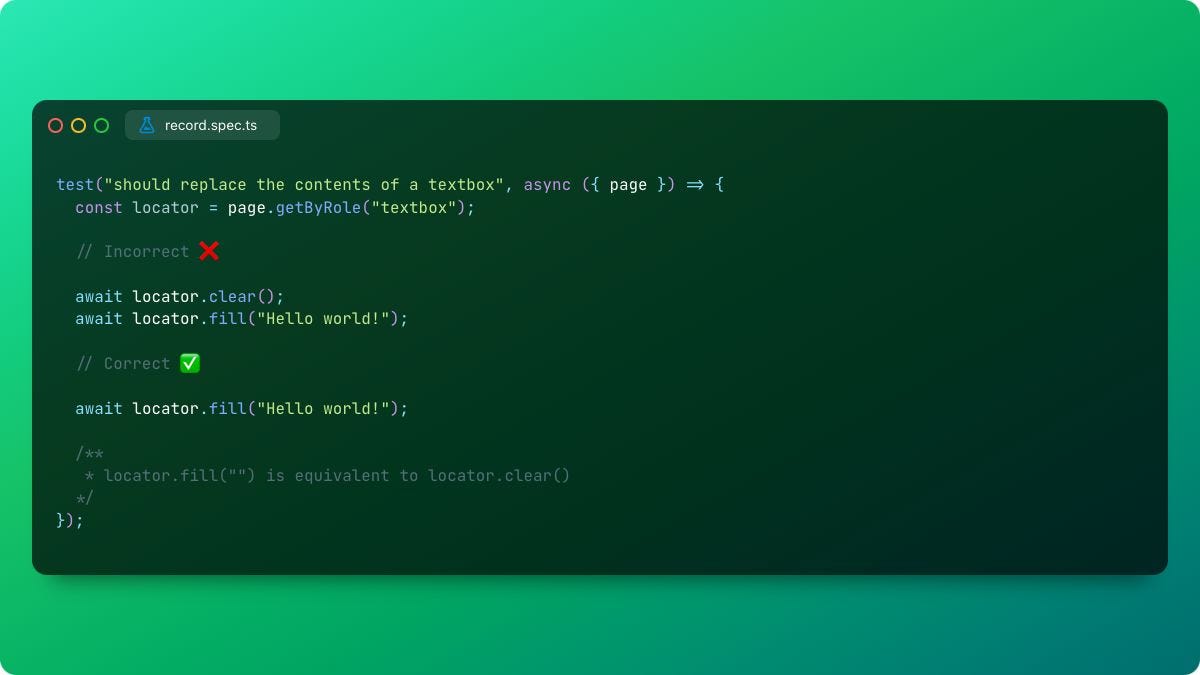
<p>Did you know it's redundant to use <code>Locator.clear()</code> before <code>Locator.fill()</code> in <a target="_self" rel="noopener noreferrer nofollow" class="app-aware-link  link" href="https://www.linkedin.com/company/playwrightweb/">Playwright</a>?<br><br>Here's why:<br>- <code>fill()</code> replaces the contents of a textbox with a new string instead of appending it.<br>- It also triggers an input event.<br>- This means filling an input with an empty string (<code>fill("")</code>) is equivalent to (<code>clear()</code>).<br><br>So, to streamline your code and save a few keystrokes, simply use <code>fill()</code> without <code>clear()</code> on a textbox!</p>
<div class="neeto-editor__image-wrapper neeto-editor__image--left"><figure><a href="https://assets-cdn.neetopublish.com/rails/active_storage/blobs/proxy/eyJfcmFpbHMiOnsiZGF0YSI6IjMwZTk2NjcxLTQxNDgtNDM4Zi04MTM2LTc2ZDRiYmY2ZGFiNSIsInB1ciI6ImJsb2JfaWQifX0=--f945ae68ebed2fdf2577cc6cf24cd9815e922b78/fa933b01-d5e0-4964-acd3-3da166fcd445_1200x675.jpg" target="_blank" rel="noopener noreferrer" class="neeto-editor__image" style="height:404.54843110504777px;width:718px;display:inline-block;pointer-events:none;"><img src="https://assets-cdn.neetopublish.com/rails/active_storage/blobs/proxy/eyJfcmFpbHMiOnsiZGF0YSI6IjMwZTk2NjcxLTQxNDgtNDM4Zi04MTM2LTc2ZDRiYmY2ZGFiNSIsInB1ciI6ImJsb2JfaWQifX0=--f945ae68ebed2fdf2577cc6cf24cd9815e922b78/fa933b01-d5e0-4964-acd3-3da166fcd445_1200x675.jpg" alt="fa933b01-d5e0-4964-acd3-3da166fcd445_1200x675.jpg" figheight="404.54843110504777" figwidth="718" align="left" draggable="false" contenteditable="false"></a><figcaption style="width:718px;"></figcaption></figure></div>
<p></p>
<div class="header-wrapper">
<h4 id="tipsntricks-1">TipsNTricks #1</h4>
<a class="header-wrapper__link" href="#tipsntricks-1">
  <span class="header-link-icon-wrapper">
    <svg fill="currentColor" width="16" height="16" class="publish-link-anchor-icon" viewbox="0 0 16 16">
      <path d="M7.775 3.275a.75.75 0 001.06 1.06l1.25-1.25a2 2 0 112.83 2.83l-2.5 2.5a2 2 0 01-2.83 0 .75.75 0 00-1.06 1.06 3.5 3.5 0 004.95 0l2.5-2.5a3.5 3.5 0 00-4.95-4.95l-1.25 1.25zm-4.69 9.64a2 2 0 010-2.83l2.5-2.5a2 2 0 012.83 0 .75.75 0 001.06-1.06 3.5 3.5 0 00-4.95 0l-2.5 2.5a3.5 3.5 0 004.95 4.95l1.25-1.25a.75.75 0 00-1.06-1.06l-1.25 1.25a2 2 0 01-2.83 0z"></path>
    </svg>
  </span>
</a>
</div>
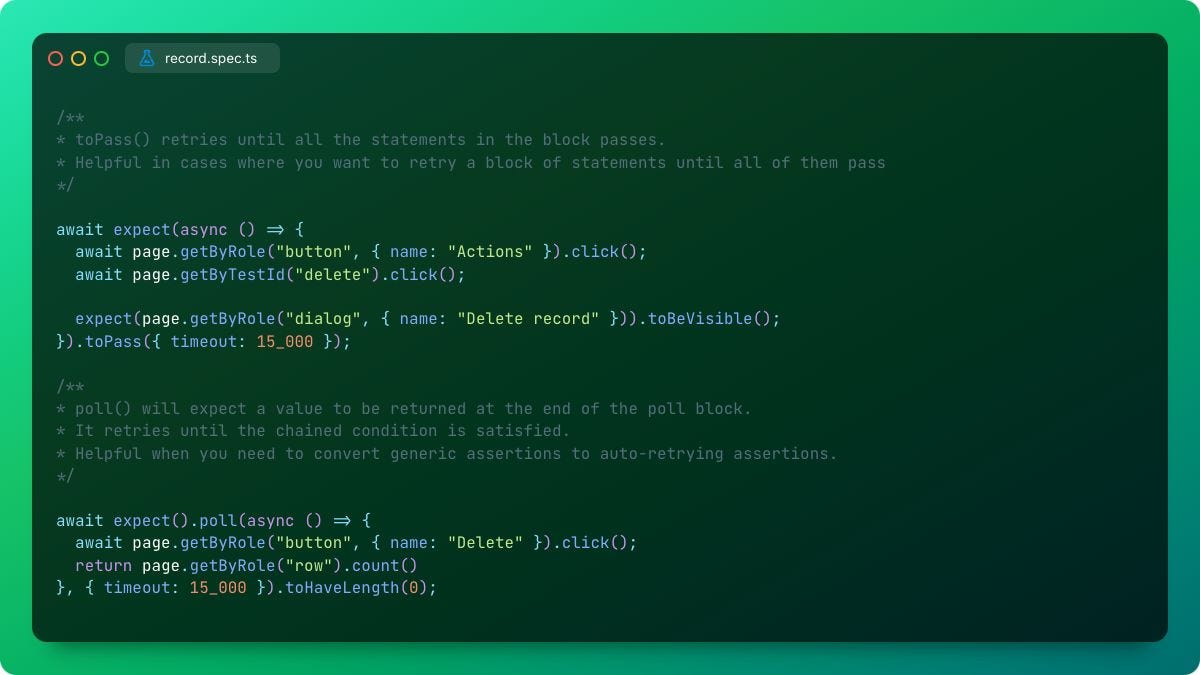
<p><br>While auto-retrying assertions are fantastic for reducing test flakiness, there are situations where they cannot be used. Here's where <code>.poll()</code> and <code>.toPass()</code> come in to save the day! </p>
<p><br><code>.toPass()</code>: This method lets you retry a block of statements until all of them pass within a specified timeout. This is perfect for scenarios where multiple assertions need to succeed for your test to be valid.<br><code>.poll()</code>: Need to convert a generic assertion into an auto-retrying one? Look no further than <code>.poll()</code>. It takes a method returning a value and chains it to an assertion. The method is retried until the chained assertion passes or the timeout is reached.<br><br>These techniques give you finer control over asynchronous assertions, ensuring your Playwright tests are robust and reliable.</p>
<p></p>
<div class="neeto-editor__image-wrapper neeto-editor__image--left"><figure><a href="https://assets-cdn.neetopublish.com/rails/active_storage/blobs/proxy/eyJfcmFpbHMiOnsiZGF0YSI6IjgyYzI3NjY3LWE5MmUtNGY4Ny04NWI1LTYwM2U4ZGFmMDMzOSIsInB1ciI6ImJsb2JfaWQifX0=--5e22f97471c58f0dca28cacf3029b159f46e35d0/a1d453f8-0f61-413f-bf93-889415c72f52_1200x675.jpg" target="_blank" rel="noopener noreferrer" class="neeto-editor__image" style="height:402px;width:713px;display:inline-block;pointer-events:none;"><img src="https://assets-cdn.neetopublish.com/rails/active_storage/blobs/proxy/eyJfcmFpbHMiOnsiZGF0YSI6IjgyYzI3NjY3LWE5MmUtNGY4Ny04NWI1LTYwM2U4ZGFmMDMzOSIsInB1ciI6ImJsb2JfaWQifX0=--5e22f97471c58f0dca28cacf3029b159f46e35d0/a1d453f8-0f61-413f-bf93-889415c72f52_1200x675.jpg" alt="a1d453f8-0f61-413f-bf93-889415c72f52_1200x675.jpg" figheight="402" figwidth="713" align="left" draggable="false" contenteditable="false"></a><figcaption style="width:713px;"></figcaption></figure></div>
<p></p>
]]>
    </content>
  </entry>
  <entry>
    <title>
      <![CDATA[What's New in Playwright v1.46, v1.47 & v1.48]]>
    </title>
    <authors>
      <name>S Varun</name>
    </authors>
    <link href="https://blog.pixelcompute.com/p/what-s-new-in-playwright-v1-46-v1-47-v1-48"/>
    <updated>2025-01-01T18:30:00Z</updated>
    <id>https://blog.pixelcompute.com/p/what-s-new-in-playwright-v1-46-v1-47-v1-48</id>
    <content type="html">
      <![CDATA[
<div class="header-wrapper">
<h2 id="release-v1-46-0">Release v1.46.0</h2>
<a class="header-wrapper__link" href="#release-v1-46-0">
  <span class="header-link-icon-wrapper">
    <svg fill="currentColor" width="16" height="16" class="publish-link-anchor-icon" viewbox="0 0 16 16">
      <path d="M7.775 3.275a.75.75 0 001.06 1.06l1.25-1.25a2 2 0 112.83 2.83l-2.5 2.5a2 2 0 01-2.83 0 .75.75 0 00-1.06 1.06 3.5 3.5 0 004.95 0l2.5-2.5a3.5 3.5 0 00-4.95-4.95l-1.25 1.25zm-4.69 9.64a2 2 0 010-2.83l2.5-2.5a2 2 0 012.83 0 .75.75 0 001.06-1.06 3.5 3.5 0 00-4.95 0l-2.5 2.5a3.5 3.5 0 004.95 4.95l1.25-1.25a.75.75 0 00-1.06-1.06l-1.25 1.25a2 2 0 01-2.83 0z"></path>
    </svg>
  </span>
</a>
</div>
<p>Let's explore the major changes that were made in this release.</p>
<div class="header-wrapper">
<h3 id="1-client-certificates">1. Client Certificates</h3>
<a class="header-wrapper__link" href="#1-client-certificates">
  <span class="header-link-icon-wrapper">
    <svg fill="currentColor" width="16" height="16" class="publish-link-anchor-icon" viewbox="0 0 16 16">
      <path d="M7.775 3.275a.75.75 0 001.06 1.06l1.25-1.25a2 2 0 112.83 2.83l-2.5 2.5a2 2 0 01-2.83 0 .75.75 0 00-1.06 1.06 3.5 3.5 0 004.95 0l2.5-2.5a3.5 3.5 0 00-4.95-4.95l-1.25 1.25zm-4.69 9.64a2 2 0 010-2.83l2.5-2.5a2 2 0 012.83 0 .75.75 0 001.06-1.06 3.5 3.5 0 00-4.95 0l-2.5 2.5a3.5 3.5 0 004.95 4.95l1.25-1.25a.75.75 0 00-1.06-1.06l-1.25 1.25a2 2 0 01-2.83 0z"></path>
    </svg>
  </span>
</a>
</div>
<p>Playwright now allows you to specify a <a target="_blank" rel="nofollow ugc noopener" class="link" href="http://(https//en.wikipedia.org/wiki/Client_certificate)">clientCertificate</a> property in the use object of your project config.</p>
<p>Let's look at an example of setting this property globally.</p>
<pre data-highlighted-lines=""><code class="language-typescript">import { defineConfig } from '@playwright/test';

export default defineConfig({
  use: {
    clientCertificates: [{
      origin: 'https://example.com',
      certPath: './cert.pem',
      keyPath: './key.pem',
      passphrase: 'password',
    }],
  },
});</code></pre>
<p>Here, the first attribute, <strong>origin</strong>, specifies the domain in which the client certificate is valid. The second attribute, <strong>certPath</strong>, indicates the file path to the client certificate in <a target="_blank" rel="nofollow ugc noopener" class="link" href="https://en.wikipedia.org/wiki/Privacy-Enhanced_Mail">PEM</a> (Privacy Enhanced Mail) format. The third attribute, <strong>keyPath</strong>, points to the private key associated with the client certificate in PEM format. The last attribute, <strong>passphrase</strong>, is the keyword used to secure the private key.</p>
<p>Note: You can also specify these client certificates while creating a new browser context or a new context for making API requests.</p>
<div class="header-wrapper">
<h3 id="2-run-only-changed-tests">2. Run Only Changed Tests</h3>
<a class="header-wrapper__link" href="#2-run-only-changed-tests">
  <span class="header-link-icon-wrapper">
    <svg fill="currentColor" width="16" height="16" class="publish-link-anchor-icon" viewbox="0 0 16 16">
      <path d="M7.775 3.275a.75.75 0 001.06 1.06l1.25-1.25a2 2 0 112.83 2.83l-2.5 2.5a2 2 0 01-2.83 0 .75.75 0 00-1.06 1.06 3.5 3.5 0 004.95 0l2.5-2.5a3.5 3.5 0 00-4.95-4.95l-1.25 1.25zm-4.69 9.64a2 2 0 010-2.83l2.5-2.5a2 2 0 012.83 0 .75.75 0 001.06-1.06 3.5 3.5 0 00-4.95 0l-2.5 2.5a3.5 3.5 0 004.95 4.95l1.25-1.25a.75.75 0 00-1.06-1.06l-1.25 1.25a2 2 0 01-2.83 0z"></path>
    </svg>
  </span>
</a>
</div>
<p>You might have wondered if there was a way to run only the recently changed tests in Playwright testing. While you can use <strong>--grep</strong> to run specific tests, that method can be cumbersome if there are dozens of modified tests. To address this, Playwright has introduced a new CLI option to run only the changed tests.</p>
<p>To run the changed tests, use the <a target="_blank" rel="nofollow ugc noopener" class="link" href="https://playwright.dev/docs/release-notes#--only-changed-cli-option">--only-changed</a> option and the run command.</p>
<pre data-highlighted-lines=""><code class="language-typescript"> npx playwright test --only-changed
 
 #Only run tests file changed relative to a specific commit
 npx playwright test --only-changed=fe9357c 
 
 #Only run tests file changed relative to the "main" branch
 npx playwright test --only-changed=main</code></pre>
<p>Note: The <strong>--only-changed</strong> option will run only test files that have been modified since the last git commit, from a specific commit, or that have been changed on the current branch. It will also run all test files that import any modified files.</p>
<p>Let's explore some features that were introduced in UI mode.</p>
<div class="header-wrapper">
<h4 id="1-new-annotations-tab">1. New Annotations Tab</h4>
<a class="header-wrapper__link" href="#1-new-annotations-tab">
  <span class="header-link-icon-wrapper">
    <svg fill="currentColor" width="16" height="16" class="publish-link-anchor-icon" viewbox="0 0 16 16">
      <path d="M7.775 3.275a.75.75 0 001.06 1.06l1.25-1.25a2 2 0 112.83 2.83l-2.5 2.5a2 2 0 01-2.83 0 .75.75 0 00-1.06 1.06 3.5 3.5 0 004.95 0l2.5-2.5a3.5 3.5 0 00-4.95-4.95l-1.25 1.25zm-4.69 9.64a2 2 0 010-2.83l2.5-2.5a2 2 0 012.83 0 .75.75 0 001.06-1.06 3.5 3.5 0 00-4.95 0l-2.5 2.5a3.5 3.5 0 004.95 4.95l1.25-1.25a.75.75 0 00-1.06-1.06l-1.25 1.25a2 2 0 01-2.83 0z"></path>
    </svg>
  </span>
</a>
</div>
<p></p>
<div class="neeto-editor__image-wrapper neeto-editor__image--left"><figure><a href="https://assets-cdn.neetopublish.com/rails/active_storage/blobs/proxy/eyJfcmFpbHMiOnsiZGF0YSI6ImVmNjQ1YzM1LWQ4MjUtNGVjZS1iMjQyLWNhM2Q4ZDk4OGQxZSIsInB1ciI6ImJsb2JfaWQifX0=--ec3e998889531e82d8168b724417f2c300f6362f/image.png" target="_blank" rel="noopener noreferrer" class="neeto-editor__image" style="height:97.95361527967258px;width:718px;display:inline-block;pointer-events:none;"><img id="661ntm" src="https://assets-cdn.neetopublish.com/rails/active_storage/blobs/proxy/eyJfcmFpbHMiOnsiZGF0YSI6ImVmNjQ1YzM1LWQ4MjUtNGVjZS1iMjQyLWNhM2Q4ZDk4OGQxZSIsInB1ciI6ImJsb2JfaWQifX0=--ec3e998889531e82d8168b724417f2c300f6362f/image.png" alt="" figheight="97.95361527967258" figwidth="718" align="left" draggable="false" contenteditable="false"></a><figcaption style="width:718px;"></figcaption></figure></div>
<p>Playwright has added a new annotations tab next to attachments, which displays the annotations added to the tests.</p>
<div class="header-wrapper">
<h4 id="2-request-method-amp-status-code-displayed-in-the-network-tab">2. Request Method &amp; Status Code Displayed in the Network Tab</h4>
<a class="header-wrapper__link" href="#2-request-method-amp-status-code-displayed-in-the-network-tab">
  <span class="header-link-icon-wrapper">
    <svg fill="currentColor" width="16" height="16" class="publish-link-anchor-icon" viewbox="0 0 16 16">
      <path d="M7.775 3.275a.75.75 0 001.06 1.06l1.25-1.25a2 2 0 112.83 2.83l-2.5 2.5a2 2 0 01-2.83 0 .75.75 0 00-1.06 1.06 3.5 3.5 0 004.95 0l2.5-2.5a3.5 3.5 0 00-4.95-4.95l-1.25 1.25zm-4.69 9.64a2 2 0 010-2.83l2.5-2.5a2 2 0 012.83 0 .75.75 0 001.06-1.06 3.5 3.5 0 00-4.95 0l-2.5 2.5a3.5 3.5 0 004.95 4.95l1.25-1.25a.75.75 0 00-1.06-1.06l-1.25 1.25a2 2 0 01-2.83 0z"></path>
    </svg>
  </span>
</a>
</div>
<p></p>
<div class="neeto-editor__image-wrapper neeto-editor__image--left"><figure><a href="https://assets-cdn.neetopublish.com/rails/active_storage/blobs/proxy/eyJfcmFpbHMiOnsiZGF0YSI6ImFiZjQ2ODcyLWY3NWItNDQ4MC04MWYzLWY4ZjI1ZTZkZjYwNSIsInB1ciI6ImJsb2JfaWQifX0=--3ed576210265c0627e8703e4ada78a776c1154ba/image.png" target="_blank" rel="noopener noreferrer" class="neeto-editor__image" style="height:184.15279672578444px;width:718px;display:inline-block;pointer-events:none;"><img id="tj90bsf" src="https://assets-cdn.neetopublish.com/rails/active_storage/blobs/proxy/eyJfcmFpbHMiOnsiZGF0YSI6ImFiZjQ2ODcyLWY3NWItNDQ4MC04MWYzLWY4ZjI1ZTZkZjYwNSIsInB1ciI6ImJsb2JfaWQifX0=--3ed576210265c0627e8703e4ada78a776c1154ba/image.png" alt="" figheight="184.15279672578444" figwidth="718" align="left" draggable="false" contenteditable="false"></a><figcaption style="width:718px;"></figcaption></figure></div>
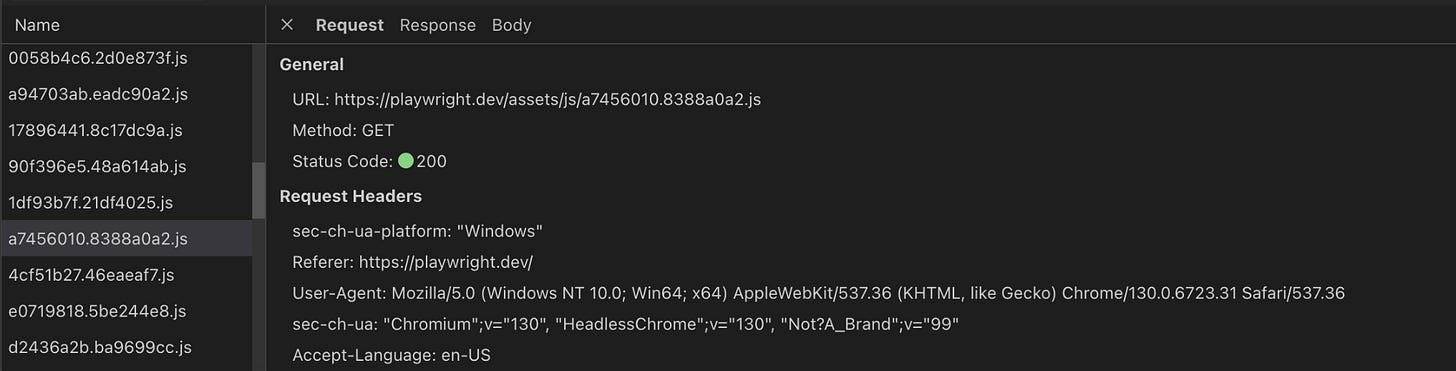
<p>In the above image, we can see that under the general section, the request method GET &amp; status code 200 of a particular request.</p>
<div class="header-wrapper">
<h4 id="3-new-settings-panel">3. New Settings Panel</h4>
<a class="header-wrapper__link" href="#3-new-settings-panel">
  <span class="header-link-icon-wrapper">
    <svg fill="currentColor" width="16" height="16" class="publish-link-anchor-icon" viewbox="0 0 16 16">
      <path d="M7.775 3.275a.75.75 0 001.06 1.06l1.25-1.25a2 2 0 112.83 2.83l-2.5 2.5a2 2 0 01-2.83 0 .75.75 0 00-1.06 1.06 3.5 3.5 0 004.95 0l2.5-2.5a3.5 3.5 0 00-4.95-4.95l-1.25 1.25zm-4.69 9.64a2 2 0 010-2.83l2.5-2.5a2 2 0 012.83 0 .75.75 0 001.06-1.06 3.5 3.5 0 00-4.95 0l-2.5 2.5a3.5 3.5 0 004.95 4.95l1.25-1.25a.75.75 0 00-1.06-1.06l-1.25 1.25a2 2 0 01-2.83 0z"></path>
    </svg>
  </span>
</a>
</div>
<p></p>
<div class="neeto-editor__image-wrapper neeto-editor__image--left"><figure><a href="https://assets-cdn.neetopublish.com/rails/active_storage/blobs/proxy/eyJfcmFpbHMiOnsiZGF0YSI6IjNmNTYyNWIyLTBlMDQtNGFjNi1iYmQxLWI1Yjc4ZWMwNjRjYyIsInB1ciI6ImJsb2JfaWQifX0=--919e14f0d9cce5fe0c9d12fe00c009c82f574696/image.png" target="_blank" rel="noopener noreferrer" class="neeto-editor__image" style="height:117.54433833560711px;width:718px;display:inline-block;pointer-events:none;"><img id="7ul4q" src="https://assets-cdn.neetopublish.com/rails/active_storage/blobs/proxy/eyJfcmFpbHMiOnsiZGF0YSI6IjNmNTYyNWIyLTBlMDQtNGFjNi1iYmQxLWI1Yjc4ZWMwNjRjYyIsInB1ciI6ImJsb2JfaWQifX0=--919e14f0d9cce5fe0c9d12fe00c009c82f574696/image.png" alt="" figheight="117.54433833560711" figwidth="718" align="left" draggable="false" contenteditable="false"></a><figcaption style="width:718px;"></figcaption></figure></div>
<p>There is a new setting to show or hide routing actions (Note: All route.* actions will be hidden from v1.48 onwards). Additionally, you can enable or disable dark mode from the settings panel.</p>
<div class="header-wrapper">
<h4 id="4-base-url-in-the-metadata-pane">4. Base URL in the Metadata pane</h4>
<a class="header-wrapper__link" href="#4-base-url-in-the-metadata-pane">
  <span class="header-link-icon-wrapper">
    <svg fill="currentColor" width="16" height="16" class="publish-link-anchor-icon" viewbox="0 0 16 16">
      <path d="M7.775 3.275a.75.75 0 001.06 1.06l1.25-1.25a2 2 0 112.83 2.83l-2.5 2.5a2 2 0 01-2.83 0 .75.75 0 00-1.06 1.06 3.5 3.5 0 004.95 0l2.5-2.5a3.5 3.5 0 00-4.95-4.95l-1.25 1.25zm-4.69 9.64a2 2 0 010-2.83l2.5-2.5a2 2 0 012.83 0 .75.75 0 001.06-1.06 3.5 3.5 0 00-4.95 0l-2.5 2.5a3.5 3.5 0 004.95 4.95l1.25-1.25a.75.75 0 00-1.06-1.06l-1.25 1.25a2 2 0 01-2.83 0z"></path>
    </svg>
  </span>
</a>
</div>
<p></p>
<div class="neeto-editor__image-wrapper neeto-editor__image--left"><figure><a href="https://assets-cdn.neetopublish.com/rails/active_storage/blobs/proxy/eyJfcmFpbHMiOnsiZGF0YSI6IjI5MjU3NmNjLTBkNjctNGFkYi05NTBmLTcwYjZjMjJiM2NmNCIsInB1ciI6ImJsb2JfaWQifX0=--33f7167039c21b5b1cd7f862b3fb7b8ccf70c018/image.png" target="_blank" rel="noopener noreferrer" class="neeto-editor__image" style="height:295.8199181446112px;width:718px;display:inline-block;pointer-events:none;"><img id="wuwoxb" src="https://assets-cdn.neetopublish.com/rails/active_storage/blobs/proxy/eyJfcmFpbHMiOnsiZGF0YSI6IjI5MjU3NmNjLTBkNjctNGFkYi05NTBmLTcwYjZjMjJiM2NmNCIsInB1ciI6ImJsb2JfaWQifX0=--33f7167039c21b5b1cd7f862b3fb7b8ccf70c018/image.png" alt="" figheight="295.8199181446112" figwidth="718" align="left" draggable="false" contenteditable="false"></a><figcaption style="width:718px;"></figcaption></figure></div>
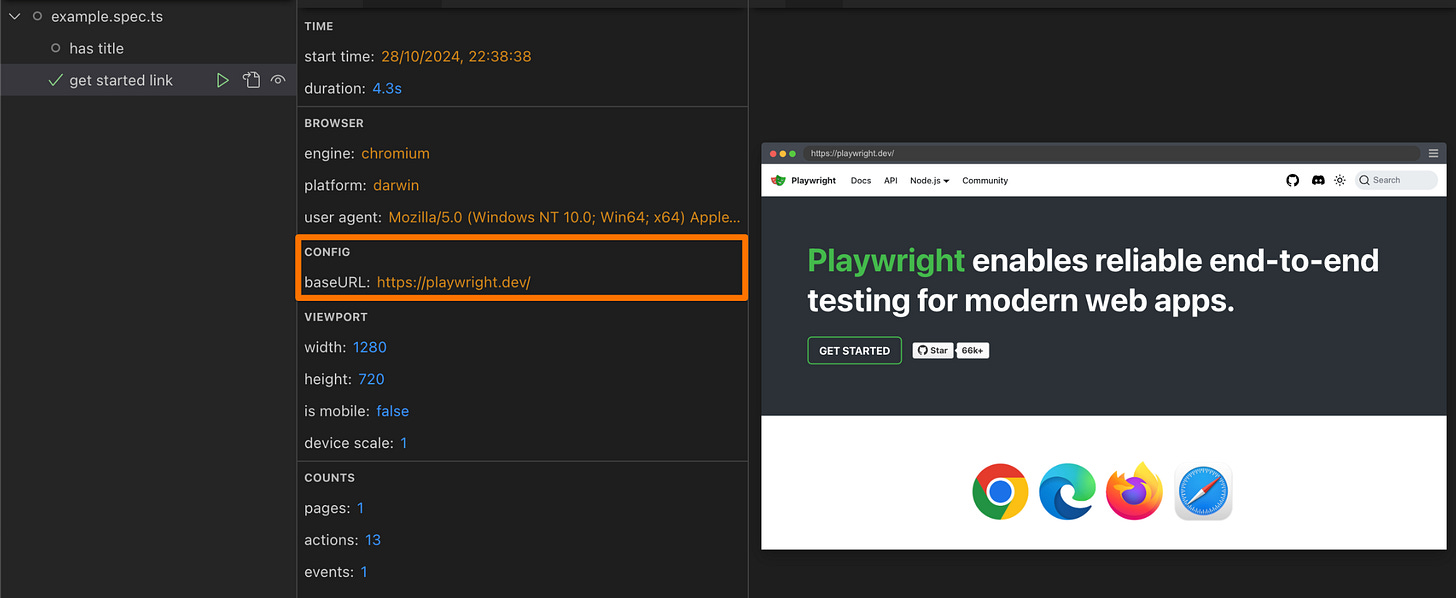
<p>We can now see the Base URL under the config section of the metadata pane.</p>
<div class="header-wrapper">
<h4 id="5-request-urls-in-the-actions-pane">5. Request URLs in the Actions pane</h4>
<a class="header-wrapper__link" href="#5-request-urls-in-the-actions-pane">
  <span class="header-link-icon-wrapper">
    <svg fill="currentColor" width="16" height="16" class="publish-link-anchor-icon" viewbox="0 0 16 16">
      <path d="M7.775 3.275a.75.75 0 001.06 1.06l1.25-1.25a2 2 0 112.83 2.83l-2.5 2.5a2 2 0 01-2.83 0 .75.75 0 00-1.06 1.06 3.5 3.5 0 004.95 0l2.5-2.5a3.5 3.5 0 00-4.95-4.95l-1.25 1.25zm-4.69 9.64a2 2 0 010-2.83l2.5-2.5a2 2 0 012.83 0 .75.75 0 001.06-1.06 3.5 3.5 0 00-4.95 0l-2.5 2.5a3.5 3.5 0 004.95 4.95l1.25-1.25a.75.75 0 00-1.06-1.06l-1.25 1.25a2 2 0 01-2.83 0z"></path>
    </svg>
  </span>
</a>
</div>
<p></p>
<div class="neeto-editor__image-wrapper neeto-editor__image--left"><figure><a href="https://assets-cdn.neetopublish.com/rails/active_storage/blobs/proxy/eyJfcmFpbHMiOnsiZGF0YSI6ImI4NDk3NTcwLTY3YTEtNGJmZi05YWEyLWNlNmVkYjQ5MzFhMiIsInB1ciI6ImJsb2JfaWQifX0=--f515f26fc8a48597ee51bf4ca57dac777069aa6a/image.png" target="_blank" rel="noopener noreferrer" class="neeto-editor__image" style="height:96.97407912687585px;width:718px;display:inline-block;pointer-events:none;"><img id="w9v8m" src="https://assets-cdn.neetopublish.com/rails/active_storage/blobs/proxy/eyJfcmFpbHMiOnsiZGF0YSI6ImI4NDk3NTcwLTY3YTEtNGJmZi05YWEyLWNlNmVkYjQ5MzFhMiIsInB1ciI6ImJsb2JfaWQifX0=--f515f26fc8a48597ee51bf4ca57dac777069aa6a/image.png" alt="" figheight="96.97407912687585" figwidth="718" align="left" draggable="false" contenteditable="false"></a><figcaption style="width:718px;"></figcaption></figure></div>
<p>Playwright will now show the request URLs for actions initiated via APIRequestContext in the actions pane.</p>
<div class="header-wrapper">
<h4 id="6-text-attachments-in-ui-mode">6. Text attachments in UI mode</h4>
<a class="header-wrapper__link" href="#6-text-attachments-in-ui-mode">
  <span class="header-link-icon-wrapper">
    <svg fill="currentColor" width="16" height="16" class="publish-link-anchor-icon" viewbox="0 0 16 16">
      <path d="M7.775 3.275a.75.75 0 001.06 1.06l1.25-1.25a2 2 0 112.83 2.83l-2.5 2.5a2 2 0 01-2.83 0 .75.75 0 00-1.06 1.06 3.5 3.5 0 004.95 0l2.5-2.5a3.5 3.5 0 00-4.95-4.95l-1.25 1.25zm-4.69 9.64a2 2 0 010-2.83l2.5-2.5a2 2 0 012.83 0 .75.75 0 001.06-1.06 3.5 3.5 0 00-4.95 0l-2.5 2.5a3.5 3.5 0 004.95 4.95l1.25-1.25a.75.75 0 00-1.06-1.06l-1.25 1.25a2 2 0 01-2.83 0z"></path>
    </svg>
  </span>
</a>
</div>
<p></p>
<div class="neeto-editor__image-wrapper neeto-editor__image--left"><figure><a href="https://assets-cdn.neetopublish.com/rails/active_storage/blobs/proxy/eyJfcmFpbHMiOnsiZGF0YSI6IjUxYTcxMGRjLTdlM2YtNDc0Yi05ZmEzLTZkMmU0MDhhYTVhZCIsInB1ciI6ImJsb2JfaWQifX0=--02cba39bdd9d557729ba04afd331761513247e37/image.png" target="_blank" rel="noopener noreferrer" class="neeto-editor__image" style="height:96.97407912687585px;width:718px;display:inline-block;pointer-events:none;"><img id="a7rj5m" src="https://assets-cdn.neetopublish.com/rails/active_storage/blobs/proxy/eyJfcmFpbHMiOnsiZGF0YSI6IjUxYTcxMGRjLTdlM2YtNDc0Yi05ZmEzLTZkMmU0MDhhYTVhZCIsInB1ciI6ImJsb2JfaWQifX0=--02cba39bdd9d557729ba04afd331761513247e37/image.png" alt="" figheight="96.97407912687585" figwidth="718" align="left" draggable="false" contenteditable="false"></a><figcaption style="width:718px;"></figcaption></figure></div>
<p>We can now access the text attachments added to the tests in UI mode. The text can be specified in the body property of the options argument.</p>
<div class="header-wrapper">
<h4 id="7-links-in-the-attachment-section-of-the-html-reporter">7. Links in the attachment section of the HTML reporter</h4>
<a class="header-wrapper__link" href="#7-links-in-the-attachment-section-of-the-html-reporter">
  <span class="header-link-icon-wrapper">
    <svg fill="currentColor" width="16" height="16" class="publish-link-anchor-icon" viewbox="0 0 16 16">
      <path d="M7.775 3.275a.75.75 0 001.06 1.06l1.25-1.25a2 2 0 112.83 2.83l-2.5 2.5a2 2 0 01-2.83 0 .75.75 0 00-1.06 1.06 3.5 3.5 0 004.95 0l2.5-2.5a3.5 3.5 0 00-4.95-4.95l-1.25 1.25zm-4.69 9.64a2 2 0 010-2.83l2.5-2.5a2 2 0 012.83 0 .75.75 0 001.06-1.06 3.5 3.5 0 00-4.95 0l-2.5 2.5a3.5 3.5 0 004.95 4.95l1.25-1.25a.75.75 0 00-1.06-1.06l-1.25 1.25a2 2 0 01-2.83 0z"></path>
    </svg>
  </span>
</a>
</div>
<p></p>
<div class="neeto-editor__image-wrapper neeto-editor__image--left"><figure><a href="https://assets-cdn.neetopublish.com/rails/active_storage/blobs/proxy/eyJfcmFpbHMiOnsiZGF0YSI6IjhkMTQ3ZDgxLTBiYmQtNGJjOS04NjIwLWM3NzgyOTUxNzhkOSIsInB1ciI6ImJsb2JfaWQifX0=--57063e8757187a284ba98e5e910eab65a39abbcd/image.png" target="_blank" rel="noopener noreferrer" class="neeto-editor__image" style="height:80.32196452933151px;width:718px;display:inline-block;pointer-events:none;"><img id="fes57k" src="https://assets-cdn.neetopublish.com/rails/active_storage/blobs/proxy/eyJfcmFpbHMiOnsiZGF0YSI6IjhkMTQ3ZDgxLTBiYmQtNGJjOS04NjIwLWM3NzgyOTUxNzhkOSIsInB1ciI6ImJsb2JfaWQifX0=--57063e8757187a284ba98e5e910eab65a39abbcd/image.png" alt="" figheight="80.32196452933151" figwidth="718" align="left" draggable="false" contenteditable="false"></a><figcaption style="width:718px;"></figcaption></figure></div>
<p>Playwright now allows links in the attachment section of the HTML reporter. I.e., the links provided in the attachments will be highlighted &amp; can be opened in a new tab.</p>
<p>Let's look at some minor enhancements &amp; changes introduced in this update.</p>
<ul><li><p>We can now use the maxRetries option in the <strong>apiRequestContext.fetch()</strong><code> </code>method to retry a request if it encounters an <code>ECONNRESET</code> network error.</p></li></ul>
<p>Here is an example:</p>
<pre data-highlighted-lines=""><code class="language-typescript">await request.fetch('https://example.com/api/createBook', {
  method: 'post',
  data: {
    title: 'Book Title',
    author: 'John Cena',
  },
  maxRetries: 3,
});</code></pre>
<ul><li><p>We can use the box option to minimise fixture exposure in UI mode &amp; trace viewer. This will reduce noise when using frequently used fixtures &amp; is particularly useful for non-essential helper fixtures.</p></li></ul>
<pre data-highlighted-lines=""><code class="language-typescript">import { test as base } from '@playwright/test';

export const test = base.extend({
  helperFixture: [async ({}, use) =&gt; {
    // ...
  }, { box: true }],
});</code></pre>
<ul><li><p>We can now give fixtures a custom title that will be shown in test reports &amp; error messages.</p></li></ul>
<pre data-highlighted-lines=""><code class="language-typescript">import { test as base } from '@playwright/test';

export const test = base.extend({
  innerFixture: [async ({}, use, testInfo) =&gt; {
    // ...
  }, { title: 'my fixture' }],
});</code></pre>
<div class="header-wrapper">
<h4 id="performance-enhancement">Performance Enhancement</h4>
<a class="header-wrapper__link" href="#performance-enhancement">
  <span class="header-link-icon-wrapper">
    <svg fill="currentColor" width="16" height="16" class="publish-link-anchor-icon" viewbox="0 0 16 16">
      <path d="M7.775 3.275a.75.75 0 001.06 1.06l1.25-1.25a2 2 0 112.83 2.83l-2.5 2.5a2 2 0 01-2.83 0 .75.75 0 00-1.06 1.06 3.5 3.5 0 004.95 0l2.5-2.5a3.5 3.5 0 00-4.95-4.95l-1.25 1.25zm-4.69 9.64a2 2 0 010-2.83l2.5-2.5a2 2 0 012.83 0 .75.75 0 001.06-1.06 3.5 3.5 0 00-4.95 0l-2.5 2.5a3.5 3.5 0 004.95 4.95l1.25-1.25a.75.75 0 00-1.06-1.06l-1.25 1.25a2 2 0 01-2.83 0z"></path>
    </svg>
  </span>
</a>
</div>
<ul><li><p>Playwright has introduced a cache system for storing normalised texts. This will reduce the time taken by the recorder to compute selectors by 8x.</p></li></ul>
<div class="header-wrapper">
<h4 id="minor-bug-fixes">Minor Bug Fixes</h4>
<a class="header-wrapper__link" href="#minor-bug-fixes">
  <span class="header-link-icon-wrapper">
    <svg fill="currentColor" width="16" height="16" class="publish-link-anchor-icon" viewbox="0 0 16 16">
      <path d="M7.775 3.275a.75.75 0 001.06 1.06l1.25-1.25a2 2 0 112.83 2.83l-2.5 2.5a2 2 0 01-2.83 0 .75.75 0 00-1.06 1.06 3.5 3.5 0 004.95 0l2.5-2.5a3.5 3.5 0 00-4.95-4.95l-1.25 1.25zm-4.69 9.64a2 2 0 010-2.83l2.5-2.5a2 2 0 012.83 0 .75.75 0 001.06-1.06 3.5 3.5 0 00-4.95 0l-2.5 2.5a3.5 3.5 0 004.95 4.95l1.25-1.25a.75.75 0 00-1.06-1.06l-1.25 1.25a2 2 0 01-2.83 0z"></path>
    </svg>
  </span>
</a>
</div>
<ul>
<li><p>Playwright will now throw errors for invalid dates while using the setSystemTime method in Clock APIs.</p></li>
<li><p>Playwright can now click on a link inside a disabled input label.</p></li>
<li><p>Fixed the issue where the start time for a request displayed the end time in the network tab.</p></li>
<li><p>Fixed bug in updating snapshots in UI mode with the --update-snapshots<code> </code>flag.</p></li>
<li><p>Fixed the issue with clicking on visible elements that aren’t interactable. Previously, if a component were not interactable, the code would reassign it to the nearest interactive parent element; otherwise, it would keep the original element. Now, the updated logic first checks if the target element is not interactable. If it’s not, it finds the nearest interactive parent, ensures this parent is visible on the screen, &amp; then reassigns the element to this parent.</p></li>
<li><p>The setInputFiles() method will now throw an error while attempting to use directory uploads without providing the necessary directory path.</p></li>
<li><p>Playwright recorder will now support custom context menus.</p></li>
<li><p>Fixed the issue where UI mode displayed all tests instead of only the selected ones when using the --grep flag.</p></li>
<li><p>Playwright now ensures that API calls are rejected before the browser is closed or a disconnect event is fired.</p></li>
</ul>
<hr>
<div class="header-wrapper">
<h2 id="release-v1-47-0">Release v1.47.0</h2>
<a class="header-wrapper__link" href="#release-v1-47-0">
  <span class="header-link-icon-wrapper">
    <svg fill="currentColor" width="16" height="16" class="publish-link-anchor-icon" viewbox="0 0 16 16">
      <path d="M7.775 3.275a.75.75 0 001.06 1.06l1.25-1.25a2 2 0 112.83 2.83l-2.5 2.5a2 2 0 01-2.83 0 .75.75 0 00-1.06 1.06 3.5 3.5 0 004.95 0l2.5-2.5a3.5 3.5 0 00-4.95-4.95l-1.25 1.25zm-4.69 9.64a2 2 0 010-2.83l2.5-2.5a2 2 0 012.83 0 .75.75 0 001.06-1.06 3.5 3.5 0 00-4.95 0l-2.5 2.5a3.5 3.5 0 004.95 4.95l1.25-1.25a.75.75 0 00-1.06-1.06l-1.25 1.25a2 2 0 01-2.83 0z"></path>
    </svg>
  </span>
</a>
</div>
<p>Let's explore the features that were introduced in this release.</p>
<div class="header-wrapper">
<h3 id="1-network-tab-improvements">1. Network Tab Improvements</h3>
<a class="header-wrapper__link" href="#1-network-tab-improvements">
  <span class="header-link-icon-wrapper">
    <svg fill="currentColor" width="16" height="16" class="publish-link-anchor-icon" viewbox="0 0 16 16">
      <path d="M7.775 3.275a.75.75 0 001.06 1.06l1.25-1.25a2 2 0 112.83 2.83l-2.5 2.5a2 2 0 01-2.83 0 .75.75 0 00-1.06 1.06 3.5 3.5 0 004.95 0l2.5-2.5a3.5 3.5 0 00-4.95-4.95l-1.25 1.25zm-4.69 9.64a2 2 0 010-2.83l2.5-2.5a2 2 0 012.83 0 .75.75 0 001.06-1.06 3.5 3.5 0 00-4.95 0l-2.5 2.5a3.5 3.5 0 004.95 4.95l1.25-1.25a.75.75 0 00-1.06-1.06l-1.25 1.25a2 2 0 01-2.83 0z"></path>
    </svg>
  </span>
</a>
</div>
<p></p>
<div class="neeto-editor__image-wrapper neeto-editor__image--left"><figure><a href="https://assets-cdn.neetopublish.com/rails/active_storage/blobs/proxy/eyJfcmFpbHMiOnsiZGF0YSI6ImQ0MTUwMjIxLThkNTQtNGZhOC1hMWY4LTY0OGJhMTExODQ0YiIsInB1ciI6ImJsb2JfaWQifX0=--0b94bd5b47ceae4bf787e46d1cf519c14c74b1eb/image.png" target="_blank" rel="noopener noreferrer" class="neeto-editor__image" style="height:184.15279672578444px;width:718px;display:inline-block;pointer-events:none;"><img id="xm02yt" src="https://assets-cdn.neetopublish.com/rails/active_storage/blobs/proxy/eyJfcmFpbHMiOnsiZGF0YSI6ImQ0MTUwMjIxLThkNTQtNGZhOC1hMWY4LTY0OGJhMTExODQ0YiIsInB1ciI6ImJsb2JfaWQifX0=--0b94bd5b47ceae4bf787e46d1cf519c14c74b1eb/image.png" alt="" figheight="184.15279672578444" figwidth="718" align="left" draggable="false" contenteditable="false"></a><figcaption style="width:718px;"></figcaption></figure></div>
<ul>
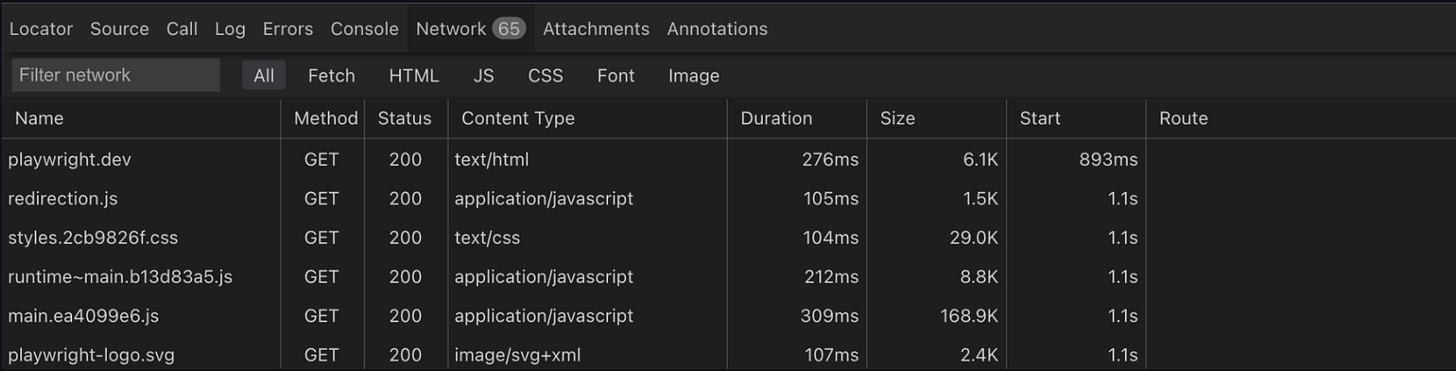
<li><p>Filtering by Asset Type &amp; URL - This feature allows users to filter network requests based on specific asset types (like images, scripts, or stylesheets) &amp; URLs.</p></li>
<li><p>Preview of Font Assets - This feature allows users to see a visual representation of the fonts being loaded in the application.</p></li>
</ul>
<div class="header-wrapper">
<h3 id="2-new-cli-option">2. New CLI Option</h3>
<a class="header-wrapper__link" href="#2-new-cli-option">
  <span class="header-link-icon-wrapper">
    <svg fill="currentColor" width="16" height="16" class="publish-link-anchor-icon" viewbox="0 0 16 16">
      <path d="M7.775 3.275a.75.75 0 001.06 1.06l1.25-1.25a2 2 0 112.83 2.83l-2.5 2.5a2 2 0 01-2.83 0 .75.75 0 00-1.06 1.06 3.5 3.5 0 004.95 0l2.5-2.5a3.5 3.5 0 00-4.95-4.95l-1.25 1.25zm-4.69 9.64a2 2 0 010-2.83l2.5-2.5a2 2 0 012.83 0 .75.75 0 001.06-1.06 3.5 3.5 0 00-4.95 0l-2.5 2.5a3.5 3.5 0 004.95 4.95l1.25-1.25a.75.75 0 00-1.06-1.06l-1.25 1.25a2 2 0 01-2.83 0z"></path>
    </svg>
  </span>
</a>
</div>
<p>We can now specify a single tsconfig file in the command line, &amp; Playwright will use it not only for the test files but for all imported files.</p>
<p>To pass a specific tsconfig, use the <a target="_blank" rel="nofollow ugc noopener" class="link" href="https://playwright.dev/docs/release-notes#--tsconfig-cli-option">--tsconfig</a> option along with the file name.</p>
<pre data-highlighted-lines=""><code class="language-bash">npx playwright test --tsconfig tsconfig.test.json
</code></pre>
<div class="header-wrapper">
<h3 id="3-new-query-params-for-apirequestcontext">3. New Query Params for APIRequestContext</h3>
<a class="header-wrapper__link" href="#3-new-query-params-for-apirequestcontext">
  <span class="header-link-icon-wrapper">
    <svg fill="currentColor" width="16" height="16" class="publish-link-anchor-icon" viewbox="0 0 16 16">
      <path d="M7.775 3.275a.75.75 0 001.06 1.06l1.25-1.25a2 2 0 112.83 2.83l-2.5 2.5a2 2 0 01-2.83 0 .75.75 0 00-1.06 1.06 3.5 3.5 0 004.95 0l2.5-2.5a3.5 3.5 0 00-4.95-4.95l-1.25 1.25zm-4.69 9.64a2 2 0 010-2.83l2.5-2.5a2 2 0 012.83 0 .75.75 0 001.06-1.06 3.5 3.5 0 00-4.95 0l-2.5 2.5a3.5 3.5 0 004.95 4.95l1.25-1.25a.75.75 0 00-1.06-1.06l-1.25 1.25a2 2 0 01-2.83 0z"></path>
    </svg>
  </span>
</a>
</div>
<p>We can now pass <a target="_blank" rel="nofollow ugc noopener" class="link" href="https://developer.mozilla.org/en-US/docs/Web/API/URLSearchParams">URLSearchParams</a> or a string as query parameters to APIRequestContext.</p>
<p>Here is an example that implements this:</p>
<pre data-highlighted-lines=""><code class="language-typescript">test('query params', async ({ request }) =&gt; {
  const searchParams = new URLSearchParams();
  searchParams.set('userId', 3);
  const response = await request.get(
      'https://jsonplaceholder.typicode.com/posts',
      {
        params: searchParams // or as a string: 'userId=5'
      }
  );
});</code></pre>
<p>Next, Let's explore some other improvements made in UI mode.</p>
<div class="header-wrapper">
<h4 id="1-query-string-parameters"><strong>1. Query String Parameters.</strong></h4>
<a class="header-wrapper__link" href="#1-query-string-parameters">
  <span class="header-link-icon-wrapper">
    <svg fill="currentColor" width="16" height="16" class="publish-link-anchor-icon" viewbox="0 0 16 16">
      <path d="M7.775 3.275a.75.75 0 001.06 1.06l1.25-1.25a2 2 0 112.83 2.83l-2.5 2.5a2 2 0 01-2.83 0 .75.75 0 00-1.06 1.06 3.5 3.5 0 004.95 0l2.5-2.5a3.5 3.5 0 00-4.95-4.95l-1.25 1.25zm-4.69 9.64a2 2 0 010-2.83l2.5-2.5a2 2 0 012.83 0 .75.75 0 001.06-1.06 3.5 3.5 0 00-4.95 0l-2.5 2.5a3.5 3.5 0 004.95 4.95l1.25-1.25a.75.75 0 00-1.06-1.06l-1.25 1.25a2 2 0 01-2.83 0z"></path>
    </svg>
  </span>
</a>
</div>
<p></p>
<div class="neeto-editor__image-wrapper neeto-editor__image--left"><figure><a href="https://assets-cdn.neetopublish.com/rails/active_storage/blobs/proxy/eyJfcmFpbHMiOnsiZGF0YSI6ImQzNTI5MjcwLTU5ZGYtNDliNy04ZmQzLTgyNjg1MzU4NTMxMCIsInB1ciI6ImJsb2JfaWQifX0=--f02b9157f86b8dae0960cc7af31c5884c90d0233/image.png" target="_blank" rel="noopener noreferrer" class="neeto-editor__image" style="height:122.44201909959072px;width:718px;display:inline-block;pointer-events:none;"><img id="f67y5d" src="https://assets-cdn.neetopublish.com/rails/active_storage/blobs/proxy/eyJfcmFpbHMiOnsiZGF0YSI6ImQzNTI5MjcwLTU5ZGYtNDliNy04ZmQzLTgyNjg1MzU4NTMxMCIsInB1ciI6ImJsb2JfaWQifX0=--f02b9157f86b8dae0960cc7af31c5884c90d0233/image.png" alt="" figheight="122.44201909959072" figwidth="718" align="left" draggable="false" contenteditable="false"></a><figcaption style="width:718px;"></figcaption></figure></div>
<p>We can now see the list of query parameters in the request tab under the query string parameters section.</p>
<div class="header-wrapper">
<h4 id="2-open-text-html-attachments-in-a-new-tab">2. Open text/html Attachments in a New Tab.</h4>
<a class="header-wrapper__link" href="#2-open-text-html-attachments-in-a-new-tab">
  <span class="header-link-icon-wrapper">
    <svg fill="currentColor" width="16" height="16" class="publish-link-anchor-icon" viewbox="0 0 16 16">
      <path d="M7.775 3.275a.75.75 0 001.06 1.06l1.25-1.25a2 2 0 112.83 2.83l-2.5 2.5a2 2 0 01-2.83 0 .75.75 0 00-1.06 1.06 3.5 3.5 0 004.95 0l2.5-2.5a3.5 3.5 0 00-4.95-4.95l-1.25 1.25zm-4.69 9.64a2 2 0 010-2.83l2.5-2.5a2 2 0 012.83 0 .75.75 0 001.06-1.06 3.5 3.5 0 00-4.95 0l-2.5 2.5a3.5 3.5 0 004.95 4.95l1.25-1.25a.75.75 0 00-1.06-1.06l-1.25 1.25a2 2 0 01-2.83 0z"></path>
    </svg>
  </span>
</a>
</div>
<p></p>
<div class="neeto-editor__image-wrapper neeto-editor__image--left"><figure><a href="https://assets-cdn.neetopublish.com/rails/active_storage/blobs/proxy/eyJfcmFpbHMiOnsiZGF0YSI6Ijc3NjEzM2Q5LWE3N2UtNGZjNC1hMTA2LWRkYjIzMDZiZjU1YSIsInB1ciI6ImJsb2JfaWQifX0=--10ba034a71c56182368608386ec27c22c1bad3da/image.png" target="_blank" rel="noopener noreferrer" class="neeto-editor__image" style="height:81.30150068212824px;width:718px;display:inline-block;pointer-events:none;"><img id="2wp5x" src="https://assets-cdn.neetopublish.com/rails/active_storage/blobs/proxy/eyJfcmFpbHMiOnsiZGF0YSI6Ijc3NjEzM2Q5LWE3N2UtNGZjNC1hMTA2LWRkYjIzMDZiZjU1YSIsInB1ciI6ImJsb2JfaWQifX0=--10ba034a71c56182368608386ec27c22c1bad3da/image.png" alt="" figheight="81.30150068212824" figwidth="718" align="left" draggable="false" contenteditable="false"></a><figcaption style="width:718px;"></figcaption></figure></div>
<p>We can now open the attachments with a text/html content type in a new tab in the HTML report. This is useful for including third-party reports or other HTML content in the Playwright test report.</p>
<p>Let's look at some minor enhancements &amp; changes introduced in this update.</p>
<ul><li><p>We can now remove all event listeners (or all the listeners of a given type if the type is specified) using the <a target="_blank" rel="nofollow ugc noopener" class="link" href="https://playwright.dev/docs/api/class-browser#browser-remove-all-listeners">removeAllListeners()</a> method. The arguments given to this method are type, which is the listener type &amp; behavior, an option to determine how to handle already running listeners &amp; errors thrown by them.</p></li></ul>
<p>Here is an example:</p>
<pre data-highlighted-lines=""><code class="language-typescript">await browser.removeAllListeners("event", { 
   behavior: "wait" //or "ignoreErrors", "default"
}); 
</code></pre>
<div class="neeto-editor__image-wrapper neeto-editor__image--left"><figure><a href="https://assets-cdn.neetopublish.com/rails/active_storage/blobs/proxy/eyJfcmFpbHMiOnsiZGF0YSI6ImNmOWNhOTA3LWY5NTUtNDJkZC1iNGU3LTg0ODA1ODZkODkzOCIsInB1ciI6ImJsb2JfaWQifX0=--a8c5f0c320a9fd0ea3bd548bddd02feb0351e48e/image.png" target="_blank" rel="noopener noreferrer" class="neeto-editor__image" style="height:143.99181446111868px;width:718px;display:inline-block;pointer-events:none;"><img id="21wf1" src="https://assets-cdn.neetopublish.com/rails/active_storage/blobs/proxy/eyJfcmFpbHMiOnsiZGF0YSI6ImNmOWNhOTA3LWY5NTUtNDJkZC1iNGU3LTg0ODA1ODZkODkzOCIsInB1ciI6ImJsb2JfaWQifX0=--a8c5f0c320a9fd0ea3bd548bddd02feb0351e48e/image.png" alt="" figheight="143.99181446111868" figwidth="718" align="left" draggable="false" contenteditable="false"></a><figcaption style="width:718px;"></figcaption></figure></div>
<ul><li><p>We can now pass the key &amp; cert attribute of the clientCertificates option as <a target="_blank" rel="nofollow ugc noopener" class="link" href="https://nodejs.org/api/buffer.html#buffer_class_buffer">buffers</a> instead of file paths while creating a new browser context.</p></li></ul>
<ul><li><p>From this update onwards, the noWaitAfter option in the <a target="_blank" rel="nofollow ugc noopener" class="link" href="https://playwright.dev/docs/api/class-locator#locator-select-option">locator.selectOption()</a> method is deprecated.</p></li></ul>
<pre data-highlighted-lines=""><code class="language-typescript">await page
   .getByTestId("data-testId")
   .selectOption("value", { 
      noWaitAfter: boolean //deprecated
   });</code></pre>
<ul><li><p>Playwright will now record the trace even if the test-scoped fixture times out.</p></li></ul>
<div class="header-wrapper">
<h4 id="performance-enhancements">Performance Enhancements</h4>
<a class="header-wrapper__link" href="#performance-enhancements">
  <span class="header-link-icon-wrapper">
    <svg fill="currentColor" width="16" height="16" class="publish-link-anchor-icon" viewbox="0 0 16 16">
      <path d="M7.775 3.275a.75.75 0 001.06 1.06l1.25-1.25a2 2 0 112.83 2.83l-2.5 2.5a2 2 0 01-2.83 0 .75.75 0 00-1.06 1.06 3.5 3.5 0 004.95 0l2.5-2.5a3.5 3.5 0 00-4.95-4.95l-1.25 1.25zm-4.69 9.64a2 2 0 010-2.83l2.5-2.5a2 2 0 012.83 0 .75.75 0 001.06-1.06 3.5 3.5 0 00-4.95 0l-2.5 2.5a3.5 3.5 0 004.95 4.95l1.25-1.25a.75.75 0 00-1.06-1.06l-1.25 1.25a2 2 0 01-2.83 0z"></path>
    </svg>
  </span>
</a>
</div>
<ul><li><p>Improved react code in UI mode, trace viewer &amp; HTML reporter.</p></li></ul>
<div class="header-wrapper">
<h4 id="minor-bug-fixes-1">Minor Bug Fixes</h4>
<a class="header-wrapper__link" href="#minor-bug-fixes-1">
  <span class="header-link-icon-wrapper">
    <svg fill="currentColor" width="16" height="16" class="publish-link-anchor-icon" viewbox="0 0 16 16">
      <path d="M7.775 3.275a.75.75 0 001.06 1.06l1.25-1.25a2 2 0 112.83 2.83l-2.5 2.5a2 2 0 01-2.83 0 .75.75 0 00-1.06 1.06 3.5 3.5 0 004.95 0l2.5-2.5a3.5 3.5 0 00-4.95-4.95l-1.25 1.25zm-4.69 9.64a2 2 0 010-2.83l2.5-2.5a2 2 0 012.83 0 .75.75 0 001.06-1.06 3.5 3.5 0 00-4.95 0l-2.5 2.5a3.5 3.5 0 004.95 4.95l1.25-1.25a.75.75 0 00-1.06-1.06l-1.25 1.25a2 2 0 01-2.83 0z"></path>
    </svg>
  </span>
</a>
</div>
<ul>
<li><p>Fixed the issue where watch mode in UI mode did not run newly added tests in the same file.</p></li>
<li><p>Fixed issues with downloading attachments in UI mode.</p></li>
<li><p>Now, the snapshots will render special characters correctly due to <a target="_blank" rel="nofollow ugc noopener" class="link" href="https://en.wikipedia.org/wiki/UTF-8">UTF-8</a> encoding.</p></li>
<li><p>From this update onwards, timeout in afterEach hook will not prevent fixture teardowns with custom timeout.</p></li>
<li><p>Now, we can list out the only changed tests with the combination of list &amp; only changed flag Here is an example:</p></li>
</ul>
<pre data-highlighted-lines=""><code class="language-bash">npx playwright test --list --only-changed</code></pre>
<ul>
<li><p>Playwright will throw errors for a duplicate test name.</p></li>
<li><p>Fixed issues where expect.poll<code> </code>error reporting not handling non-expect errors.</p></li>
<li><p>Fixed a bug in the Network tab where the request body was not correctly formatted when the Content-Type header was lowercase (content-type), even though the value was application/json.</p></li>
<li><p>We can now use custom matchers on expect.poll.</p></li>
</ul>
<hr>
<div class="header-wrapper">
<h2 id="release-v1-48-0">Release v1.48.0</h2>
<a class="header-wrapper__link" href="#release-v1-48-0">
  <span class="header-link-icon-wrapper">
    <svg fill="currentColor" width="16" height="16" class="publish-link-anchor-icon" viewbox="0 0 16 16">
      <path d="M7.775 3.275a.75.75 0 001.06 1.06l1.25-1.25a2 2 0 112.83 2.83l-2.5 2.5a2 2 0 01-2.83 0 .75.75 0 00-1.06 1.06 3.5 3.5 0 004.95 0l2.5-2.5a3.5 3.5 0 00-4.95-4.95l-1.25 1.25zm-4.69 9.64a2 2 0 010-2.83l2.5-2.5a2 2 0 012.83 0 .75.75 0 001.06-1.06 3.5 3.5 0 00-4.95 0l-2.5 2.5a3.5 3.5 0 004.95 4.95l1.25-1.25a.75.75 0 00-1.06-1.06l-1.25 1.25a2 2 0 01-2.83 0z"></path>
    </svg>
  </span>
</a>
</div>
<p>Let's explore the major changes that were made in this release.</p>
<div class="header-wrapper">
<h3 id="routewebsocket">routeWebSocket</h3>
<a class="header-wrapper__link" href="#routewebsocket">
  <span class="header-link-icon-wrapper">
    <svg fill="currentColor" width="16" height="16" class="publish-link-anchor-icon" viewbox="0 0 16 16">
      <path d="M7.775 3.275a.75.75 0 001.06 1.06l1.25-1.25a2 2 0 112.83 2.83l-2.5 2.5a2 2 0 01-2.83 0 .75.75 0 00-1.06 1.06 3.5 3.5 0 004.95 0l2.5-2.5a3.5 3.5 0 00-4.95-4.95l-1.25 1.25zm-4.69 9.64a2 2 0 010-2.83l2.5-2.5a2 2 0 012.83 0 .75.75 0 001.06-1.06 3.5 3.5 0 00-4.95 0l-2.5 2.5a3.5 3.5 0 004.95 4.95l1.25-1.25a.75.75 0 00-1.06-1.06l-1.25 1.25a2 2 0 01-2.83 0z"></path>
    </svg>
  </span>
</a>
</div>
<p>We can use this method to modify Websocket connections that are made by any page in the browser context. Using this method, we can mock or intercept a Websocket.</p>
<p>Let's look at a mocked Websocket.</p>
<pre data-highlighted-lines=""><code class="language-typescript">await page.routeWebSocket('/echo.websocket.org/', ws =&gt; {
  ws.send("Welcome!");
  
  ws.onMessage('Welcome' =&gt; {
    if (message === 'Hello chatbot')
      ws.send('Hello friend');
      ws.send('How can I help you today?');
  });
});</code></pre>
<p>In this example, we are not calling the server; Instead, we are mocking the entire communication over the WebSocket.</p>
<p>Let's look at an intercepted Websocket.</p>
<pre data-highlighted-lines=""><code class="language-typescript">await page.routeWebSocket('/echo.websocket.org/', ws =&gt; {
  const server = ws.connectToServer();
  
  ws.onMessage('Welcome' =&gt; {
    if (message === "Hello chatbot")
      server.send('Hello friend');
    else
      server.send(message);
  });
});</code></pre>
<p>In this case, we are connecting with the server, allowing us to intercept messages in between &amp; modify or block them.</p>
<p>Now, Let's look at some methods we can call on a WebSocket.</p>
<ol><li><p>close - Closes one side of the WebSocket connection.</p></li></ol>
<pre data-highlighted-lines=""><code class="language-typescript">await ws.close();
await ws.close({code: 1000, reason});</code></pre>
<p>Here, we can pass the <a target="_blank" rel="nofollow ugc noopener" class="link" href="https://developer.mozilla.org/en-US/docs/Web/API/WebSocket/close#code">code</a> &amp; <a target="_blank" rel="nofollow ugc noopener" class="link" href="https://developer.mozilla.org/en-US/docs/Web/API/WebSocket/close#reason">reason</a> as options. Code represents the close code indicating a reason for closure &amp; the reason will be the reason for closing the connection.</p>
<ol start="2"><li><p>connectToServer - Connects to the actual WebSocket server, &amp; returns the server-side WebSocketRoute instance.</p></li></ol>
<pre data-highlighted-lines=""><code class="language-typescript">ws.connectToServer();</code></pre>
<ol start="3"><li><p>onClose - We can use this method to disable the default closure (Ie. closing one side of the connection will close the other side). And we can pass a handler as an argument that will handle the closure.</p></li></ol>
<pre data-highlighted-lines=""><code class="language-typescript">ws.onClose(handler);</code></pre>
<ol start="4"><li><p>onMessage - We can use this method to handle messages that are sent by the WebSocket, either from the page or from the server.</p></li></ol>
<pre data-highlighted-lines=""><code class="language-typescript">ws.onMessage(handler);</code></pre>
<ol start="5"><li><p>send - We can use this method to send a message to the WebSocket. It will send a message to the page when this method is called on the original WebSocket. We can also use this method to send a message to the server if we call this method on the result of <strong>webSocketRoute.connectToServer()</strong>.</p></li></ol>
<pre data-highlighted-lines=""><code class="language-typescript">ws.send(message);</code></pre>
<ol start="6"><li><p><code>url</code> - This can be used to access the URL of the WebSocket created on the page.</p></li></ol>
<pre data-highlighted-lines=""><code class="language-typescript">ws.url();</code></pre>
<p>Next, Let's explore some other improvements made in UI mode.</p>
<div class="header-wrapper">
<h4 id="1-copy-requests-as-curl-or-fetch-in-the-network-tab"><strong>1. Copy Requests as cURL or Fetch in the Network Tab</strong></h4>
<a class="header-wrapper__link" href="#1-copy-requests-as-curl-or-fetch-in-the-network-tab">
  <span class="header-link-icon-wrapper">
    <svg fill="currentColor" width="16" height="16" class="publish-link-anchor-icon" viewbox="0 0 16 16">
      <path d="M7.775 3.275a.75.75 0 001.06 1.06l1.25-1.25a2 2 0 112.83 2.83l-2.5 2.5a2 2 0 01-2.83 0 .75.75 0 00-1.06 1.06 3.5 3.5 0 004.95 0l2.5-2.5a3.5 3.5 0 00-4.95-4.95l-1.25 1.25zm-4.69 9.64a2 2 0 010-2.83l2.5-2.5a2 2 0 012.83 0 .75.75 0 001.06-1.06 3.5 3.5 0 00-4.95 0l-2.5 2.5a3.5 3.5 0 004.95 4.95l1.25-1.25a.75.75 0 00-1.06-1.06l-1.25 1.25a2 2 0 01-2.83 0z"></path>
    </svg>
  </span>
</a>
</div>
<p></p>
<div class="neeto-editor__image-wrapper neeto-editor__image--left"><figure><a href="https://assets-cdn.neetopublish.com/rails/active_storage/blobs/proxy/eyJfcmFpbHMiOnsiZGF0YSI6IjJkMDJmMjU5LTEwM2YtNDA3ZS1iZDAzLWE4ZmI0YTg4ODYxOCIsInB1ciI6ImJsb2JfaWQifX0=--f16d2fdf15c65a38ebbfe28d5612e51199bd0bce/image.png" target="_blank" rel="noopener noreferrer" class="neeto-editor__image" style="height:235.08867667121422px;width:718px;display:inline-block;pointer-events:none;"><img id="kejrno" src="https://assets-cdn.neetopublish.com/rails/active_storage/blobs/proxy/eyJfcmFpbHMiOnsiZGF0YSI6IjJkMDJmMjU5LTEwM2YtNDA3ZS1iZDAzLWE4ZmI0YTg4ODYxOCIsInB1ciI6ImJsb2JfaWQifX0=--f16d2fdf15c65a38ebbfe28d5612e51199bd0bce/image.png" alt="" figheight="235.08867667121422" figwidth="718" align="left" draggable="false" contenteditable="false"></a><figcaption style="width:718px;"></figcaption></figure></div>
<p>You can now copy requests from the Network tab in the Trace Viewer, with the option to choose either cURL or Fetch format.</p>
<div class="header-wrapper">
<h4 id="2-trace-viewer-output-toggle-button-highlighted-for-terminal-errors">2. Trace Viewer: Output Toggle Button Highlighted for Terminal Errors</h4>
<a class="header-wrapper__link" href="#2-trace-viewer-output-toggle-button-highlighted-for-terminal-errors">
  <span class="header-link-icon-wrapper">
    <svg fill="currentColor" width="16" height="16" class="publish-link-anchor-icon" viewbox="0 0 16 16">
      <path d="M7.775 3.275a.75.75 0 001.06 1.06l1.25-1.25a2 2 0 112.83 2.83l-2.5 2.5a2 2 0 01-2.83 0 .75.75 0 00-1.06 1.06 3.5 3.5 0 004.95 0l2.5-2.5a3.5 3.5 0 00-4.95-4.95l-1.25 1.25zm-4.69 9.64a2 2 0 010-2.83l2.5-2.5a2 2 0 012.83 0 .75.75 0 001.06-1.06 3.5 3.5 0 00-4.95 0l-2.5 2.5a3.5 3.5 0 004.95 4.95l1.25-1.25a.75.75 0 00-1.06-1.06l-1.25 1.25a2 2 0 01-2.83 0z"></path>
    </svg>
  </span>
</a>
</div>
<p></p>
<div class="neeto-editor__image-wrapper neeto-editor__image--left"><figure><a href="https://assets-cdn.neetopublish.com/rails/active_storage/blobs/proxy/eyJfcmFpbHMiOnsiZGF0YSI6IjJhNTU2NWIyLTA5ZDgtNGJlNS04NGEyLTczOGFhOGE3ZjU0YyIsInB1ciI6ImJsb2JfaWQifX0=--0a7ca1b6b2e14624627780b3eaa78d1ba05deba7/image.png" target="_blank" rel="noopener noreferrer" class="neeto-editor__image" style="height:137.1350613915416px;width:718px;display:inline-block;pointer-events:none;"><img id="ohok2d" src="https://assets-cdn.neetopublish.com/rails/active_storage/blobs/proxy/eyJfcmFpbHMiOnsiZGF0YSI6IjJhNTU2NWIyLTA5ZDgtNGJlNS04NGEyLTczOGFhOGE3ZjU0YyIsInB1ciI6ImJsb2JfaWQifX0=--0a7ca1b6b2e14624627780b3eaa78d1ba05deba7/image.png" alt="" figheight="137.1350613915416" figwidth="718" align="left" draggable="false" contenteditable="false"></a><figcaption style="width:718px;"></figcaption></figure></div>
<p>The Trace Viewer will now highlight the output toggle button if the terminal contains an error.</p>
<p>Let's look at some minor enhancements &amp; changes introduced in this update.</p>
<ul><li><p>form option in <strong>apiRequestContext.fetch()</strong> now accepts <a target="_blank" rel="nofollow ugc noopener" class="link" href="https://developer.mozilla.org/en-US/docs/Web/API/FormData">FormData</a>.</p></li></ul>
<p>Here is an example:</p>
<pre data-highlighted-lines=""><code class="language-typescript">const formData = new FormData();
form.set('firstName', 'John');
form.append('lastName', 'Cena');

await request.fetch('https://example.com/api/uploadForm', {
  method: 'post',
  form: formData
});</code></pre>
<ul><li><p>Memory leaks can be detected through the <a target="_blank" rel="nofollow ugc noopener" class="link" href="https://playwright.dev/docs/api/class-page#page-request-gc">requestGC()</a> method. Let's understand this through an example:</p></li></ul>
<pre data-highlighted-lines=""><code class="language-typescript">await page.evaluate(() =&gt; 
globalThis.suspectWeakRef = new WeakRef(suspect));

await page.requestGC();

expect(await page.evaluate(() =&gt;           !globalThis.suspectWeakRef.deref())).toBe(true);</code></pre>
<p>In the first line, we save a weak reference to an object (referred to as suspect) to a global variable called suspectWeakRef. The second line calls the <strong>page.requestGC()</strong> method to clean up unused objects. In the last line, we check if the object was deleted, &amp; if it was not deleted, it could signify that there is a memory leak.</p>
<ul><li><p>The test.step allows you to pass a custom location as an option, which will be displayed in the trace viewer &amp; reporter. By default, the location of test.step() is shown.</p></li></ul>
<p>Here is an example:</p>
<pre data-highlighted-lines=""><code class="language-typescript">test("Test 1", async ({ page }) =&gt; {
  await test.step("login",async () =&gt; {
      await expect(
        page.getByRole("heading", { name: "Login" })
      ).toBeVisible();
  },
  { 
   location: { 
     line: 2, 
     file: "e2e/example.spec.ts", 
     column: 10 
    } 
  }); 
});</code></pre>
<ul>
<li><p>The requests made by APIRequestContext record the detailed timing &amp; security information in the <a target="_blank" rel="nofollow ugc noopener" class="link" href="https://en.wikipedia.org/wiki/HAR_(file_format)">HAR</a> (HTTP Archive) format.</p></li>
<li><p>Playwright has updated the expect.extend behaviour so that it no longer mutates the global expect instance. Here is an example:</p></li>
</ul>
<pre data-highlighted-lines=""><code class="language-typescript">const expectOne = expect.extend({
  toCustomMatcher() {
    console.log("Hello");

    return {
      pass: true,
      message: () =&gt; 'Random message',
    };
  },
});
      
const expectTwo = expect.extend({
  toCustomMatcher() {
    console.log("Hi");

    return {
      pass: true,
      message: () =&gt; 'Random message',
    };
  },
});</code></pre>
<p>Here, both expectOne &amp; expectTwo are distinct instances, unlike in previous versions, where they would have been the same.</p>
<ul>
<li><p>We can now copy the text in annotations &amp; filename in HTML reporter.</p></li>
<li><p>Playwright now supports TLS client certificates with proxy servers.</p></li>
<li><p>Playwright will not execute an upfront test run on watch mode.</p></li>
<li><p>We can now use the buffer mode to run the changed tests in watch mode.</p></li>
</ul>
<p>Watch mode can be activated by executing the following command:</p>
<pre data-highlighted-lines=""><code class="language-bash">PWTEST_WATCH=1 npx playwright test</code></pre>
<p>After turning on watch mode, we can activate Buffer mode by pressing <code>b</code>. The changed tests will be shown on the terminal &amp; we can run the tests by pressing Enter.</p>
<div class="header-wrapper">
<h4 id="minor-bug-fixes-2">Minor Bug Fixes</h4>
<a class="header-wrapper__link" href="#minor-bug-fixes-2">
  <span class="header-link-icon-wrapper">
    <svg fill="currentColor" width="16" height="16" class="publish-link-anchor-icon" viewbox="0 0 16 16">
      <path d="M7.775 3.275a.75.75 0 001.06 1.06l1.25-1.25a2 2 0 112.83 2.83l-2.5 2.5a2 2 0 01-2.83 0 .75.75 0 00-1.06 1.06 3.5 3.5 0 004.95 0l2.5-2.5a3.5 3.5 0 00-4.95-4.95l-1.25 1.25zm-4.69 9.64a2 2 0 010-2.83l2.5-2.5a2 2 0 012.83 0 .75.75 0 001.06-1.06 3.5 3.5 0 00-4.95 0l-2.5 2.5a3.5 3.5 0 004.95 4.95l1.25-1.25a.75.75 0 00-1.06-1.06l-1.25 1.25a2 2 0 01-2.83 0z"></path>
    </svg>
  </span>
</a>
</div>
<ul>
<li><p>Playwright will no longer consider the --retries for the --maxFailures flag.</p></li>
<li><p>Fixed the issue with the expect.poll did not display the custom error message when provided.</p></li>
<li><p>Playwright has disabled the <a target="_blank" rel="nofollow ugc noopener" class="link" href="https://developers.google.com/privacy-sandbox/cookies/storage-partitioning#what_is_storage_partitioning">ThirdPartyStoragePartitioning</a> for Chromium.</p></li>
<li><p>Fixed the issue where UI mode did not recognise the --tsconfig flag specified via the CLI.</p></li>
</ul>
]]>
    </content>
  </entry>
  <entry>
    <title>
      <![CDATA[What's new in Playwright v1.42 & v1.43]]>
    </title>
    <authors>
      <name>S Varun</name>
    </authors>
    <link href="https://blog.pixelcompute.com/p/what-s-new-in-playwright-v1-42-v1-43"/>
    <updated>2024-07-09T18:30:00Z</updated>
    <id>https://blog.pixelcompute.com/p/what-s-new-in-playwright-v1-42-v1-43</id>
    <content type="html">
      <![CDATA[
<div class="header-wrapper">
<h2 id="version-1-42">Version 1.42</h2>
<a class="header-wrapper__link" href="#version-1-42">
  <span class="header-link-icon-wrapper">
    <svg fill="currentColor" width="16" height="16" class="publish-link-anchor-icon" viewbox="0 0 16 16">
      <path d="M7.775 3.275a.75.75 0 001.06 1.06l1.25-1.25a2 2 0 112.83 2.83l-2.5 2.5a2 2 0 01-2.83 0 .75.75 0 00-1.06 1.06 3.5 3.5 0 004.95 0l2.5-2.5a3.5 3.5 0 00-4.95-4.95l-1.25 1.25zm-4.69 9.64a2 2 0 010-2.83l2.5-2.5a2 2 0 012.83 0 .75.75 0 001.06-1.06 3.5 3.5 0 00-4.95 0l-2.5 2.5a3.5 3.5 0 004.95 4.95l1.25-1.25a.75.75 0 00-1.06-1.06l-1.25 1.25a2 2 0 01-2.83 0z"></path>
    </svg>
  </span>
</a>
</div>
<p>Let's explore the major changes that were released in this version.</p>
<div class="header-wrapper">
<h3 id="addlocatorhandler">addLocatorHandler</h3>
<a class="header-wrapper__link" href="#addlocatorhandler">
  <span class="header-link-icon-wrapper">
    <svg fill="currentColor" width="16" height="16" class="publish-link-anchor-icon" viewbox="0 0 16 16">
      <path d="M7.775 3.275a.75.75 0 001.06 1.06l1.25-1.25a2 2 0 112.83 2.83l-2.5 2.5a2 2 0 01-2.83 0 .75.75 0 00-1.06 1.06 3.5 3.5 0 004.95 0l2.5-2.5a3.5 3.5 0 00-4.95-4.95l-1.25 1.25zm-4.69 9.64a2 2 0 010-2.83l2.5-2.5a2 2 0 012.83 0 .75.75 0 001.06-1.06 3.5 3.5 0 00-4.95 0l-2.5 2.5a3.5 3.5 0 004.95 4.95l1.25-1.25a.75.75 0 00-1.06-1.06l-1.25 1.25a2 2 0 01-2.83 0z"></path>
    </svg>
  </span>
</a>
</div>
<p>Have you faced pop-ups or dialog boxes while running your tests? They occur randomly and cause flakiness in our tests. Due to their presence, they block the actions that we have automated. e.g. A promotion modal blocks a button we need to click, so the test fails at that point.</p>
<p><span>Playwright has added a new method </span><a rel="" class="link" href="https://playwright.dev/docs/api/class-page#page-add-locator-handler">page.addLocatorHandler</a><span> to resolve this issue. Let's see how we can implement this for our example above</span></p>
<pre data-highlighted-lines=""><code class="language-typescript">  await page.addLocatorHandler(
    page.getByText("Check out our new promotion"),

    () =&gt; page.getByTestId(close-promotion-modal).click()
  );</code></pre>
<p>Here, the first argument is the locator of the content that indicates a promotion modal is visible. The second argument is the method that should be run to close the promotion modal.</p>
<p>Let's explore some other changes that were introduced in this version</p>
<p><span>1. We can now set the timeout for </span><a rel="" class="link" href="https://playwright.dev/docs/test-assertions#expecttopass">expect.toPass()</a><span> globally or in our project config. Let's look at an example of setting this timeout globally.</span></p>
<pre data-highlighted-lines=""><code class="language-typescript">import { defineConfig } from "@playwright/test";

export default defineConfig({
  expect: { toPass: { timeout: 60000 } },
});</code></pre>
<p><span>Here, the default timeout for </span><code>toPass()</code><span> has been set to 60 seconds.</span></p>
<p><span>2. Tags for a test can now be added using the </span><code>tag</code><span> property in the test details object in Playwright. They can also be added to describe blocks. Let's see an example of the new syntax.</span></p>
<pre data-highlighted-lines=""><code class="language-typescript">test("basic test", { tag: ["@smoke", "@fast"] }, async ({ page }) =&gt; {
  await page.goto("https://playwright.dev/");

  // ...
});</code></pre>
<p><span>To run the tests with your desired tag, use </span><code>--grep</code><span> along with the tag name.</span></p>
<pre data-highlighted-lines=""><code class="language-bash">npx playwright test --grep @smoke</code></pre>
<p><span>This command runs the tests that include the </span><code>@smoke</code><span> tag.</span></p>
<p><span>3. We can now run similar tests by using the </span><code>--project</code><span> command line flag with the '*' wildcard in Playwright Test. For example, let's say you have a Playwright configuration file that defines multiple projects for different environments or devices, like so:</span></p>
<pre data-highlighted-lines=""><code class="language-javascript">// playwright.config.js

module.exports = {
  projects: [
    { name: "Desktop Chrome", use: { browserName: "chromium" } },
    {
      name: "Mobile Chrome",
      use: { browserName: "chromium", viewport: { width: 375, height: 667 } },
    },
    { name: "Desktop Firefox", use: { browserName: "firefox" } },
    {
      name: "Mobile Firefox",
      use: { browserName: "firefox", viewport: { width: 375, height: 667 } },
    },
  ],
};</code></pre>
<p>If we want to run tests only for mobile projects, we can use the command given below</p>
<pre data-highlighted-lines=""><code class="language-bash">npx playwright test --project='*Mobile*'</code></pre>
<p><span>4. Annotations now have a </span><code>type</code><span> and </span><code>description</code><span> property for more context which is visible in the test report. Let's take a look at the new syntax</span></p>
<pre data-highlighted-lines=""><code class="language-typescript">test(
  "test checkout process",
  {
    annotation: [
      {
        type: "bug",
        description: "Known issue: Credit card validation fails intermittently",
      },
      {
        type: "dependency",
        description: "Relies on third-party payment gateway",
      },
    ],
  },
  async ({ page }) =&gt; {
    // ...
  }
);</code></pre>
<p><span>5. There are two new options for </span><code>page.pdf</code><span> </span><a rel="" class="link" href="https://playwright.dev/docs/api/class-page#page-pdf">method</a><span>.</span></p>
<p><span>- </span><a rel="" class="link" href="https://playwright.dev/docs/api/class-page#page-pdf-option-outline">outline</a><span>: Defaults to false, this property embeds a document outline into the PDF. The document outline is a structured table of contents that the reader can use to navigate the document, also called a bookmark.</span></p>
<p><span>- </span><a rel="" class="link" href="https://playwright.dev/docs/api/class-page#page-pdf-option-tagged">tagged</a><span>: Defaults to false, this property generates a tagged (accessible) PDF. Tags in a PDF are used to identify the document's logical structure and content, such as headings, sections, tables, links, etc.</span></p>
<p>Here is an example that generates a tagged PDF with a table of contents (outline).</p>
<pre data-highlighted-lines=""><code class="language-typescript">await page.pdf({
  path: "example.pdf",
  format: "A4",
  tagged: true,
  outline: true,
});</code></pre>
<div class="header-wrapper">
<h2 id="version-1-43">Version 1.43</h2>
<a class="header-wrapper__link" href="#version-1-43">
  <span class="header-link-icon-wrapper">
    <svg fill="currentColor" width="16" height="16" class="publish-link-anchor-icon" viewbox="0 0 16 16">
      <path d="M7.775 3.275a.75.75 0 001.06 1.06l1.25-1.25a2 2 0 112.83 2.83l-2.5 2.5a2 2 0 01-2.83 0 .75.75 0 00-1.06 1.06 3.5 3.5 0 004.95 0l2.5-2.5a3.5 3.5 0 00-4.95-4.95l-1.25 1.25zm-4.69 9.64a2 2 0 010-2.83l2.5-2.5a2 2 0 012.83 0 .75.75 0 001.06-1.06 3.5 3.5 0 00-4.95 0l-2.5 2.5a3.5 3.5 0 004.95 4.95l1.25-1.25a.75.75 0 00-1.06-1.06l-1.25 1.25a2 2 0 01-2.83 0z"></path>
    </svg>
  </span>
</a>
</div>
<p>Let's explore the changes that were made in this release.</p>
<p><span>1. We can now clear the specific cookies using </span><a rel="" class="link" href="https://playwright.dev/docs/api/class-browsercontext#browser-context-clear-cookies">clearCookies()</a><span>. The filter options are </span><a rel="" class="link" href="https://playwright.dev/docs/api/class-browsercontext#browser-context-clear-cookies-option-domain">domain</a><span>, </span><a rel="" class="link" href="https://playwright.dev/docs/api/class-browsercontext#browser-context-clear-cookies-option-name">name</a><span>, and </span><a rel="" class="link" href="https://playwright.dev/docs/api/class-browsercontext#browser-context-clear-cookies-option-path">path.</a><span> Let's take a look at an example for clearing out the cookies with a specific path and domain.</span></p>
<pre data-highlighted-lines=""><code class="language-typescript">await context.clearCookies({ path: "/api/v1", domain: "example.com" });</code></pre>
<p><span>Here, the cookies that match the path </span><code>/api/v1</code><span> and the domain </span><code>example.com</code><span> will be cleared from the browser context.</span></p>
<p>2. We can now record traces only for the first runs of each test. By configuring your Playwright tests as shown below, you ensure that only the first run of each test is traced, and traces are only kept for those that fail.</p>
<pre data-highlighted-lines=""><code class="language-typescript">import { defineConfig } from "@playwright/test";

export default defineConfig({
  use: { trace: "retain-on-first-failure" },
});</code></pre>
<p><span>3. If we want to access the tags of a test, we can use </span><a rel="" class="link" href="https://playwright.dev/docs/api/class-testinfo#test-info-tags">tags()</a><span> method of the TestInfo class. Here is an example that implements this method.</span></p>
<pre data-highlighted-lines=""><code class="language-typescript">import { test } from "@playwright/test";

test("custom tag demonstration", async ({ page }) =&gt; {
  console.log(test.info().tags); // Log the tags associated with this test
});</code></pre>
<p><span>4. Convert a </span><a rel="" class="link" href="https://playwright.dev/docs/api/class-locator">Locator</a><span> object to a </span><a rel="" class="link" href="https://playwright.dev/docs/api/class-framelocator">FrameLocator</a><span> using the new method </span><a rel="" class="link" href="https://playwright.dev/docs/api/class-locator#locator-content-frame">contentFrame()</a><span>. Let's look at a scenario where we want to access an input within a locator's iframe.</span></p>
<pre data-highlighted-lines=""><code class="language-typescript">const locator = page.locator("iframe#loginFrame");

// Get the FrameLocator object for interacting with the iframe's content

const frameLocator = locator.contentFrame();

// Interact with an input element inside the iframe, such as filling it with text

await frameLocator.locator('input[name="username"]').fill("user@example.com");</code></pre>
<p><span>5. </span><a rel="" class="link" href="https://playwright.dev/docs/api/class-framelocator#frame-locator-owner">frameLocator.owner()</a><span> performs the reverse operation of the above point. Here is an example demonstrating its implementation.</span></p>
<pre data-highlighted-lines=""><code class="language-typescript">const frameLocator = page.frameLocator('iframe[name="userProfile"]');

const locator = frameLocator.owner();

await expect(locator).toBeVisible();</code></pre>
<p><span>6. We can now filter by tags by typing the tag name or clicking on the desired tag in UI mode.</span></p>
<div class="neeto-editor__image-wrapper neeto-editor__image--left"><figure><a href="https://assets-cdn.neetopublish.com/rails/active_storage/blobs/proxy/eyJfcmFpbHMiOnsiZGF0YSI6ImI1NjE1ODdiLWI4YzQtNGJlYi05MmIzLWRjMTE5MGU4ZDA5ZCIsInB1ciI6ImJsb2JfaWQifX0=--d7385e8550eb9e817b6fc6814e09fca78051c83a/5622916d-bbd7-40e0-b92d-d1d8917cef74_2880x1752.jpg" target="_blank" rel="noopener noreferrer" class="neeto-editor__image" style="height:437.8526603001364px;width:718px;display:inline-block;pointer-events:none;"><img src="https://assets-cdn.neetopublish.com/rails/active_storage/blobs/proxy/eyJfcmFpbHMiOnsiZGF0YSI6ImI1NjE1ODdiLWI4YzQtNGJlYi05MmIzLWRjMTE5MGU4ZDA5ZCIsInB1ciI6ImJsb2JfaWQifX0=--d7385e8550eb9e817b6fc6814e09fca78051c83a/5622916d-bbd7-40e0-b92d-d1d8917cef74_2880x1752.jpg" alt="5622916d-bbd7-40e0-b92d-d1d8917cef74_2880x1752.jpg" figheight="437.8526603001364" figwidth="718" align="left" draggable="false" contenteditable="false"></a><figcaption style="width:718px;">UI mode updates</figcaption></figure></div>
<p><span>Stay tuned to discover more updates in Playwright!</span></p>
]]>
    </content>
  </entry>
  <entry>
    <title>
      <![CDATA[Reaching peak efficiency in Parallelism without flakiness utilizing nested describe blocks in Playwright]]>
    </title>
    <authors>
      <name>S Varun</name>
    </authors>
    <link href="https://blog.pixelcompute.com/p/reaching-peak-efficiency-in-parallelism-without-flakiness-utilizing-nested-describe-blocks-in-playwright"/>
    <updated>2024-06-19T18:30:00Z</updated>
    <id>https://blog.pixelcompute.com/p/reaching-peak-efficiency-in-parallelism-without-flakiness-utilizing-nested-describe-blocks-in-playwright</id>
    <content type="html">
      <![CDATA[
<div class="header-wrapper">
<h2 id="introduction">Introduction</h2>
<a class="header-wrapper__link" href="#introduction">
  <span class="header-link-icon-wrapper">
    <svg fill="currentColor" width="16" height="16" class="publish-link-anchor-icon" viewbox="0 0 16 16">
      <path d="M7.775 3.275a.75.75 0 001.06 1.06l1.25-1.25a2 2 0 112.83 2.83l-2.5 2.5a2 2 0 01-2.83 0 .75.75 0 00-1.06 1.06 3.5 3.5 0 004.95 0l2.5-2.5a3.5 3.5 0 00-4.95-4.95l-1.25 1.25zm-4.69 9.64a2 2 0 010-2.83l2.5-2.5a2 2 0 012.83 0 .75.75 0 001.06-1.06 3.5 3.5 0 00-4.95 0l-2.5 2.5a3.5 3.5 0 004.95 4.95l1.25-1.25a.75.75 0 00-1.06-1.06l-1.25 1.25a2 2 0 01-2.83 0z"></path>
    </svg>
  </span>
</a>
</div>
<p><span>Have you worked with interdependent tests in </span><a rel="" class="link" href="https://playwright.dev/">Playwright</a><span> that cause flakiness when run in parallel mode? In this blog, we'll explore how to reach peak efficiency while running tests in parallel without flakiness, utilizing nested describe blocks in Playwright.</span></p>
<div class="header-wrapper">
<h2 id="getting-started">Getting started</h2>
<a class="header-wrapper__link" href="#getting-started">
  <span class="header-link-icon-wrapper">
    <svg fill="currentColor" width="16" height="16" class="publish-link-anchor-icon" viewbox="0 0 16 16">
      <path d="M7.775 3.275a.75.75 0 001.06 1.06l1.25-1.25a2 2 0 112.83 2.83l-2.5 2.5a2 2 0 01-2.83 0 .75.75 0 00-1.06 1.06 3.5 3.5 0 004.95 0l2.5-2.5a3.5 3.5 0 00-4.95-4.95l-1.25 1.25zm-4.69 9.64a2 2 0 010-2.83l2.5-2.5a2 2 0 012.83 0 .75.75 0 001.06-1.06 3.5 3.5 0 00-4.95 0l-2.5 2.5a3.5 3.5 0 004.95 4.95l1.25-1.25a.75.75 0 00-1.06-1.06l-1.25 1.25a2 2 0 01-2.83 0z"></path>
    </svg>
  </span>
</a>
</div>
<p>Playwright allows the user to run all the tests in parallel. But with parallelism comes a set of problems the user faces since there will be some tests that can affect the execution of another test.</p>
<p>Consider a scenario where the functionality of our test is to verify the count of emails. Since all the tests are running in parallel, there's a high probability that the other tests will also create a new email during execution. This will break our test since the count of emails will increase due to the interaction by the other tests, and we cannot reliably predict what the count will be.</p>
<div class="header-wrapper">
<h2 id="different-execution-modes-in-playwright">Different execution modes in Playwright</h2>
<a class="header-wrapper__link" href="#different-execution-modes-in-playwright">
  <span class="header-link-icon-wrapper">
    <svg fill="currentColor" width="16" height="16" class="publish-link-anchor-icon" viewbox="0 0 16 16">
      <path d="M7.775 3.275a.75.75 0 001.06 1.06l1.25-1.25a2 2 0 112.83 2.83l-2.5 2.5a2 2 0 01-2.83 0 .75.75 0 00-1.06 1.06 3.5 3.5 0 004.95 0l2.5-2.5a3.5 3.5 0 00-4.95-4.95l-1.25 1.25zm-4.69 9.64a2 2 0 010-2.83l2.5-2.5a2 2 0 012.83 0 .75.75 0 001.06-1.06 3.5 3.5 0 00-4.95 0l-2.5 2.5a3.5 3.5 0 004.95 4.95l1.25-1.25a.75.75 0 00-1.06-1.06l-1.25 1.25a2 2 0 01-2.83 0z"></path>
    </svg>
  </span>
</a>
</div>
<p><span>There are three </span><a rel="" class="link" href="https://playwright.dev/docs/test-parallel">execution modes</a><span> in Playwright, which can be configured as:</span></p>
<ol><li><p>Parallel: All tests run in parallel to each other. If one test fails, all the other tests are not affected.</p></li></ol>
<pre data-highlighted-lines=""><code class="language-typescript">test.describe ("Parallel execution mode", () = {

test.describe.configure({ mode: "parallel" });

  test ("Test A", async () =&gt; {
    ...
  });

  test ("Test B", async () =&gt; {
    ...
  });
});
</code></pre>
<ol start="2"><li><p>Serial: All tests are executed sequentially, meaning each test is executed one after the other. If one test fails, all subsequent tests are skipped.</p></li></ol>
<p><em>Note: Executing tests in serial mode is not recommended. It is usually better to isolate our tests so that they can be run independently.</em></p>
<pre data-highlighted-lines=""><code class="language-typescript">test.describe ("Serial execution mode", () = {

test.describe.configure({ mode: "serial" });

  test ("Test A", async () =&gt; {
    ...
  });

  test ("Test B", async () =&gt; {
    ...
  });
});
</code></pre>
<ol start="3"><li><p>Default: All tests are executed sequentially, meaning each test is executed one after the other. If one test fails, it does not affect the execution of the other tests.</p></li></ol>
<p><em>Note: Executing tests in default mode is not recommended. Even though default mode is preferred over serial mode, it is usually better to isolate our tests so that they can be run independently.</em></p>
<pre data-highlighted-lines=""><code class="language-typescript">test.describe ("Default execution mode", () = {

test.describe.configure({ mode: "default" });

  test ("Test A", async () =&gt; {
    ...
  });

  test ("Test B", async () =&gt; {
    ...
  });
});
</code></pre>
<div class="header-wrapper">
<h2 id="nested-describe-blocks">Nested describe blocks</h2>
<a class="header-wrapper__link" href="#nested-describe-blocks">
  <span class="header-link-icon-wrapper">
    <svg fill="currentColor" width="16" height="16" class="publish-link-anchor-icon" viewbox="0 0 16 16">
      <path d="M7.775 3.275a.75.75 0 001.06 1.06l1.25-1.25a2 2 0 112.83 2.83l-2.5 2.5a2 2 0 01-2.83 0 .75.75 0 00-1.06 1.06 3.5 3.5 0 004.95 0l2.5-2.5a3.5 3.5 0 00-4.95-4.95l-1.25 1.25zm-4.69 9.64a2 2 0 010-2.83l2.5-2.5a2 2 0 012.83 0 .75.75 0 001.06-1.06 3.5 3.5 0 00-4.95 0l-2.5 2.5a3.5 3.5 0 004.95 4.95l1.25-1.25a.75.75 0 00-1.06-1.06l-1.25 1.25a2 2 0 01-2.83 0z"></path>
    </svg>
  </span>
</a>
</div>
<p>Describe block is a logical way to group together tests that are similar. Playwright doesn’t limit us to having only one describe block per spec. We can have multiple describe blocks within a spec, which can also be nested within each other. These are called nested describe blocks.</p>
<div class="header-wrapper">
<h2 id="achieving-peak-parallelism-for-interdependent-tests">Achieving peak parallelism for interdependent tests</h2>
<a class="header-wrapper__link" href="#achieving-peak-parallelism-for-interdependent-tests">
  <span class="header-link-icon-wrapper">
    <svg fill="currentColor" width="16" height="16" class="publish-link-anchor-icon" viewbox="0 0 16 16">
      <path d="M7.775 3.275a.75.75 0 001.06 1.06l1.25-1.25a2 2 0 112.83 2.83l-2.5 2.5a2 2 0 01-2.83 0 .75.75 0 00-1.06 1.06 3.5 3.5 0 004.95 0l2.5-2.5a3.5 3.5 0 00-4.95-4.95l-1.25 1.25zm-4.69 9.64a2 2 0 010-2.83l2.5-2.5a2 2 0 012.83 0 .75.75 0 001.06-1.06 3.5 3.5 0 00-4.95 0l-2.5 2.5a3.5 3.5 0 004.95 4.95l1.25-1.25a.75.75 0 00-1.06-1.06l-1.25 1.25a2 2 0 01-2.83 0z"></path>
    </svg>
  </span>
</a>
</div>
<p>Now that we have an understanding of what the different execution modes and nested describe blocks are, let’s see how to achieve peak efficiency by applying these concepts. Let’s try to visualize the problem of running interdependent tests in parallel, with the help of the following scenario. Consider five tests named T1, T2, T3, T4, and T5. Here T1, T2, and T3 are interdependent when run in parallel while T4 and T5 are independent of all others.</p>
<p>In such cases, we can group the tests T1, T2, and T3 into a single describe block and configure them to run in default or serial mode. We can have a separate describe block for T4 and T5, which will run parallel to the first describe block. Let’s visualize this example better with the help of a time chart.</p>
<div class="neeto-editor__image-wrapper neeto-editor__image--left"><figure><a href="https://assets-cdn.neetopublish.com/rails/active_storage/blobs/proxy/eyJfcmFpbHMiOnsiZGF0YSI6ImFlYzNmZDUxLWQwZTQtNDk5MS04ODcwLThmYWQ4OGQ0ZDI5ZSIsInB1ciI6ImJsb2JfaWQifX0=--0c504d856ea6a64487773488b32da86495000cff/3811cd4e-46d4-47e9-a9ed-38c2cfdc7dba_1345x1000.png" target="_blank" rel="noopener noreferrer" class="neeto-editor__image" style="height:533.8472032742155px;width:718px;display:inline-block;pointer-events:none;"><img src="https://assets-cdn.neetopublish.com/rails/active_storage/blobs/proxy/eyJfcmFpbHMiOnsiZGF0YSI6ImFlYzNmZDUxLWQwZTQtNDk5MS04ODcwLThmYWQ4OGQ0ZDI5ZSIsInB1ciI6ImJsb2JfaWQifX0=--0c504d856ea6a64487773488b32da86495000cff/3811cd4e-46d4-47e9-a9ed-38c2cfdc7dba_1345x1000.png" alt="3811cd4e-46d4-47e9-a9ed-38c2cfdc7dba_1345x1000.png" figheight="533.8472032742155" figwidth="718" align="left" draggable="false" contenteditable="false"></a><figcaption style="width:718px;">Time chart visualizing the order of execution of tests</figcaption></figure></div>
<p>This is how we can reach peak efficiency while working with any number of interdependent tests. We just need a clear idea about the tests that can affect each other causing failures.</p>
<pre data-highlighted-lines=""><code class="language-typescript">test.describe("This is the outer describe block", () =&gt; {

  test.describe.configure({ mode: "parallel" });
  
  test.describe("This describe block contains Test 1, Test 2, and Test 3", () =&gt; {

    test.describe.configure({ mode: "default" });

    test("Test 1", async () =&gt; {
      .
      .
      .
    });
 
    test("Test 2", async () =&gt; {
      .
      .
      .
    });
 
    test("Test 3", async () =&gt; {
      .
      .
      .
    });
  });

  test.describe("This describe block contains Test 4, and Test 5", () =&gt; {

    test.describe.configure({ mode: "parallel" });

    test("Test 4", async () =&gt; {
      .
      .
      .
    });
 
    test("Test 5", async () =&gt; {
      .
      .
      .
    });
  });
})
</code></pre>
<div class="header-wrapper">
<h2 id="when-to-avoid-nested-describe-blocks">When to avoid nested describe blocks</h2>
<a class="header-wrapper__link" href="#when-to-avoid-nested-describe-blocks">
  <span class="header-link-icon-wrapper">
    <svg fill="currentColor" width="16" height="16" class="publish-link-anchor-icon" viewbox="0 0 16 16">
      <path d="M7.775 3.275a.75.75 0 001.06 1.06l1.25-1.25a2 2 0 112.83 2.83l-2.5 2.5a2 2 0 01-2.83 0 .75.75 0 00-1.06 1.06 3.5 3.5 0 004.95 0l2.5-2.5a3.5 3.5 0 00-4.95-4.95l-1.25 1.25zm-4.69 9.64a2 2 0 010-2.83l2.5-2.5a2 2 0 012.83 0 .75.75 0 001.06-1.06 3.5 3.5 0 00-4.95 0l-2.5 2.5a3.5 3.5 0 004.95 4.95l1.25-1.25a.75.75 0 00-1.06-1.06l-1.25 1.25a2 2 0 01-2.83 0z"></path>
    </svg>
  </span>
</a>
</div>
<p><span>It is advisable to </span><a rel="" class="link" href="https://courses.bigbinaryacademy.com/learn-qa-automation-using-playwright/best-practices/#7-avoid-too-many-nested-describe-test-and-step-blocks">avoid too many nested describe, test, and step blocks</a><span>, as this can make the code unreadable. It is also advisable to limit the maximum nesting of blocks to two.</span></p>
<p></p>
]]>
    </content>
  </entry>
  <entry>
    <title>
      <![CDATA[Leveraging Playwright reporter APIs to create powerful custom reporters]]>
    </title>
    <authors>
      <name>S Varun</name>
    </authors>
    <link href="https://blog.pixelcompute.com/p/leveraging-playwright-reporter-apis-to-create-powerful-custom-reporters"/>
    <updated>2024-05-22T18:30:00Z</updated>
    <id>https://blog.pixelcompute.com/p/leveraging-playwright-reporter-apis-to-create-powerful-custom-reporters</id>
    <content type="html">
      <![CDATA[
<p><a rel="" class="link" href="https://playwright.dev/">Playwright</a><span style="background-color: rgb(245, 245, 245)"> offers a variety of built-in reporters for test result visualization. Even though these reporters can help us in most cases, we may still need custom solutions tailored to our specific project requirements. Thankfully, Playwright allows us to build our own custom test reporter from scratch. This allowed us to create our own custom reporter - </span><a target="_blank" rel="noopener noreferrer nofollow" class="link" href="https://neeto.com/neetoplaydash">NeetoPlaydash</a><span style="background-color: rgb(245, 245, 245)">. In this blog, we'll dive into the process of creating a custom reporter that perfectly suits our needs.</span></p>
<div class="header-wrapper">
<h2 id="hierarchy-of-suites">Hierarchy of suites</h2>
<a class="header-wrapper__link" href="#hierarchy-of-suites">
  <span class="header-link-icon-wrapper">
    <svg fill="currentColor" width="16" height="16" class="publish-link-anchor-icon" viewbox="0 0 16 16">
      <path d="M7.775 3.275a.75.75 0 001.06 1.06l1.25-1.25a2 2 0 112.83 2.83l-2.5 2.5a2 2 0 01-2.83 0 .75.75 0 00-1.06 1.06 3.5 3.5 0 004.95 0l2.5-2.5a3.5 3.5 0 00-4.95-4.95l-1.25 1.25zm-4.69 9.64a2 2 0 010-2.83l2.5-2.5a2 2 0 012.83 0 .75.75 0 001.06-1.06 3.5 3.5 0 00-4.95 0l-2.5 2.5a3.5 3.5 0 004.95 4.95l1.25-1.25a.75.75 0 00-1.06-1.06l-1.25 1.25a2 2 0 01-2.83 0z"></path>
    </svg>
  </span>
</a>
</div>
<p>Before diving deep into building custom reporters, we need to understand the hierarchy in which the test cases are arranged. The diagram below gives a pictorial representation of the hierarchy of the suites.</p>
<div class="neeto-editor__image-wrapper neeto-editor__image--left"><figure><a href="https://assets-cdn.neetopublish.com/rails/active_storage/blobs/proxy/eyJfcmFpbHMiOnsiZGF0YSI6IjViMzg0MDVjLTY0NmMtNGI3NS1iZWEyLWRlMTNjOWE0MDZhNiIsInB1ciI6ImJsb2JfaWQifX0=--e29e06d6c16fc029a63b5aa993a2c1c296c0f1ba/37c6b4d9-ab83-40a4-8ce6-decee87ccac1_2036x1557.jpg" target="_blank" rel="noopener noreferrer" class="neeto-editor__image" style="height:549.5197817189631px;width:718px;display:inline-block;pointer-events:none;"><img src="https://assets-cdn.neetopublish.com/rails/active_storage/blobs/proxy/eyJfcmFpbHMiOnsiZGF0YSI6IjViMzg0MDVjLTY0NmMtNGI3NS1iZWEyLWRlMTNjOWE0MDZhNiIsInB1ciI6ImJsb2JfaWQifX0=--e29e06d6c16fc029a63b5aa993a2c1c296c0f1ba/37c6b4d9-ab83-40a4-8ce6-decee87ccac1_2036x1557.jpg" alt="37c6b4d9-ab83-40a4-8ce6-decee87ccac1_2036x1557.jpg" figheight="549.5197817189631" figwidth="718" align="left" draggable="false" contenteditable="false"></a><figcaption style="width:718px;">Hierarchy of Test Suites in Playwright</figcaption></figure></div>
<ol>
<li><p>Root Suite: The top-level suite in the hierarchy represents the entire test suite for the projects. It serves as the root node from which all other suites branch.</p></li>
<li><p><span>Project Suites: Under the root suite, there is a project suite for each </span><a rel="" class="link" href="https://playwright.dev/docs/api/class-testproject">TestProject</a><span>. A TestProject is a logical grouping of tests that belong to the same project or application.</span></p></li>
<li><p>File Suites: Each project suite contains file suites, one for each test file in the project. A test file suite groups together test cases that are defined within a single test file.</p></li>
<li><p>Test Cases: Within each file suite, there are individual test cases that represent specific test scenarios or functionalities. Test cases contain the actual test logic, including actions and assertions.</p></li>
<li><p>Described Test Suites: Additionally, within test files, test cases may be organized into described test suites using the test.describe() function. Each described test suite represents a group of related test cases.</p></li>
<li><p>Test Cases within Described Suites: Within each described test suite, there are test cases that belong to that suite. These test cases are organized under the described test suite and are executed within the context of that suite.</p></li>
</ol>
<div class="header-wrapper">
<h2 id="building-a-custom-reporter">Building a custom reporter</h2>
<a class="header-wrapper__link" href="#building-a-custom-reporter">
  <span class="header-link-icon-wrapper">
    <svg fill="currentColor" width="16" height="16" class="publish-link-anchor-icon" viewbox="0 0 16 16">
      <path d="M7.775 3.275a.75.75 0 001.06 1.06l1.25-1.25a2 2 0 112.83 2.83l-2.5 2.5a2 2 0 01-2.83 0 .75.75 0 00-1.06 1.06 3.5 3.5 0 004.95 0l2.5-2.5a3.5 3.5 0 00-4.95-4.95l-1.25 1.25zm-4.69 9.64a2 2 0 010-2.83l2.5-2.5a2 2 0 012.83 0 .75.75 0 001.06-1.06 3.5 3.5 0 00-4.95 0l-2.5 2.5a3.5 3.5 0 004.95 4.95l1.25-1.25a.75.75 0 00-1.06-1.06l-1.25 1.25a2 2 0 01-2.83 0z"></path>
    </svg>
  </span>
</a>
</div>
<p>To begin, we'll create a class that implements the Reporter interface provided by Playwright. This class will serve as the foundation for our custom reporter and will contain reporter methods for handling various events during test execution.</p>
<pre data-highlighted-lines=""><code class="language-typescript">// reporter.ts

import type {
  Reporter, FullConfig, Suite, TestCase, TestResult, FullResult
} from '@playwright/test/reporter';

class CustomReporter implements Reporter {
  constructor(options: { customOption?: string } = {}) {
    console.log(`My custom reporter setup with customOption set to ${options?.customOption}`);
  }

  onBegin(config: FullConfig, suite: Suite) {
    console.log(`Starting the run with ${suite.allTests().length} tests`);
  }

  onTestBegin(test: TestCase) {
    console.log(`Starting test ${test.title}`);
  }

  onTestEnd(test: TestCase, result: TestResult) {
    console.log(`Finished test ${test.title}: ${result.status}`);
  }

  onEnd(result: FullResult) {
    console.log(`Finished the run: ${result.status}`);
  }
}
export default CustomReporter;
</code></pre>
<p><span>In the code snippet given above, methods </span><code>onBegin</code><span>, </span><code>onEnd</code><span>, </span><code>onTestBegin</code><span> and </span><code>onTestEnd</code><span> are called the reporter methods. Within each reporting method, we'll define the logic for capturing relevant information about the test execution. This could include logging test names, statuses, durations, or any other custom data we want to include in the report.</span></p>
<div class="header-wrapper">
<h2 id="reporter-lifecycle">Reporter lifecycle</h2>
<a class="header-wrapper__link" href="#reporter-lifecycle">
  <span class="header-link-icon-wrapper">
    <svg fill="currentColor" width="16" height="16" class="publish-link-anchor-icon" viewbox="0 0 16 16">
      <path d="M7.775 3.275a.75.75 0 001.06 1.06l1.25-1.25a2 2 0 112.83 2.83l-2.5 2.5a2 2 0 01-2.83 0 .75.75 0 00-1.06 1.06 3.5 3.5 0 004.95 0l2.5-2.5a3.5 3.5 0 00-4.95-4.95l-1.25 1.25zm-4.69 9.64a2 2 0 010-2.83l2.5-2.5a2 2 0 012.83 0 .75.75 0 001.06-1.06 3.5 3.5 0 00-4.95 0l-2.5 2.5a3.5 3.5 0 004.95 4.95l1.25-1.25a.75.75 0 00-1.06-1.06l-1.25 1.25a2 2 0 01-2.83 0z"></path>
    </svg>
  </span>
</a>
</div>
<p>Understanding the reporter lifecycle is crucial for building custom reporters.</p>
<div class="neeto-editor__image-wrapper neeto-editor__image--left"><figure><a href="https://assets-cdn.neetopublish.com/rails/active_storage/blobs/proxy/eyJfcmFpbHMiOnsiZGF0YSI6IjMzMzQ1M2MyLTY4MjEtNGViNi04NjEwLTcxMmMwN2ZkZTI0ZCIsInB1ciI6ImJsb2JfaWQifX0=--2bff0008647e46004ef51083873b71daccfc9531/328884e9-f936-4959-9c2d-0060ed1104b9_3855x1209.png" target="_blank" rel="noopener noreferrer" class="neeto-editor__image" style="height:226.27285129604363px;width:718px;display:inline-block;pointer-events:none;"><img src="https://assets-cdn.neetopublish.com/rails/active_storage/blobs/proxy/eyJfcmFpbHMiOnsiZGF0YSI6IjMzMzQ1M2MyLTY4MjEtNGViNi04NjEwLTcxMmMwN2ZkZTI0ZCIsInB1ciI6ImJsb2JfaWQifX0=--2bff0008647e46004ef51083873b71daccfc9531/328884e9-f936-4959-9c2d-0060ed1104b9_3855x1209.png" alt="328884e9-f936-4959-9c2d-0060ed1104b9_3855x1209.png" figheight="226.27285129604363" figwidth="718" align="left" draggable="false" contenteditable="false"></a><figcaption style="width:718px;">Reporter lifecycle</figcaption></figure></div>
<ol><li><p><a rel="" class="link" href="https://playwright.dev/docs/api/class-reporter#reporter-on-begin"><strong>onBegin</strong></a><span>: Called once at the beginning of the test run. This is where the reporter can perform any setup tasks, such as logging the start of the test run or initializing data structures to store the test results. This method is guaranteed to execute once on every test run. It receives two arguments:</span></p></li></ol>
<ul>
<li><p><a rel="" class="link" href="https://playwright.dev/docs/api/class-fullconfig">config</a><span>: This argument contains the configuration settings for the test run, such as browser options and test timeouts.</span></p></li>
<li><p><a rel="" class="link" href="https://playwright.dev/docs/api/class-suite">suite</a><span>: This parameter represents the test suite being executed. It contains information about the structure of the test suite, including the hierarchy of test cases and any nested test suites.</span></p></li>
</ul>
<ol start="2"><li><p><a rel="" class="link" href="https://playwright.dev/docs/api/class-reporter#reporter-on-test-begin"><strong>onTestBegin</strong></a><span>: Called before each attempt of a test. Here, the reporter can perform actions specific to the beginning of each test, such as logging the start of the test or initializing data for tracking the test execution. It receives two arguments:</span></p></li></ol>
<ul>
<li><p><a rel="" class="link" href="https://playwright.dev/docs/api/class-testcase">test</a><span>: This argument represents the test case that is about to begin execution. It contains information about the test, such as its title, description and any associated metadata.</span></p></li>
<li><p><a rel="" class="link" href="https://playwright.dev/docs/api/class-testresult">result</a><span>: This argument is an object that stores information about the test result. It may include properties such as the test status, duration and any additional data related to the test execution.</span></p></li>
</ul>
<ol start="3"><li><p><a rel="" class="link" href="https://playwright.dev/docs/api/class-reporter#reporter-on-test-end"><strong>onTestEnd</strong></a><span>: Called after the completion of each test attempt. At this stage, the reporter can capture information about the test execution, such as the test status (passed, failed, skipped), duration, and any other relevant data. It receives two arguments:</span></p></li></ol>
<ul>
<li><p><a rel="" class="link" href="https://playwright.dev/docs/api/class-testcase">test</a><span>: This argument represents the test case that has just completed its execution.</span></p></li>
<li><p><a rel="" class="link" href="https://playwright.dev/docs/api/class-testresult">result</a><span>: This argument is an object that stores information about the test result.</span></p></li>
</ul>
<ol start="4"><li><p><a rel="" class="link" href="https://playwright.dev/docs/api/class-reporter#reporter-on-end"><strong>onEnd</strong></a><span>: Called once all tests have been executed and the test run is complete. This is where the reporter can perform any cleanup tasks, summarize the test results, and generate the final report. This method is guaranteed to execute once at the end of each test run. It receives a single argument:</span></p></li></ol>
<ul><li>
<p>result: This parameter is an object that contains information about the overall test run result. It includes the following properties:</p>
<ul>
<li><p><code>status</code><span>: Contains the status of the test run which can be </span><code>"passed" | "failed" | "timedout" | "interrupted"</code></p></li>
<li><p><code>startTime</code><span>: The start date-time of the test run.</span></p></li>
<li><p><code>duration</code><span>: Contains the total duration of the test run and any additional data related to the test execution.</span></p></li>
</ul>
</li></ul>
<p><span>One thing to note about all these methods is that Playwright doesn’t wait for the completion of one method to move to the next one. So if we have a long-running </span><code>onTestBegin </code><span>and a short </span><code>onTestEnd</code><span> block then there is a chance for the </span><code>onTestEnd </code><span>block to run to completion before the </span><code>onTestBegin </code><span>block. So dependent data should be handled carefully.</span></p>
<p><span>One way to tackle this issue is to wait for the completion of any pending promises within the </span><code>onEnd</code><span> method. The test run ends only after this method runs to completion.</span></p>
<div class="header-wrapper">
<h2 id="other-reporter-methods">Other reporter methods</h2>
<a class="header-wrapper__link" href="#other-reporter-methods">
  <span class="header-link-icon-wrapper">
    <svg fill="currentColor" width="16" height="16" class="publish-link-anchor-icon" viewbox="0 0 16 16">
      <path d="M7.775 3.275a.75.75 0 001.06 1.06l1.25-1.25a2 2 0 112.83 2.83l-2.5 2.5a2 2 0 01-2.83 0 .75.75 0 00-1.06 1.06 3.5 3.5 0 004.95 0l2.5-2.5a3.5 3.5 0 00-4.95-4.95l-1.25 1.25zm-4.69 9.64a2 2 0 010-2.83l2.5-2.5a2 2 0 012.83 0 .75.75 0 001.06-1.06 3.5 3.5 0 00-4.95 0l-2.5 2.5a3.5 3.5 0 004.95 4.95l1.25-1.25a.75.75 0 00-1.06-1.06l-1.25 1.25a2 2 0 01-2.83 0z"></path>
    </svg>
  </span>
</a>
</div>
<p>Apart from the lifecycle methods mentioned above, Playwright offers a few more methods which can prove useful in certain situations.</p>
<ol>
<li><p><a rel="" class="link" href="https://playwright.dev/docs/api/class-reporter#reporter-on-std-out"><strong>onStdOut</strong></a><span>: Called when a test emits stdout output. This can include logging statements or any other output generated by the test script. The reporter can capture this output and include it in the test report for further analysis or debugging purposes.</span></p></li>
<li><p><a rel="" class="link" href="https://playwright.dev/docs/api/class-reporter#reporter-on-std-err"><strong>onStdErr</strong></a><span>: Called when a test emits stderr output. This typically includes error messages or any other error-related output generated during the test execution. The reporter can capture this output and include it in the test report to provide additional context about test failures or errors.</span></p></li>
<li><p><a rel="" class="link" href="https://playwright.dev/docs/api/class-reporter#reporter-on-step-begin"><strong>onStepBegin</strong></a><span>: Called before each step within a test begins execution. A step represents a single action or assertion within a test case. The reporter can use this method to capture information about the start of each step, such as the step description or any metadata associated with the step.</span></p></li>
<li><p><a rel="" class="link" href="https://playwright.dev/docs/api/class-reporter#reporter-on-step-end"><strong>onStepEnd</strong></a><span>: Called after each step within a test completes execution. The reporter can use this method to capture information about the end of each step, such as the step result and any additional data or assertions associated with the step.</span></p></li>
<li><p><a rel="" class="link" href="https://playwright.dev/docs/api/class-reporter#reporter-on-error"><strong>onError</strong></a><span>: Called when an error occurs during the test execution that is not handled within the test script itself.</span></p></li>
<li><p><a rel="" class="link" href="https://playwright.dev/docs/api/class-reporter#reporter-on-exit"><strong>onExit</strong></a><span>: Called when the test execution process is about to exit, either due to completing all tests or encountering an error. This is another point where we can wait for any pending Promises or actions since Playwright will stop execution, only once this method runs to completion.</span></p></li>
</ol>
<p>Once our custom reporter class is complete, we'll export it from a module to be easily integrated with our Playwright tests.</p>
<div class="header-wrapper">
<h2 id="integrating-our-custom-reporter">Integrating our custom reporter</h2>
<a class="header-wrapper__link" href="#integrating-our-custom-reporter">
  <span class="header-link-icon-wrapper">
    <svg fill="currentColor" width="16" height="16" class="publish-link-anchor-icon" viewbox="0 0 16 16">
      <path d="M7.775 3.275a.75.75 0 001.06 1.06l1.25-1.25a2 2 0 112.83 2.83l-2.5 2.5a2 2 0 01-2.83 0 .75.75 0 00-1.06 1.06 3.5 3.5 0 004.95 0l2.5-2.5a3.5 3.5 0 00-4.95-4.95l-1.25 1.25zm-4.69 9.64a2 2 0 010-2.83l2.5-2.5a2 2 0 012.83 0 .75.75 0 001.06-1.06 3.5 3.5 0 00-4.95 0l-2.5 2.5a3.5 3.5 0 004.95 4.95l1.25-1.25a.75.75 0 00-1.06-1.06l-1.25 1.25a2 2 0 01-2.83 0z"></path>
    </svg>
  </span>
</a>
</div>
<p>Finally, we'll integrate our custom reporter with our Playwright tests by specifying it as the reporter when running our test suite. This can be done through the command line interface or by configuring it in our Playwright configuration as below.</p>
<pre data-highlighted-lines=""><code class="language-typescript">// Using the Playwright configuration playwright.config.ts

import { defineConfig } from '@playwright/test';

export default defineConfig({
  reporter: ['./reporter.ts', { customOption: 'some value' }],
});</code></pre>
<pre data-highlighted-lines=""><code class="language-bash"># Using the command line interface

npx playwright test --reporter="./reporter.ts" # npx

# or

yarn playwright test --reporter="./reporter.ts" # yarn</code></pre>
<p><span>In the above code snippet, </span><code>customOption</code><span> is a custom option passed to a custom reporter in a Playwright test configuration. The need to provide customOption arises when we want to add custom configurations or options to the reporter specific to our use case. These options can help configure the reporter's behaviour without hardcoding values, allowing for greater flexibility and reusability. </span><code>We</code><span> can access the same in the custom reporter as below:</span></p>
<pre data-highlighted-lines=""><code class="language-typescript">export class CustomReporter implements Reporter {
  private customOption: string;

  constructor(options) {
    console.log(options.customOption);
  }
}</code></pre>
<p>We can even extract the logic of the custom reporter and create a reusable npm package. This way, we can easily integrate the reporter into multiple projects without duplicating the code.</p>
<p>By understanding the reporter and its lifecycle in Playwright, we can effectively build and customize reporters to suit our testing needs and requirements, enhancing the overall testing workflow and visibility into test results and leveraging the full power of Playwright.</p>
<span></span>
]]>
    </content>
  </entry>
</feed>